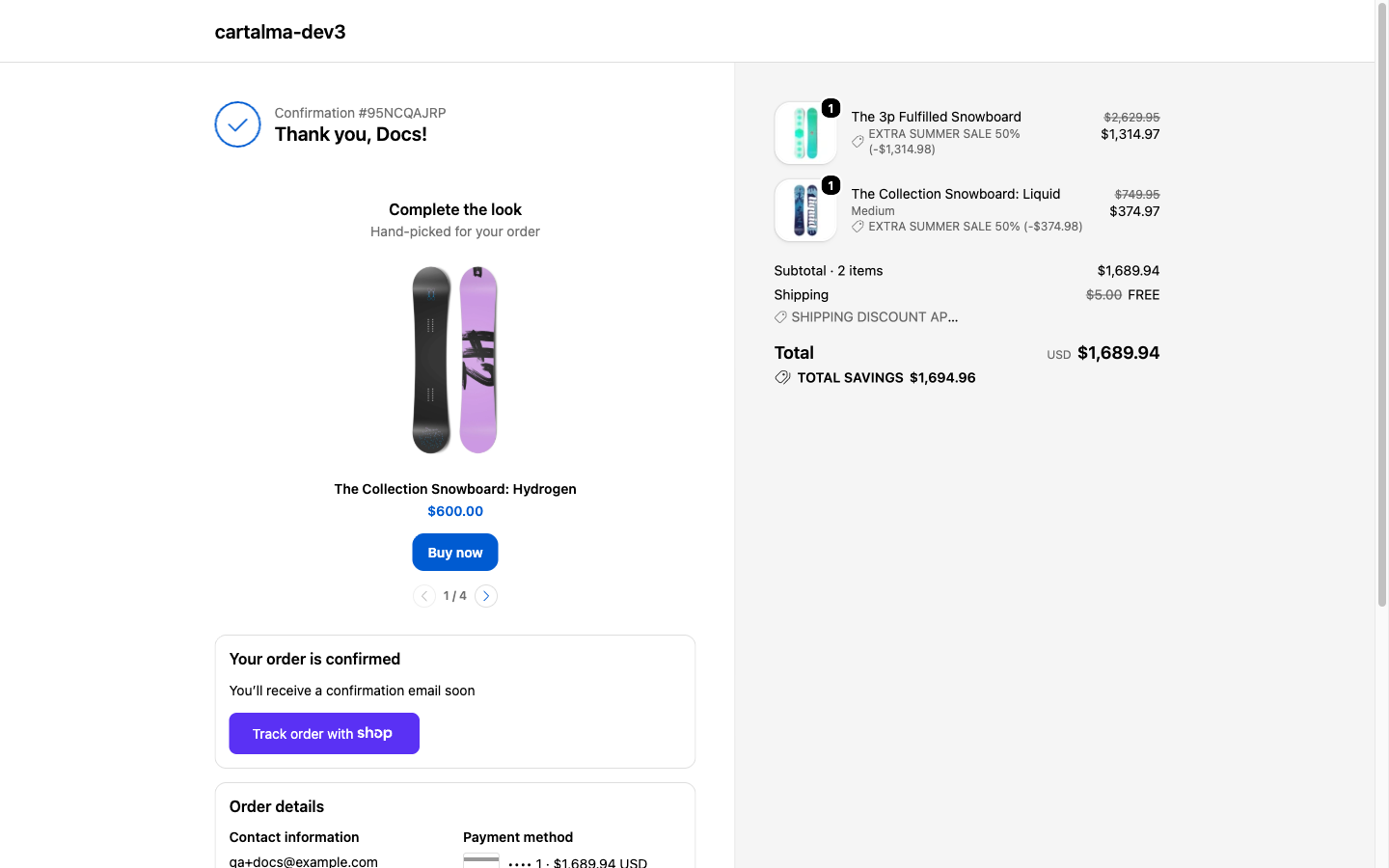
Where the shopper sees it
On the Thank you page in Shopify’s checkout, wherever you place the app block in the checkout editor. It looks like part of the confirmation page because it inherits your checkout branding. Tapping a recommendation starts a new purchase. The original order is already paid and closed, so the product goes into a fresh cart and the shopper checks out again. That also means the discount you set in the editor is not applied, and the recommendation is shown at its normal price.Not to be confused with the post-purchase upsell, which appears one screen earlier, before the confirmation page, and adds to the same order with the discount applied. If you want a discounted one-click add-on, that is the one you want.
Set one up
1
Create it
Upsells → Create upsell → Thank you upsell.
2
Name it
Fill in the Storefront title and, optionally, dates.
3
Choose when to show
Always, above an order total, or only when a specific product is in the order. See below.
4
Pick the products
Manual or Auto.
5
Choose a template and write the copy
In the Thank you template section.
6
Save and copy the ID
The sidebar shows the Upsell ID with a Copy ID & open checkout editor button.
7
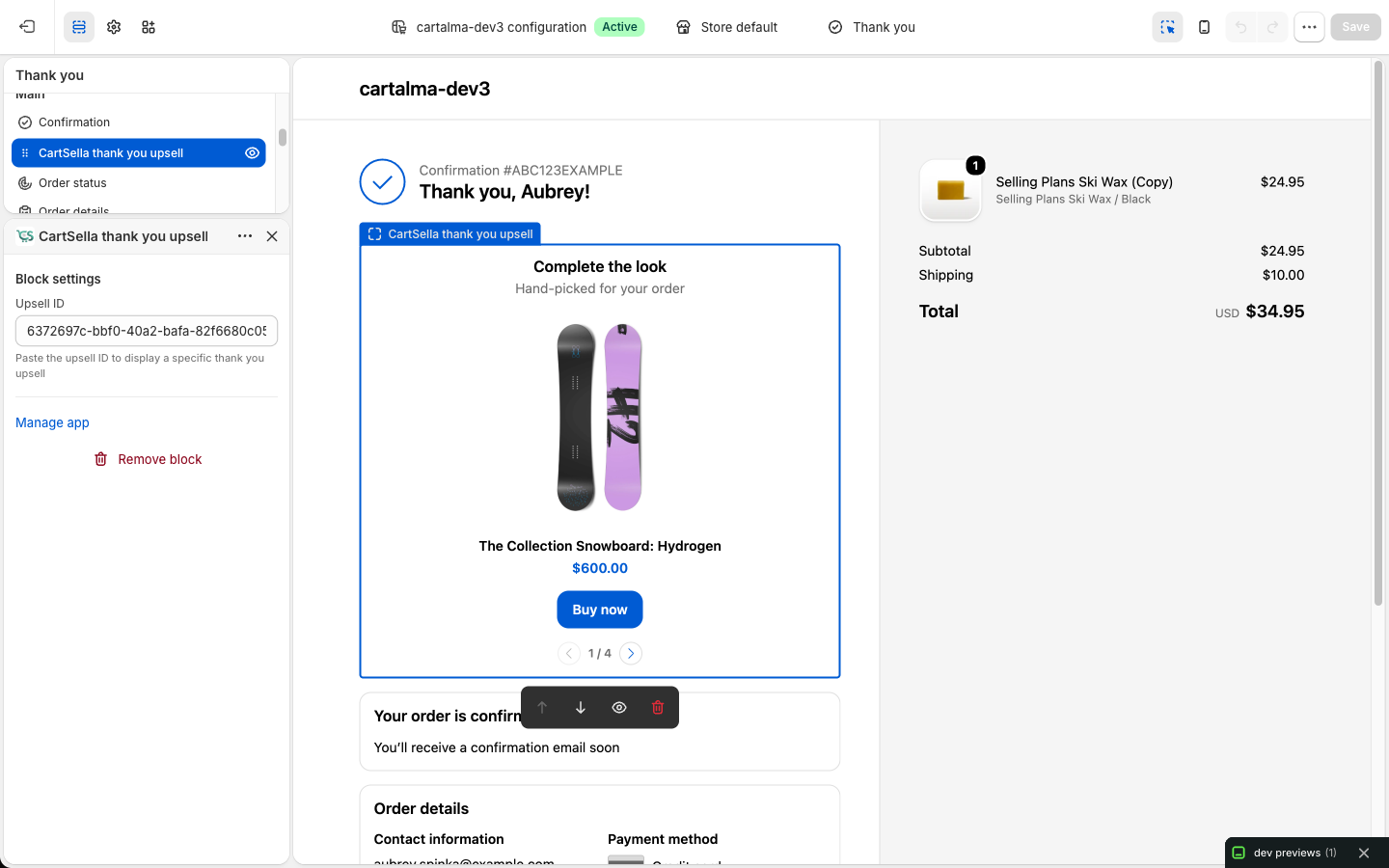
Add the block in the checkout editor
In your Shopify admin, go to Settings → Checkout → Customize, switch to the Thank you page, click Add app block, choose CartSella thank you upsell, paste the ID, and click Save.
When to show
The conditions here read the order that was just placed, not a live cart.Products to recommend
- Manual
- Auto
Hand-pick the products or variants.
Templates and copy
The Thank you template section holds the layout and the words.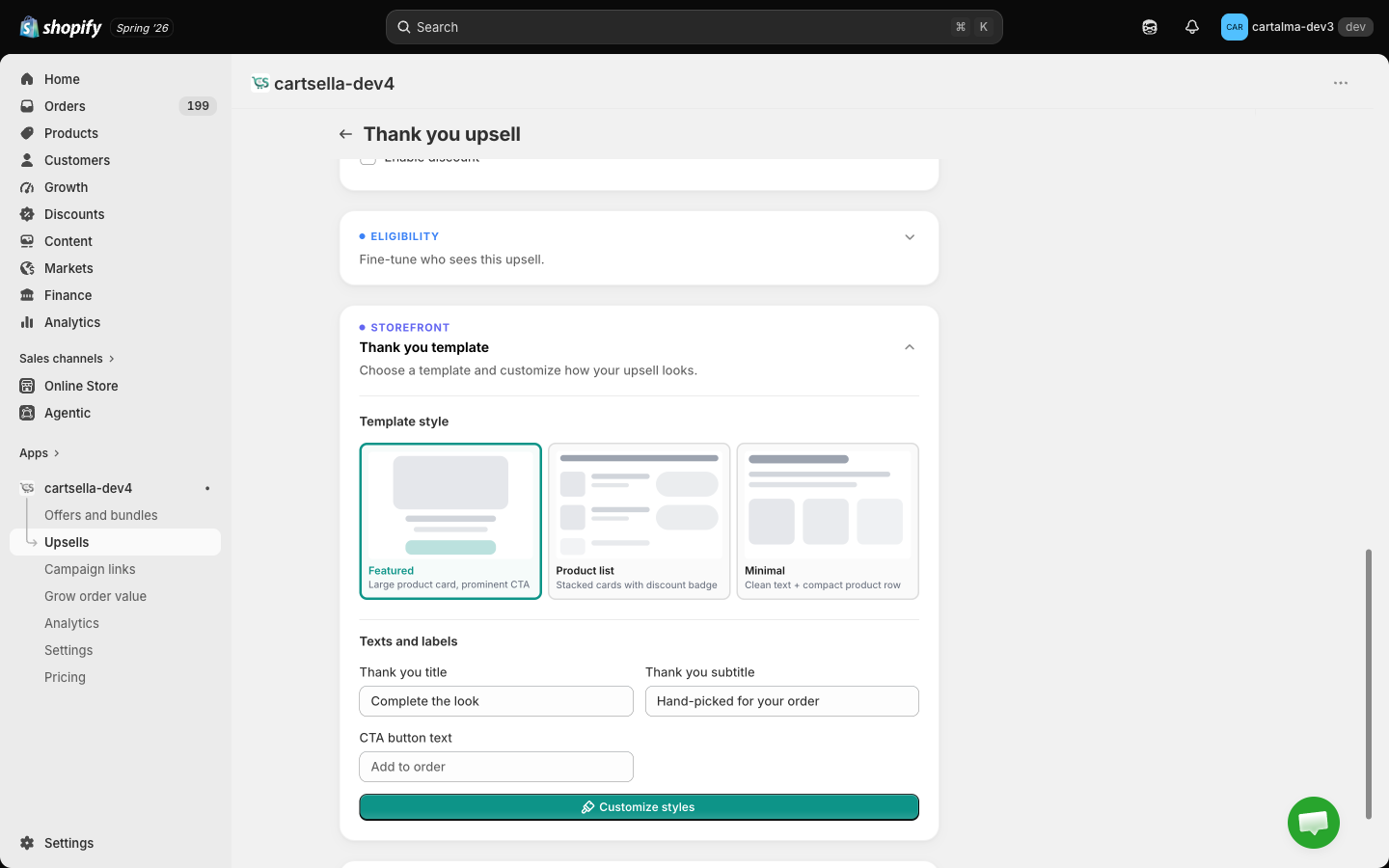
- Title, the heading. Defaults to “Complete the look”.
- Subtitle, the line under it. Defaults to “Hand-picked for your order”.
- Button label, the text on the add button.
Everything else in the editor
Eligibility & targeting
Click Add rule for Traffic source, Customer tags, Customer location or Markets (the last only when your store has more than one market).Customer rules are checked properly here, because at this point Shopify knows who placed the order. A shopper who does not qualify simply does not see the block.
Advanced options
- Priority, 1 to 10, default 5. Lower wins when two thank-you upsells qualify for the same order.
- Maximum uses, total and per customer. See Advanced offer settings.
- Exclude products already in cart, with Match recommended product variants as a sub-option, so you do not recommend what they just bought.
Discount
You can fill one in, but the product is shown at its normal price. CartSella does not advertise a discount the checkout will not honour, and the shopper is starting a brand new order here. To discount these products for real, create an offer and let the upsell recommend the product.How it looks
The style is global. Set it once on the Customize page under Thank you upsell and every thank-you upsell follows it: colours, card style, text sizes and spacing. The Customize styles button in the template section takes you there. The template and the copy stay on each upsell, so two thank-you upsells can say different things in the same style.Limits and gotchas
- Drafts never render. Set the status to Active and save before pasting the ID.
- The confirmation page is a low-pressure moment, not a hard sell. One block, three products at most.
- Because a tap starts a second order, this is not the place for something the shopper “must” have. Use the post-purchase upsell when it needs to land on the same order.
- Only upsells that are live right now count toward your plan’s active upsell cap. See Plans and billing.