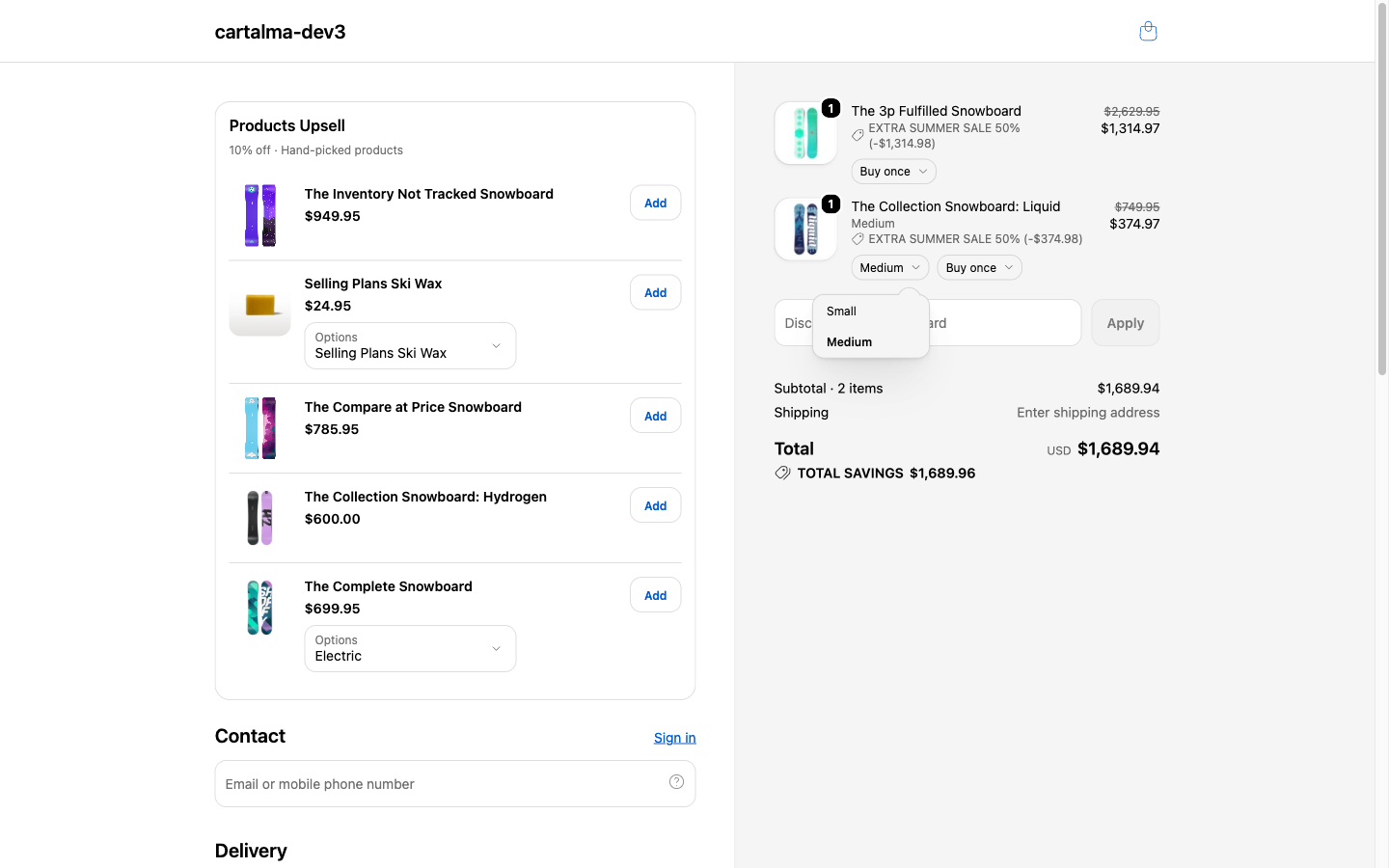
What the shopper can do
Change the variant
A dropdown under the line lists the product’s other variants. Picking one swaps the line in place.
Switch purchase option
A second dropdown offers Buy once or any subscription plan the product sells, each showing its frequency and its savings.
Remove the item
An optional, discreet Remove link. Off unless you turn it on.
Quantity is not part of the editor. Shopify’s checkout does not expose a quantity control on a line, so a shopper who wants two of something still goes back to the cart.
- Only variants that are in stock are offered. The one already in the cart is always listed, even if it sold out after being added, so the dropdown never misrepresents what the shopper is buying.
- The dropdowns only appear when they have something to say. A single-variant product gets no variant dropdown. A product with no subscription plans gets no purchase-option dropdown. A line with nothing to change renders nothing at all.
- A subscription follows the shopper across a variant swap when the new variant sells the same plan. When it does not, the line falls back to a one-time purchase.
- The savings badge is calculated, not typed. A plan that takes 20% off shows “Save 20%” on its own.
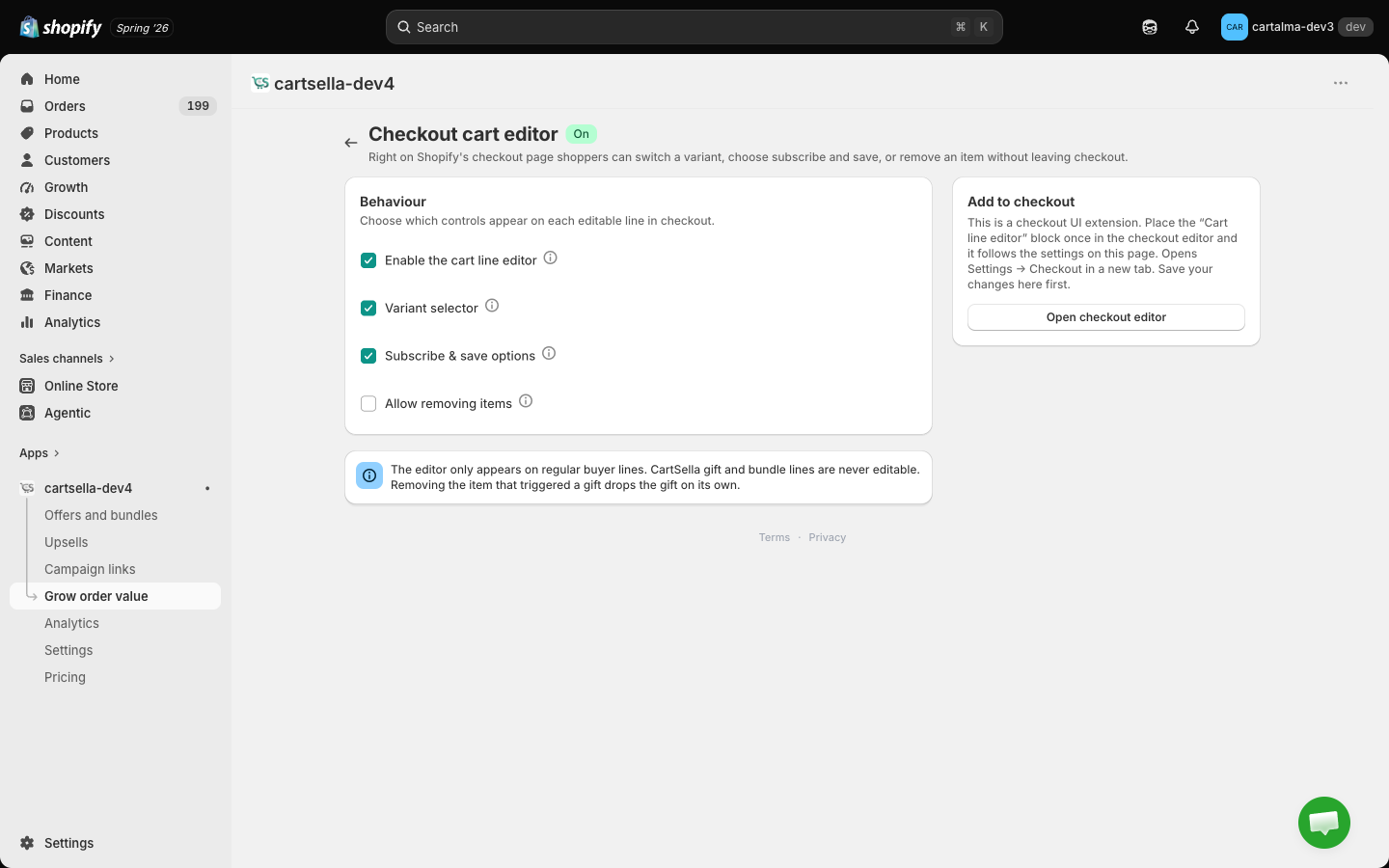
Settings
Every toggle on this page applies to the whole store. There is nothing to configure per product.
The three sub-toggles grey out while the master switch is off.
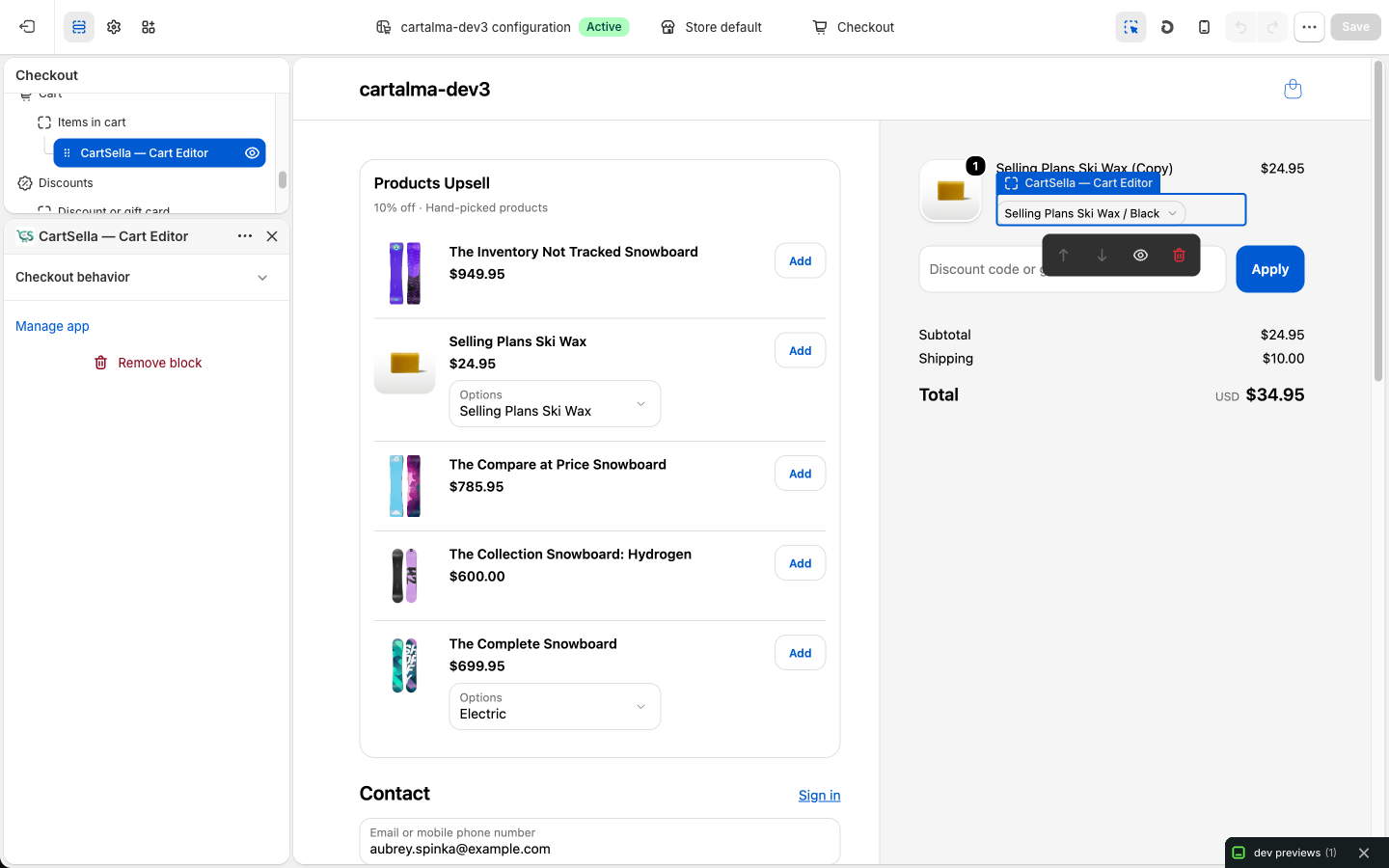
Place it in the Shopify checkout editor
This one is not a theme block. It lives in Shopify’s checkout editor, which is a separate editor from the theme editor, and it will not appear on your checkout until you put it there.1
Save your settings here first
The block reads this page every time it renders. Saving afterwards means opening the checkout editor to look at settings that have not been written yet.
2
Open the checkout editor
Click Open checkout editor in the sidebar of this page. It opens Shopify Settings → Checkout in a new tab. From there, click Customize on your live checkout profile.
3
Add the app block to the order summary
In the checkout editor, select the Order summary section, click Add app block, and pick CartSella — Cart Editor.
4
Save the checkout
Click Save in the checkout editor. The controls now appear under every eligible line.
What is never editable
Free gift lines
Free gift lines
A gift belongs to the offer that granted it, so its variant, its plan and its removal are all locked. Removing the item that triggered the gift is what drops the gift, and that happens on its own.
Bundle lines
Bundle lines
Standard bundles, build-your-bundle and build-a-box lines are priced as a set. Editing one line of a set inside checkout would break the set, so those lines show no controls.
When a shopper edits, discounts follow
Changing a line in checkout re-runs your offers against the new cart. A shopper who removes the trigger of a gift with purchase loses the gift. A shopper who switches to a subscription can pick up a gift that only subscriptions unlock. None of this needs a page reload, and none of it needs a setting.Troubleshooting
Nothing appears in checkout
Nothing appears in checkout
The block has almost certainly not been added in the checkout editor. It is a separate step from the theme editor and from the app embed. Follow the placement steps above.
A line has no dropdowns
A line has no dropdowns
Expected on a single-variant product with no subscription plans, and on gift or bundle lines. Check a line you know has several variants.
A variant is missing from the dropdown
A variant is missing from the dropdown
Sold-out variants are hidden on purpose. Only variants available for purchase are offered.
A settings change did not take effect
A settings change did not take effect
Save this page, then reload the checkout. The block reads the saved settings, not the ones still open in your browser.
Related pages
Cart settings
Every tool in the Grow order value hub.
Delivery rules
Hide, rename or reorder shipping methods at checkout.