
Where the shopper sees it
Wherever you drop the block on your product template: under the buy button, below the description, at the bottom of the page. The block is a normal theme block, so you move it with the rest of your sections. It does not appear anywhere else. For the cart, use the Cart upsell. For a popup, use the Boost popup.Set one up
1
Create it
Upsells → Create upsell → Products Upsell.
2
Name it
The Storefront title doubles as the heading above the recommendations, so write it as shoppers should read it: “You may also like”, “Complete the look”, “Pairs well with”. Add dates if it is seasonal.
3
Pick the products
Manual or Auto, see below.
4
Save and copy the ID
The sidebar shows the Upsell ID once the upsell is saved. Drafts have no ID and never reach the storefront.
5
Add the block to your product template
Click Add to theme in the sidebar, or go to Online Store → Themes → Customize, open the product template, click Add block, and pick CartSella — Upsell under Apps. Paste the ID into the block’s Upsell ID field and click Save.
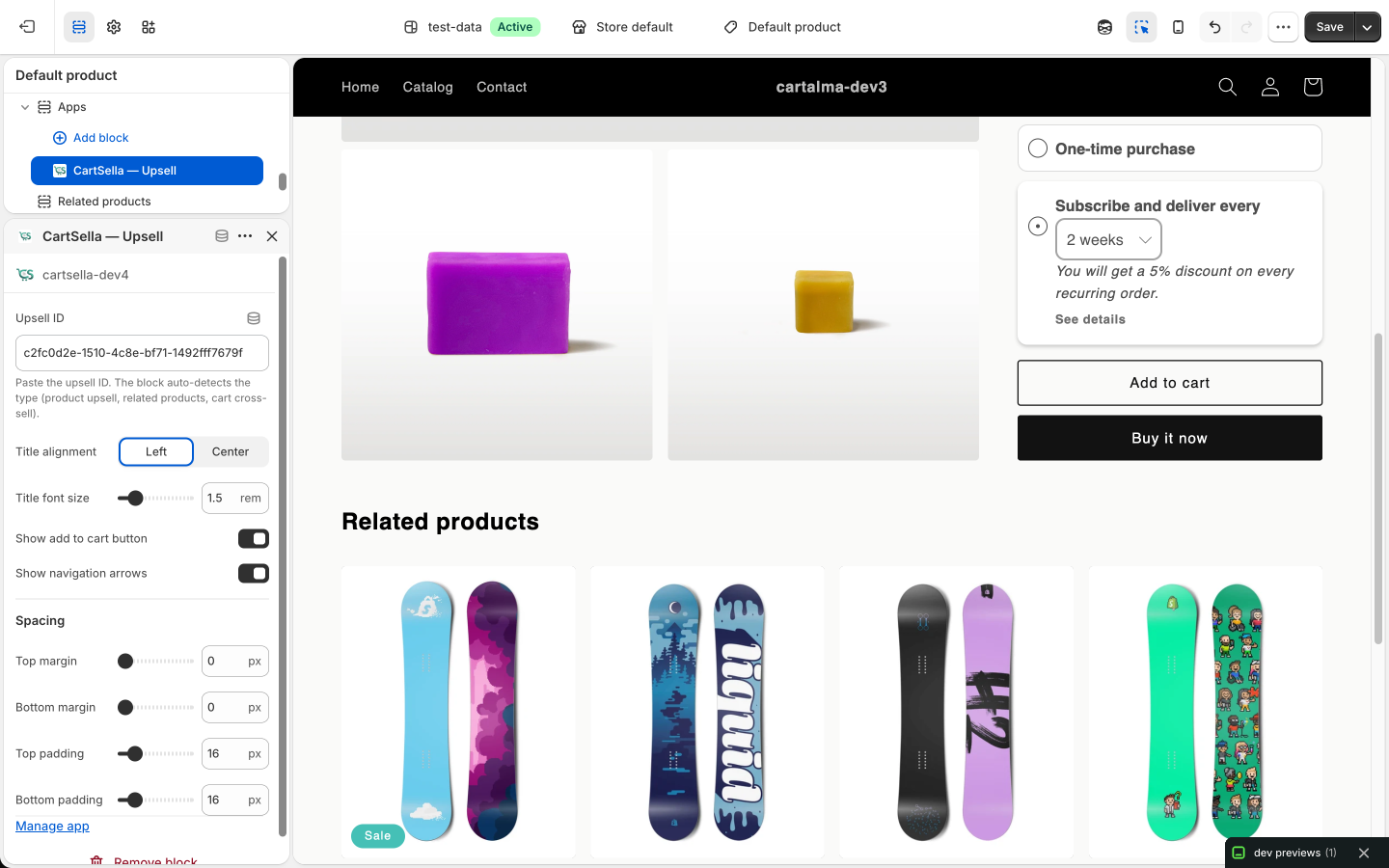
There is a single CartSella — Upsell block for both product-page and cart recommendations. It works out which one you meant from the ID you paste, so you never pick a different block per type. The sidebar card in the editor tells you whether the block is already on your published theme.
Block settings, in the theme editor
These live in Shopify’s theme editor, not in CartSella, because they are about how the block sits in your layout:Products to recommend
- Manual
- Auto
Hand-pick products or variants. Best when you know what pairs with what, and the only way to be sure a specific item shows.
Everything in the editor
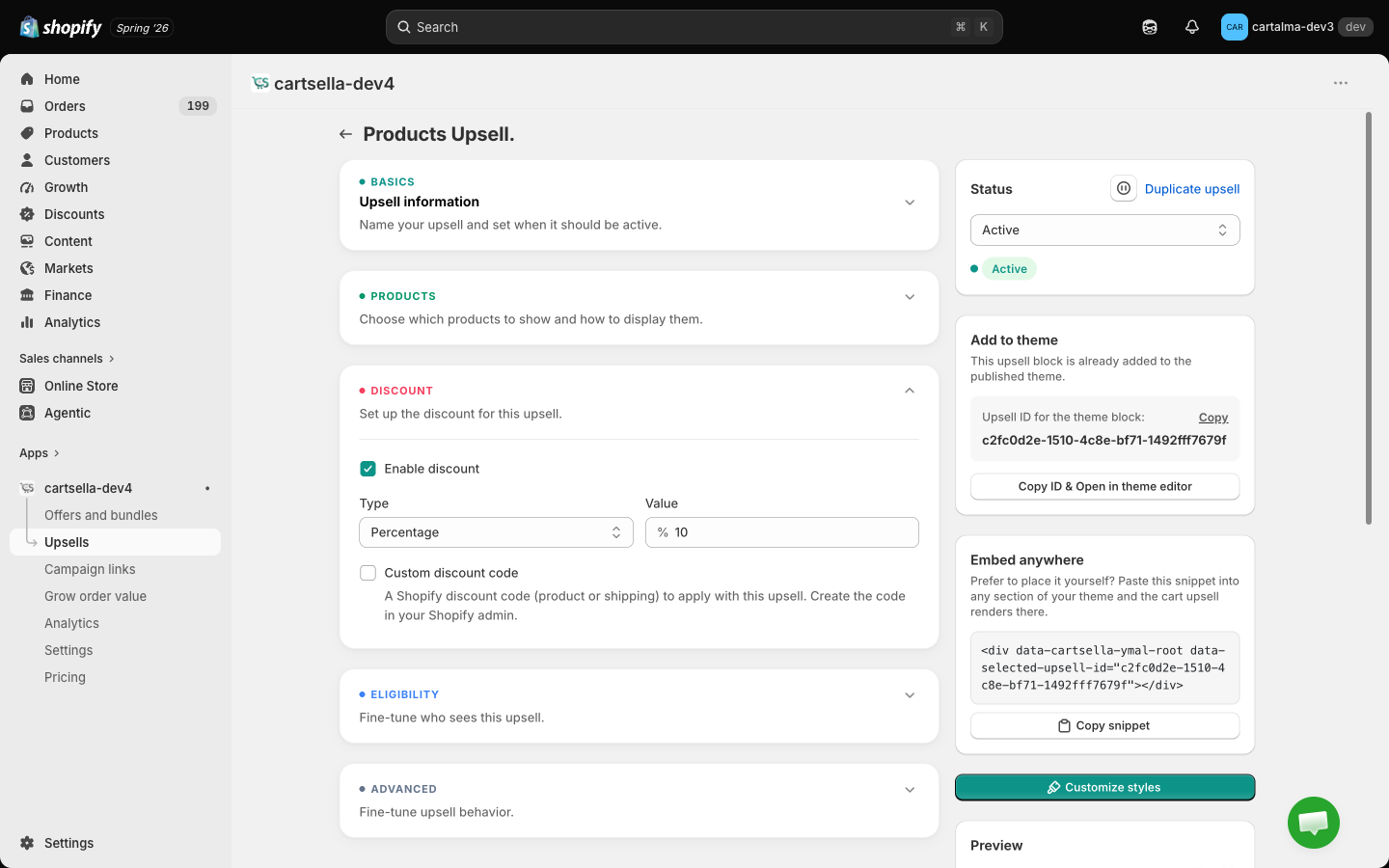
There is no When to show section. That is deliberate: this block always renders where you placed it.
Eligibility & targeting
Click Add rule:Customer tag rules only filter shoppers who are logged in. A guest is never hidden by them, because there is no account to check. Location and market rules always apply. If a rule is set and the storefront cannot check it at all, the block hides rather than showing something you did not intend.
Advanced options
- Priority, 1 to 10, default 5. Lower wins when two Products Upsells qualify for the same page.
- Maximum uses, a total cap and a per-customer cap. Both off by default. See Advanced offer settings.
- Exclude products already in cart, with Match recommended product variants as a sub-option that filters only the exact variant instead of the whole product.
- Offer subscribe & save, adds a “Subscribe & save” toggle to any recommended product that has a Shopify selling plan. The saving comes from your subscription app, not from CartSella.
Discount
You can fill in a discount here, but on the product page the recommendation is shown at its normal price. CartSella does not advertise a discount the checkout will not honour. If you want a real, enforced discount on these products, create an offer and let the upsell recommend the product.How it looks
The look is global. Set it once on the Customize page under You may also like and it applies to every Products Upsell on the store. The Customize styles button in the editor sidebar takes you straight there.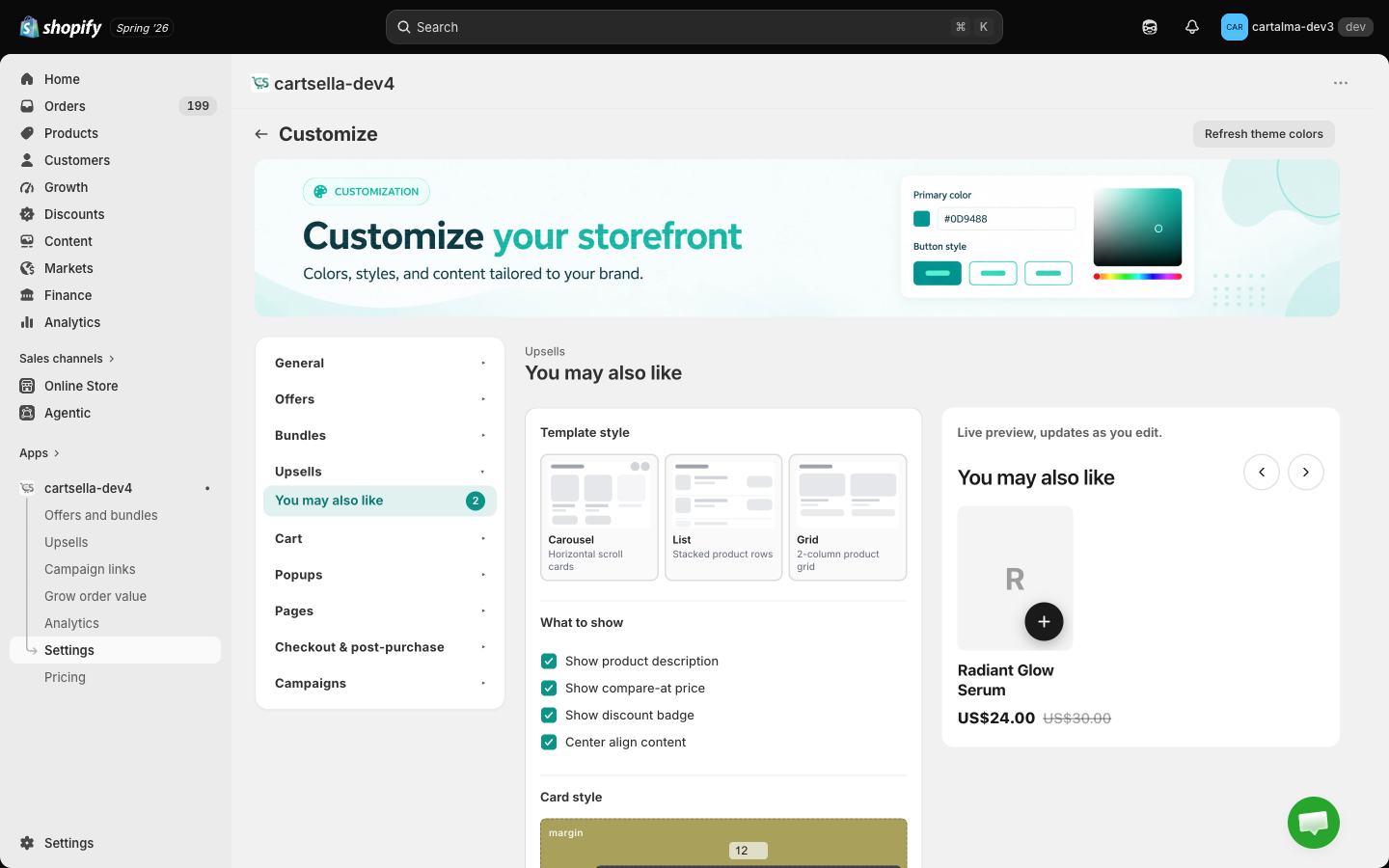
- Template: carousel, vertical list or grid.
- Card button: a small ”+” on the product image, or a full-width Add button under the card.
- Cards per device (carousel only): how many cards are visible on mobile, tablet, desktop and wide screens.
- What to show: product description, compare-at price, discount badge, centre alignment.
- Card style: gap between cards, border, inner padding, corner radii, shadow, hover scale, image aspect ratio.
- Text sizes and Colours, which inherit your theme until you switch that off.
Limits and gotchas
- The block shows nothing if the upsell is a Draft. Set it to Active, then save.
- If you paste an offer ID instead of an upsell ID, the theme editor tells you so. Offers use the CartSella — Offers block.
- The CartSella app embed must be on. See Storefront blocks.
- Only upsells that are live right now count toward your plan’s active upsell cap. See Plans and billing.
- Three to five recommendations converts better than ten. More choice slows the decision down.