Scheduling
Start date and End date sit in Basics, side by side.- Leave the start date blank to go live as soon as the offer is Active.
- Leave the end date blank for an ongoing offer.
- When the end date passes, the offer becomes Expired and stops applying.
- Give an expired offer a new end date in the future and it goes straight back to Active. You do not have to switch it on by hand.
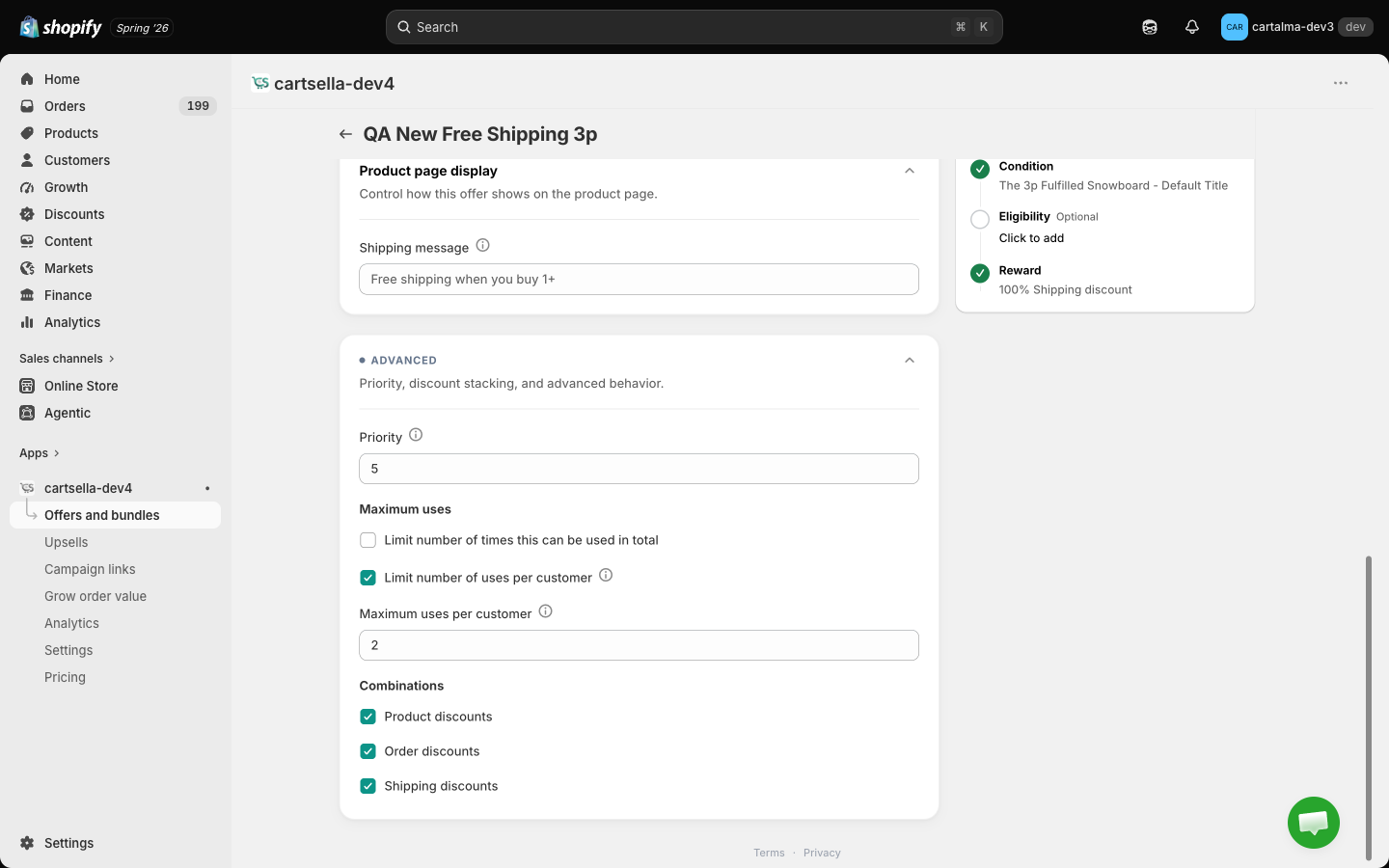
Priority
Priority decides which offer wins when several compete for the same cart. The range is 1 to 10, 1 is the top priority and is applied first, 10 is the lowest, and the default is 5. Values outside the range are pulled back into it. Use it when two offers could reasonably apply to the same items:- Two shipping thresholds, so the better one wins once the shopper reaches it.
- A store-wide volume discount and a collection-specific one on the same product.
- Two delivery rules that both target the shipping method. Rules that do the same thing to the same method are settled by priority, while rules with different actions can all apply.
Combine with other discounts
Combinations has three checkboxes: Product discounts, Order discounts and Shipping discounts. They control whether Shopify lets a CartSella discount stack with other discounts of that kind, including your own Shopify discount codes. Turning a category off can block unrelated discounts across the whole store, most visibly your discount codes. Change it deliberately, and place a test order afterwards. Combinations is hidden on delivery rules, because a delivery rule applies no discount.Usage limits
Maximum uses holds two independent caps, both off by default. Tick a box and the value field appears, seeded at 1.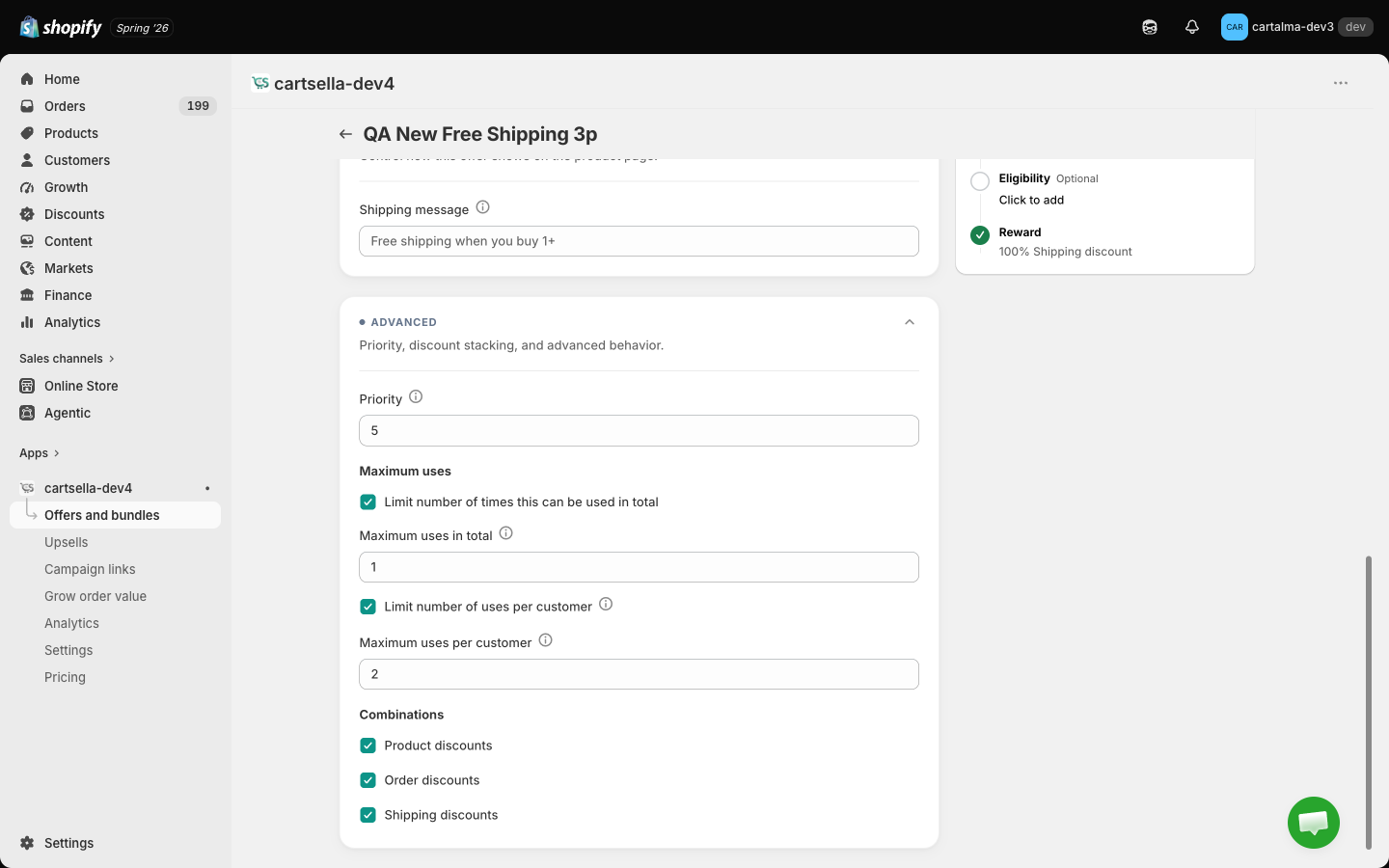
Limit number of times this can be used in total
The total number of uses across every customer. When the limit is reached, the offer switches itself off. The offers list marks it “Paused by CartSella: usage limit reached”, and the editor shows a banner with the exact count, for example “This offer has been used 200 of 200 times”. Raise the limit, or untick the cap, to bring it back. Two things worth knowing:- The count comes from the orders CartSella attributed to the offer, so it is recomputed from your order history rather than kept as a running counter. A handful of extra uses can slip through when several shoppers check out at the same moment. That is deliberate: the alternative is a counter in the checkout path, which is slower and more fragile than the overshoot it prevents.
- The cap is also checked when you save. Turning a cap on, or lowering it, when the uses already exist switches the offer off immediately rather than waiting for the next order.
Limit number of uses per customer
How many times one customer can use the offer.This only counts customers with an account. Shoppers checking out as guests are not limited, which matches how Shopify’s own per-customer limits behave.
Eligibility and targeting
Leave this section empty and the offer applies to everyone. Add rules to narrow who qualifies. Every rule you add must pass, so two rules mean the shopper has to satisfy both. Click Add rule to open the picker.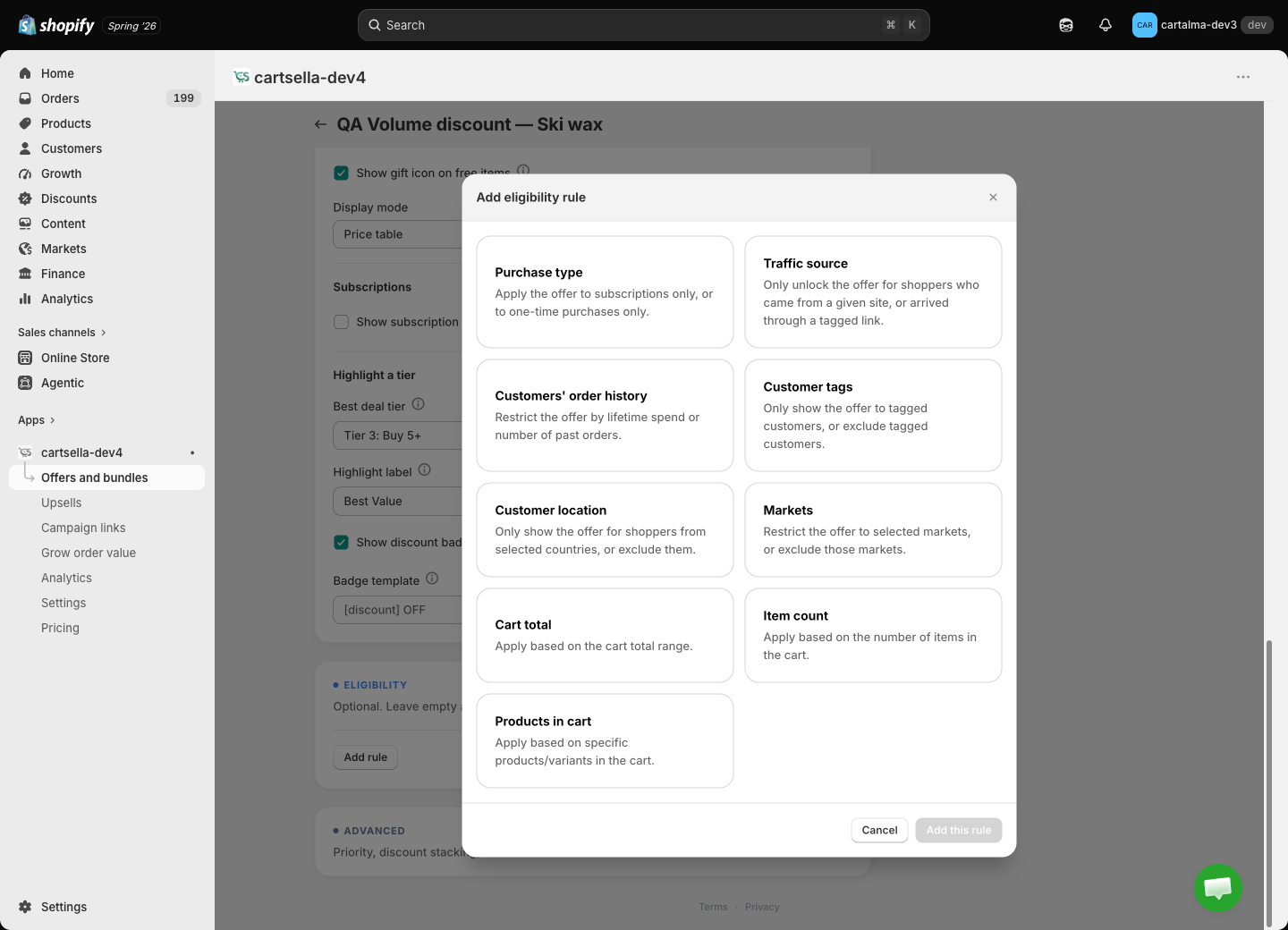
Not every rule is offered on every type:
- Traffic source is missing from gift with purchase and shipping discounts. Their reward is applied at checkout, where a browser signal cannot be read, so the rule would be a promise nothing keeps.
- Cart weight is offered on gift offers only, for the same reason.
- Delivery rules get their own short list: delivery location, purchase type, cart total, item count and products in cart. See Delivery rules.
Purchase type
Choose Subscription or One-time purchase. On a subscription rule you can also tick Restrict to a specific selling plan and pick the plan, though only when your store actually has selling plans to point at. The checkbox says why when it cannot be ticked.Purchase type does not hide anything on your storefront. A product page cannot reliably tell which purchase type the shopper will end up choosing, and guessing made blocks flicker in and out against a control that could not be trusted. It is still enforced where it matters: a gift is not added to a cart that does not qualify, and the discount is checked line by line at checkout.
Traffic source
Match on has two options.- Site they came from: a comma-separated list of domains. A domain also matches its subdomains, so
x.comcoversmobile.x.com. Shoppers arriving from your own store are not a referral and never match. - URL they arrived at: a pattern matched against the path and query of the first page the shopper opened, remembered for the rest of their visit. Plain text works as a “contains” match, so
utm_source=instagramis enough on its own. A JavaScript regular expression also works. Do not wrap it in slashes.
Customer tags and order history
Tags are picked from your store’s existing tags, or typed in if you are gating on one you have not applied to anyone yet. Tick the exclude option to invert the rule. Order history exposes the two facts that can be checked at checkout: Total spent in order history with a minimum amount, and Total number of orders placed with a minimum count.On your storefront, these two rules only filter shoppers who are signed in. A signed-out visitor still sees the offer. This is deliberate: neither fact exists for a guest, so enforcing them would hide the offer from every logged-out visitor in your store. The checkout re-checks the rule against the real customer record before any discount or gift is granted, so nobody keeps a reward they do not qualify for.
Country and market targeting
Customer location takes a list of countries, Markets takes a list of your Shopify markets, and both have an exclude option. Unlike customer tags, these two always filter, signed in or not. They describe whether the offer is on sale in that storefront at all, not whether a particular shopper qualifies, so there is nothing to wait for a login to answer.Cart rules
Cart total, Item count, Cart weight and Products in cart are all read from the live cart, so they turn the offer on and off as the shopper edits it. Cart total takes a minimum, a maximum or both. Cart weight is measured in grams. On a gift offer these are true gates on the gift itself: if the cart drops back below the threshold, the gift is taken out again automatically.What happens when a rule cannot be checked
If a rule is configured but CartSella cannot evaluate it on a given surface, the offer is hidden rather than shown. The principle is that you should never promise something the checkout then refuses. The one exception is the per-customer usage limit, which passes when the count is unknown. A guest has no counter, and treating that as “unknown, therefore hide” would make a capped offer disappear for the whole store.Related
- Offers overview, the sections every editor shares
- Delivery rules, which use a shorter set of filters
- Plans and billing, for the active-offer limits
- Troubleshooting, when an offer is not appearing