Set one up
1
Create the offer
Offers, then Create offer, then Discounts, then Volume discount. Two starting templates: Tiered percentage (2 / 3 / 5 for 10 / 15 / 20% off) and Fixed amount break (buy 2 save 5, buy 4 save 12).
2
Name it
Title customers see is the heading on your storefront and is required. Internal name is private and copies that title when left blank.
3
Pick the eligible products
In Eligible products, choose products, variants, collections, vendors or product types.
4
Choose how quantity is counted
Quantity logic decides whether each product counts on its own or the whole cart counts together.
5
Add the tiers
Each tier is a minimum quantity plus a discount. Presets fill in a common ladder for you.
6
Show it on the product page
Copy the offer ID, add the CartSella — Offers block to your product template, and paste the ID in.
7
Activate it
Set the status to Active and save.
Eligible products
The Applies to selector takes collections, products and variants in one selection, and filters by vendor or product type. Tick the exclude option to invert it, so the discount applies to everything in the cart except your selection. Exclude with nothing selected means every product in the store.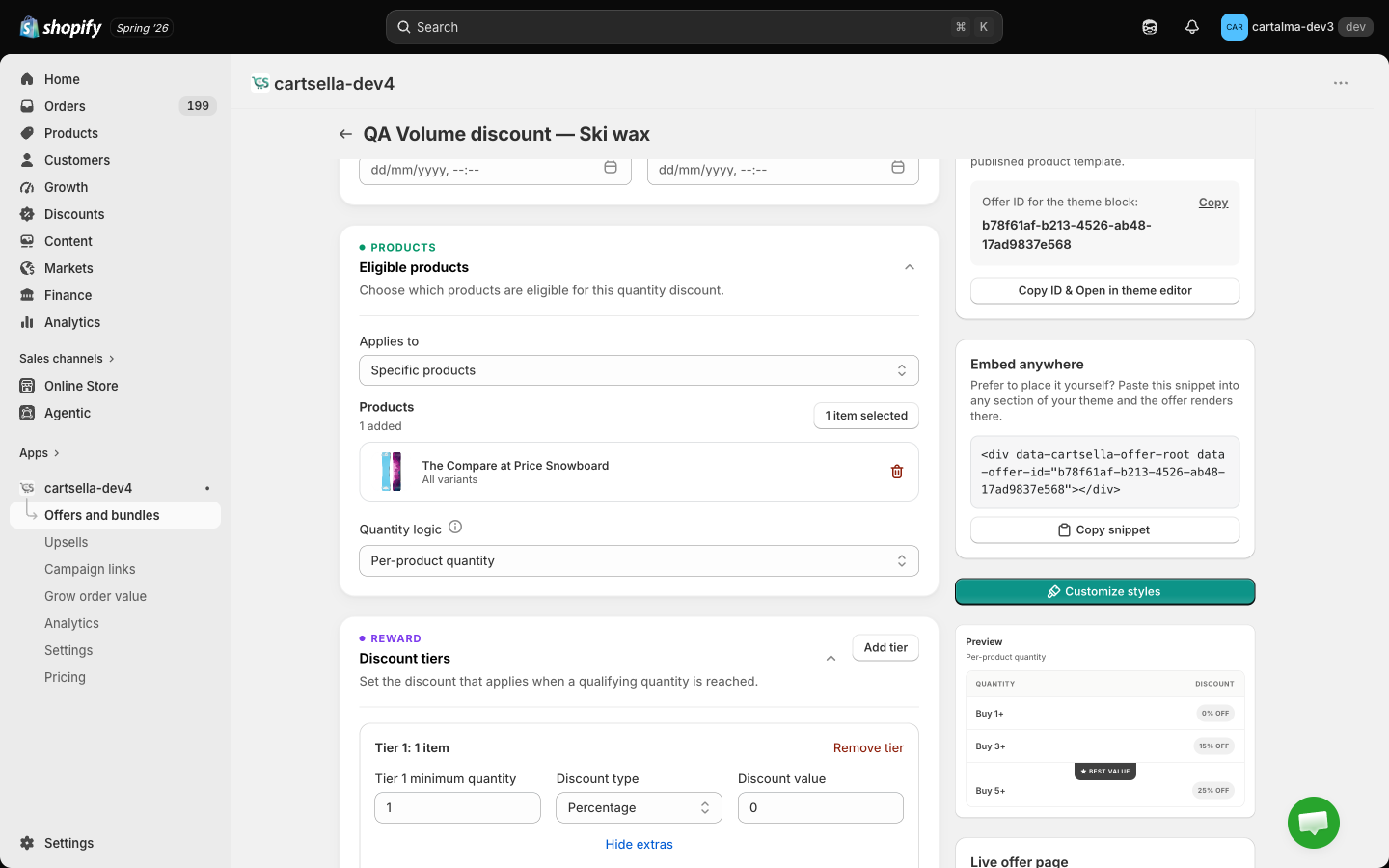
Quantity logic
Use Total cart items for “any 5 items from this collection, 20% off”. Use Per-product quantity for classic multi-buy pricing on a single item.
The tiers
Each tier card holds the three things that decide money, up front: Tier minimum quantity, Discount type (percentage or fixed amount) and Discount value.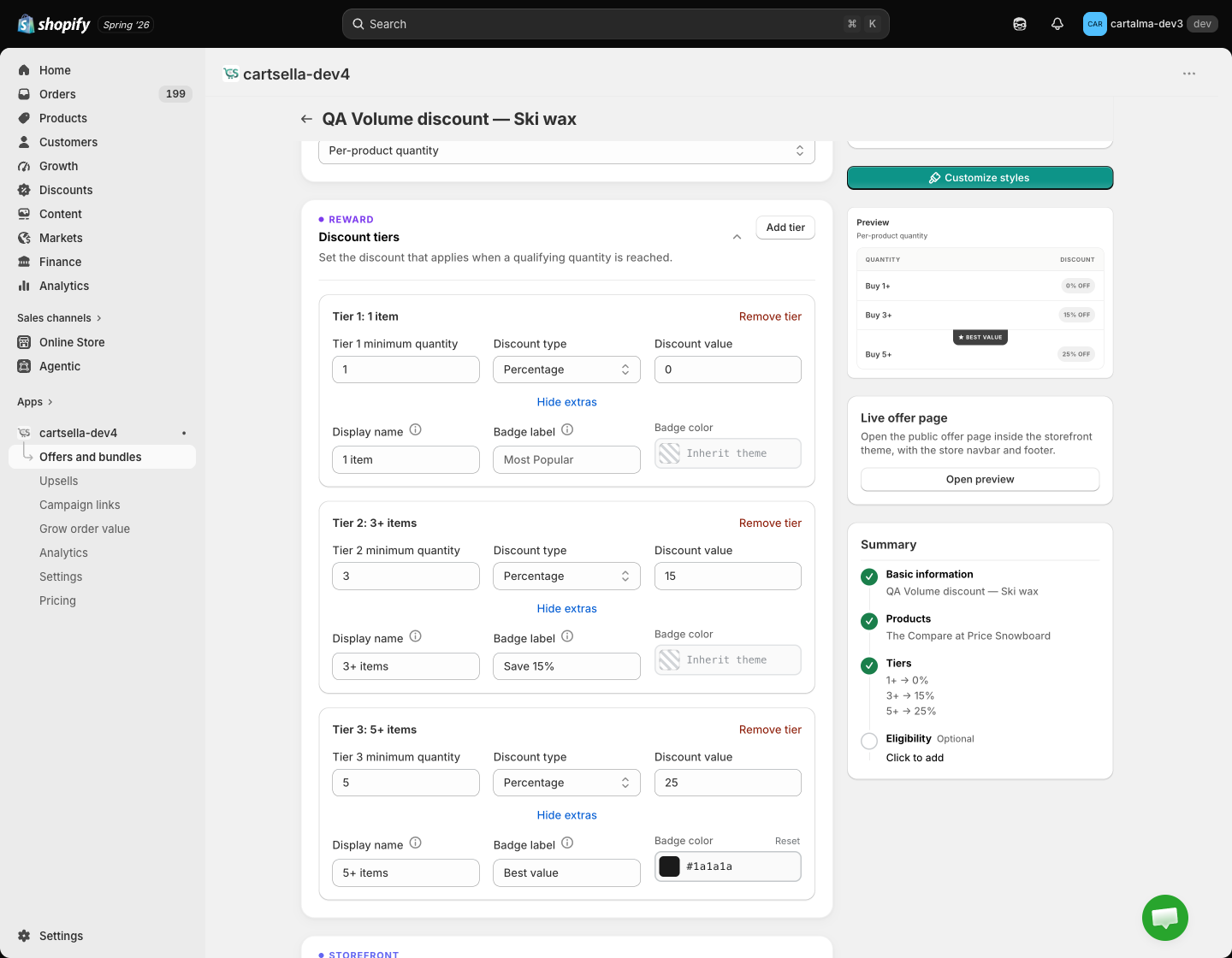
A fixed-amount tier takes that amount off each eligible line, not off the order. “Buy 2, save 5” on three items is a bigger discount than on two.
Product page display
This section holds the functional settings only. Colours, fonts and shared text live on the Customize page and apply to every volume discount at once.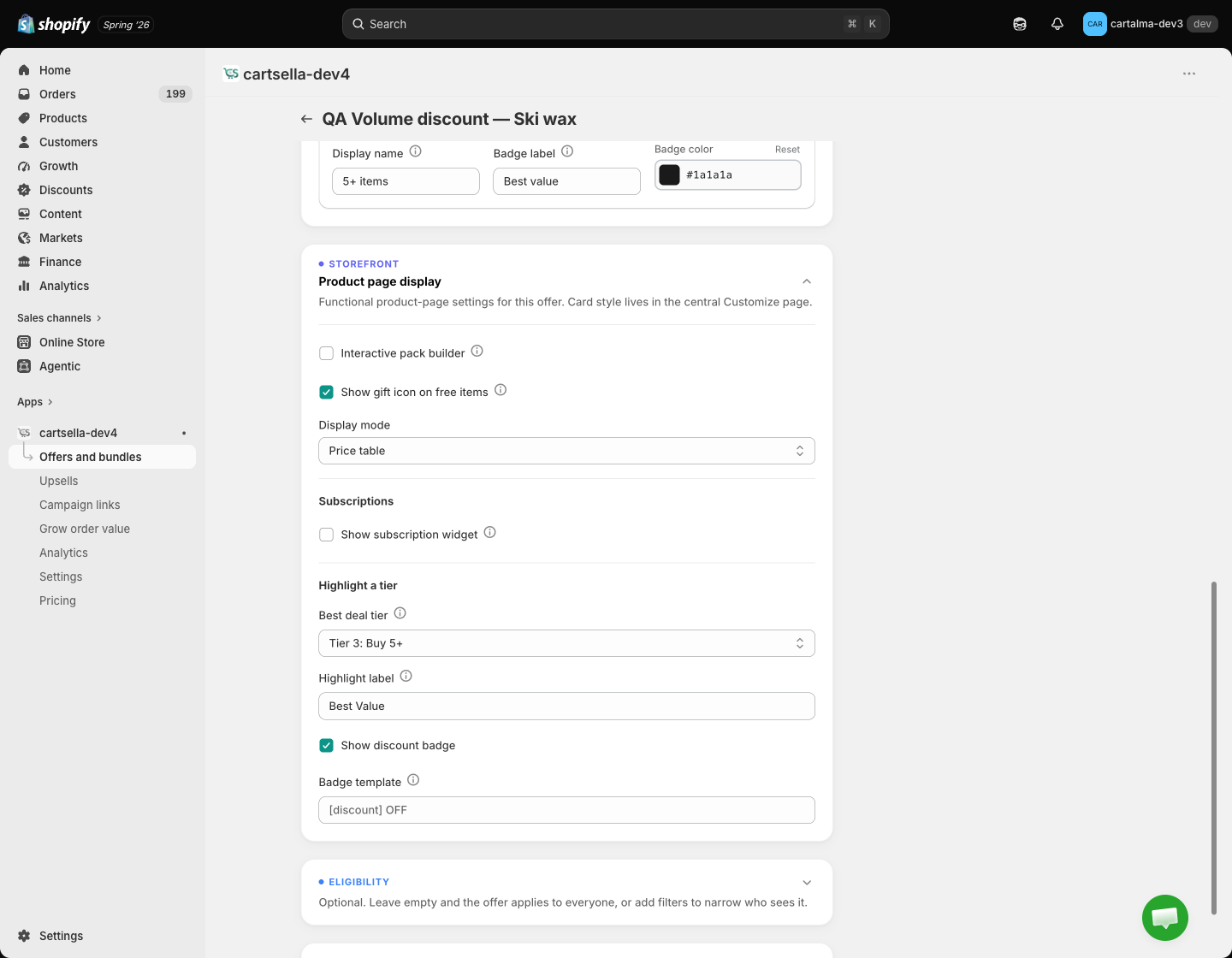
The three storefront looks
- Message card
- Price table
- Interactive pack builder
A single line built from your message template, with an optional discount badge. The quietest option, and the right one when the discount is simple.

Eligibility
Eligibility and targeting on a volume discount accepts purchase type, traffic source, customers’ order history, customer tags, customer location, markets, cart total, item count and products in cart. Cart weight is offered on gift offers only. Rules are combined with AND, so every rule you add has to pass. Customer tags and order history only filter shoppers who are signed in. Full detail in Advanced settings.Advanced
Advanced options holds Priority, Maximum uses and Combinations, the same on every offer type. See Advanced settings.Examples
Related
- Pack selector, when the shopper should choose the pack themselves
- Cheapest-item discount, when the reward is one free item rather than a percentage
- Advanced settings, priority, stacking and usage limits
- Theme blocks, where offers appear in your theme