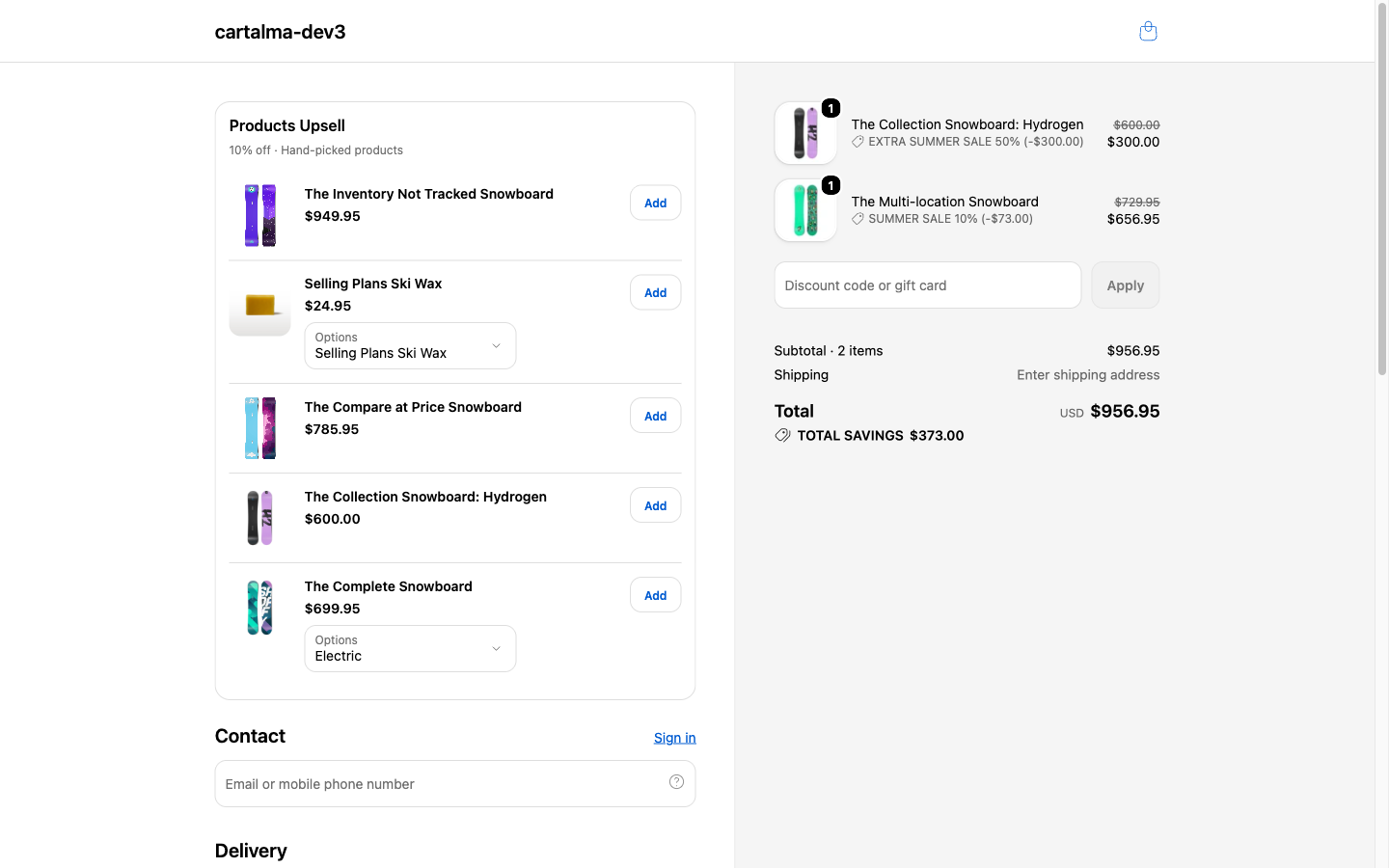
Where the shopper sees it
Inside checkout, at whichever spot you place the app block in Shopify’s checkout editor. Common spots are above or below the order summary, and after the shipping method. The look, fonts and colours come from your Shopify checkout branding. That is Shopify’s rule, not ours, and it is a good one: an upsell that matches the checkout gets tapped, one that looks bolted on gets ignored.Pick a style
CartSella asks for a style the moment you create the upsell. You can switch it later in the editor.Product recommendation
Suggest products, hand-picked or automatic, with an Add button and an optional variant selector.
Subscription upgrade
Offer your products with a “subscribe and save” toggle. The saving comes from your subscription app’s selling plans.
Cross-sell
Recommend products that go with what is already in the cart, hiding anything the shopper has already added.
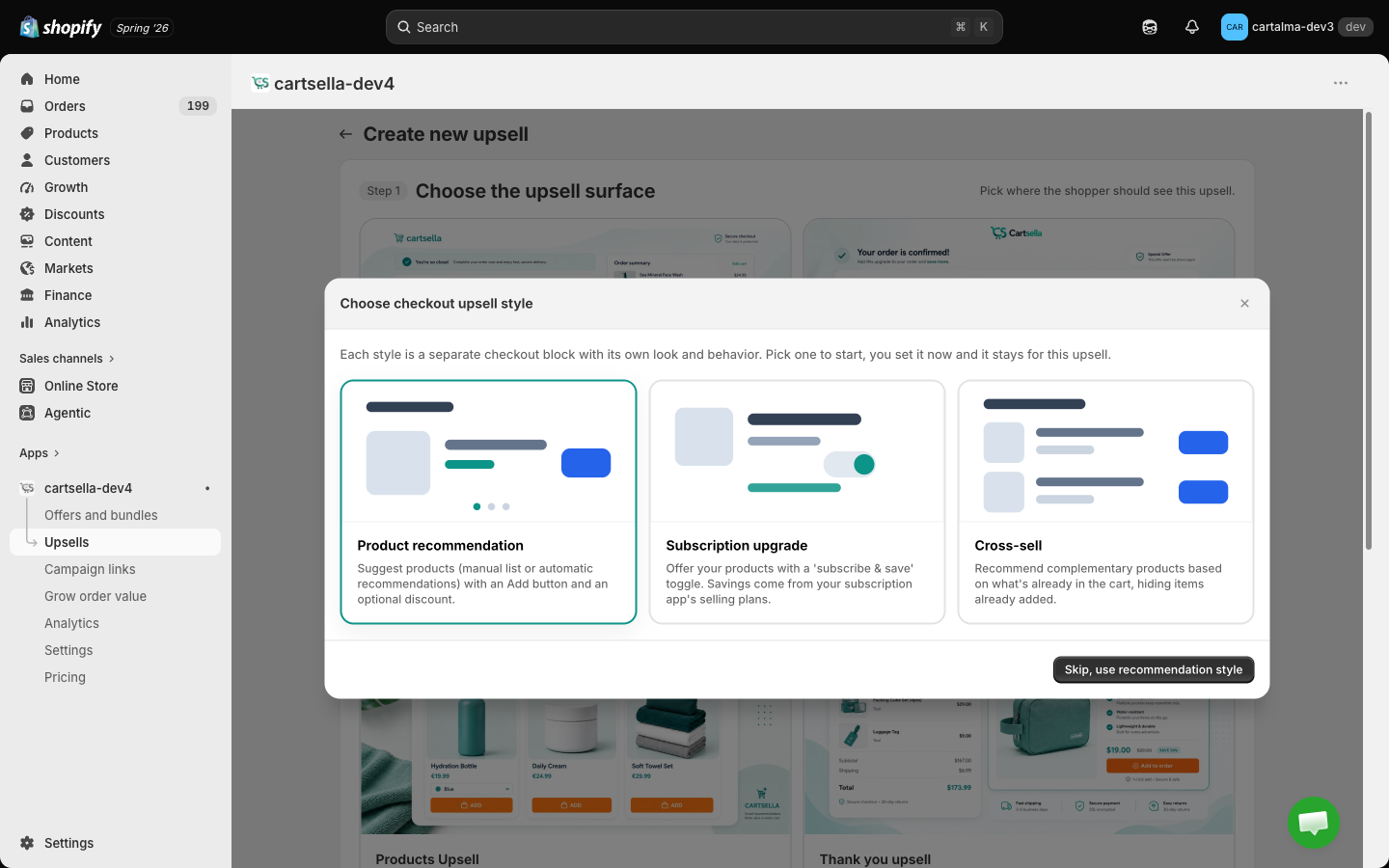
The Subscription upgrade style has no Discount section. Its saving is whatever your subscription app’s selling plan offers, so a CartSella discount on top would be a number nobody honours.
Set one up
1
Create it
Upsells → Create upsell → Checkout upsell, then pick one of the three styles.
2
Name it
The Storefront title is the heading shoppers read in checkout. Add dates if it is seasonal.
3
Choose when to show
Always, above a cart total, or only when a specific product is in the cart.
4
Pick the products
Manual or Auto.
5
Save and copy the ID
The sidebar shows the Upsell ID with a Copy ID & open checkout editor button.
6
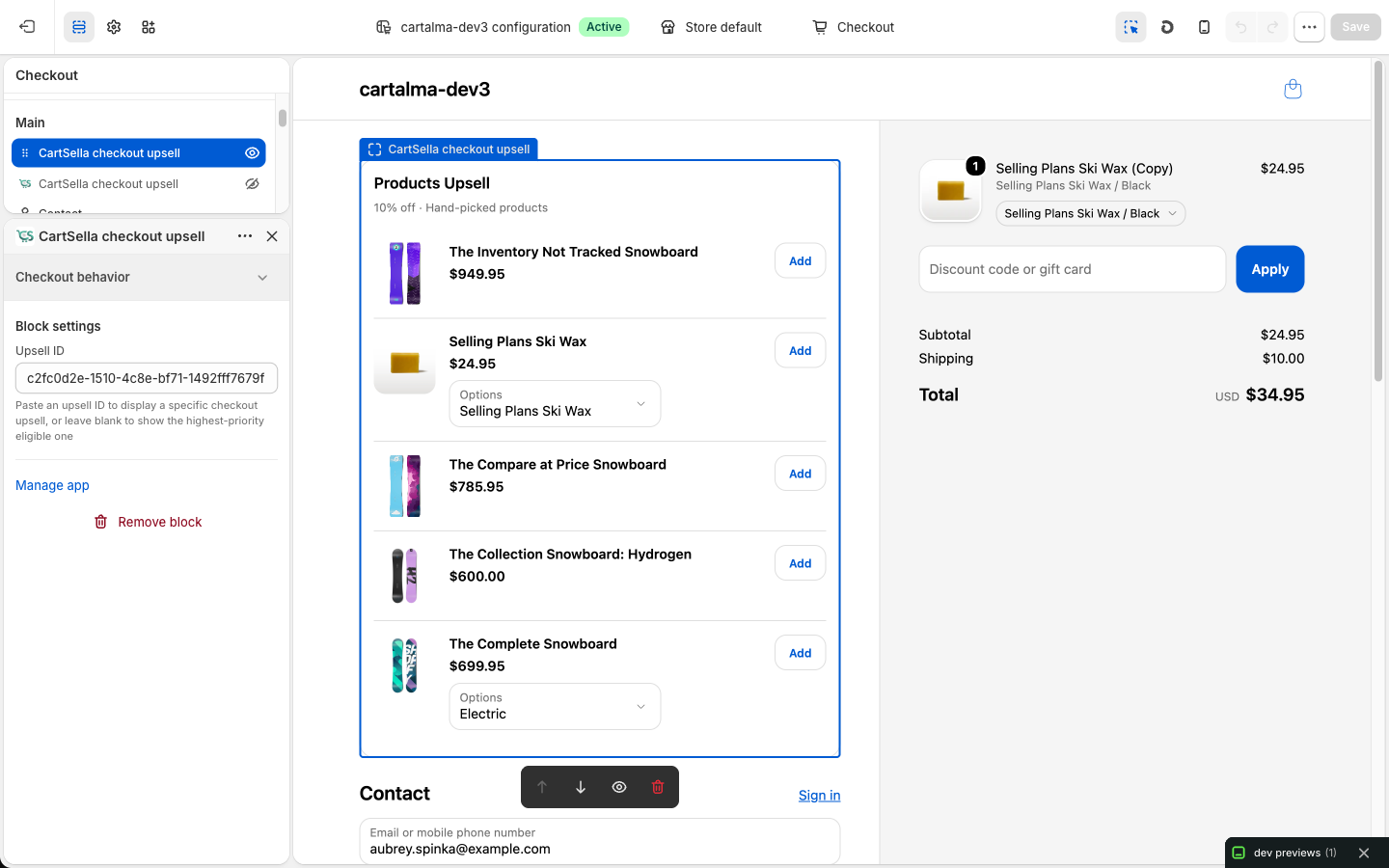
Add the block in the checkout editor
In your Shopify admin, go to Settings → Checkout → Customize. Click Add app block where you want it, choose CartSella checkout upsell, paste the ID into the block’s Upsell ID field, and click Save.
When to show
Products to recommend
- Manual
- Auto
Hand-pick products or variants. Best for a small, high-margin set of add-ons.
Checkout display
This section is where the copy and the toggles live. Colours and fonts are not here, because checkout branding owns them.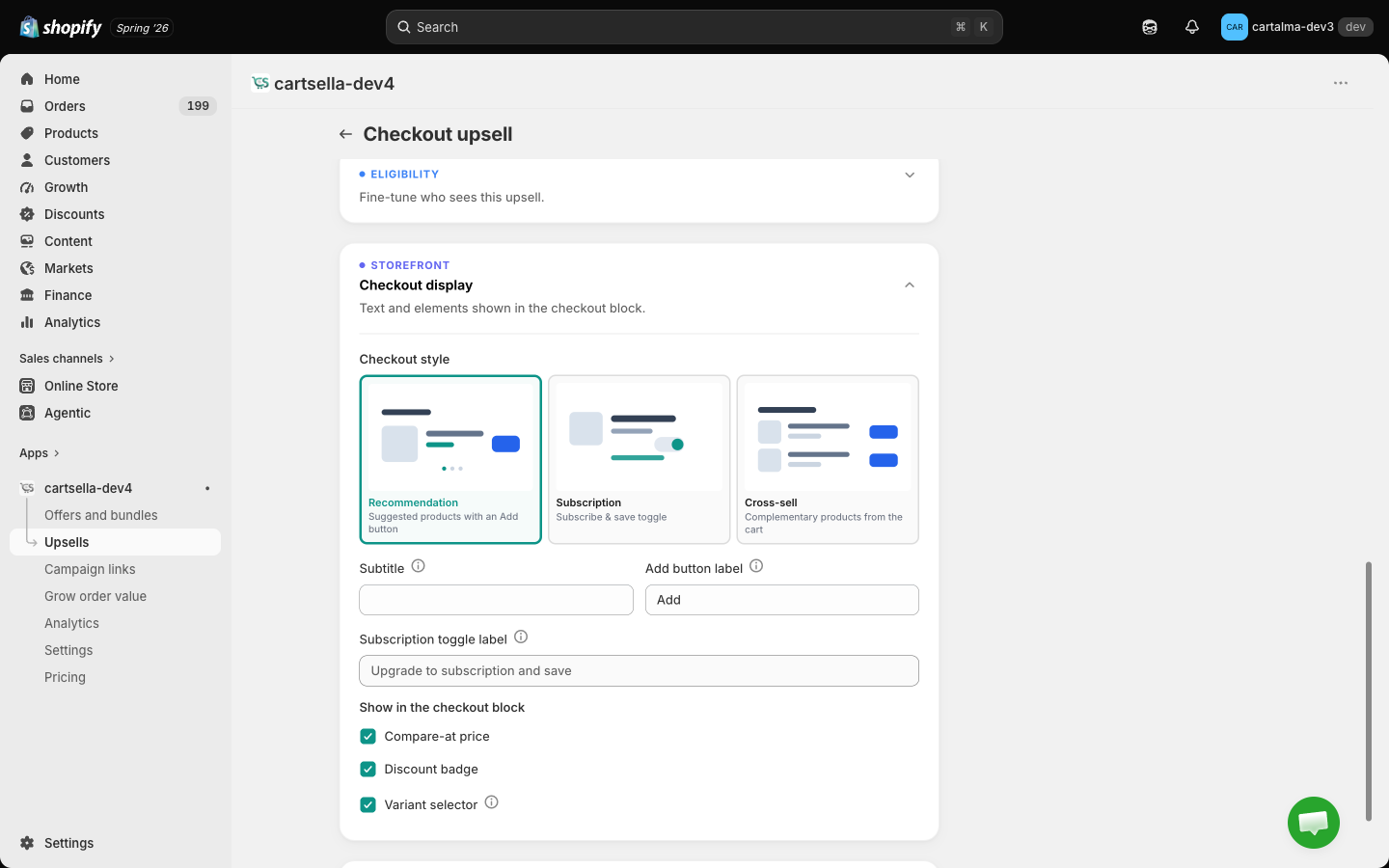
Eligibility and advanced
Eligibility & targeting offers Traffic source, Customer tags, Customer location and Markets (the last only when your store has more than one market).Customer rules are checked properly at checkout, because by then Shopify knows who the shopper is. A shopper who does not qualify simply does not see the block. This is stricter than the storefront, where a customer tag rule never hides anything from a guest.
- Priority, 1 to 10, default 5. Decides which checkout upsell an unpinned block picks.
- Maximum uses, total and per customer. See Advanced offer settings.
- Exclude products already in cart, with Match recommended product variants as a sub-option. The Cross-sell style hides already-added items on its own regardless.
Discount
Fill one in and the product is still shown at its normal price, unless you are using the Subscription upgrade style, which has no Discount section at all. CartSella does not advertise a discount the checkout will not honour. For a real discount, create an offer and let the upsell recommend the product.Limits and gotchas
- Shopify Plus only. There is no workaround. On other plans, the closest equivalents are the Post-purchase upsell, which works on every plan and does apply a discount, and the Cart upsell.
- Drafts never render. Set the status to Active and save before pasting the ID.
- The block is in the checkout editor, not the theme editor. If you cannot find it, you are in the wrong editor.
- One block, one upsell. Adding the same block twice with two IDs works, but two upsells in one checkout is usually one too many.
- If you pinned an ID and nothing shows, the upsell is probably a draft, out of schedule, or its condition does not match that cart. A pinned block never falls back to a different upsell.