The fastest route is Settings → Theme blocks inside CartSella. Every block has an Add to theme button that opens the Shopify theme editor with the block already placed, and each row shows whether it is already Added to your published theme. All you do is click Save.
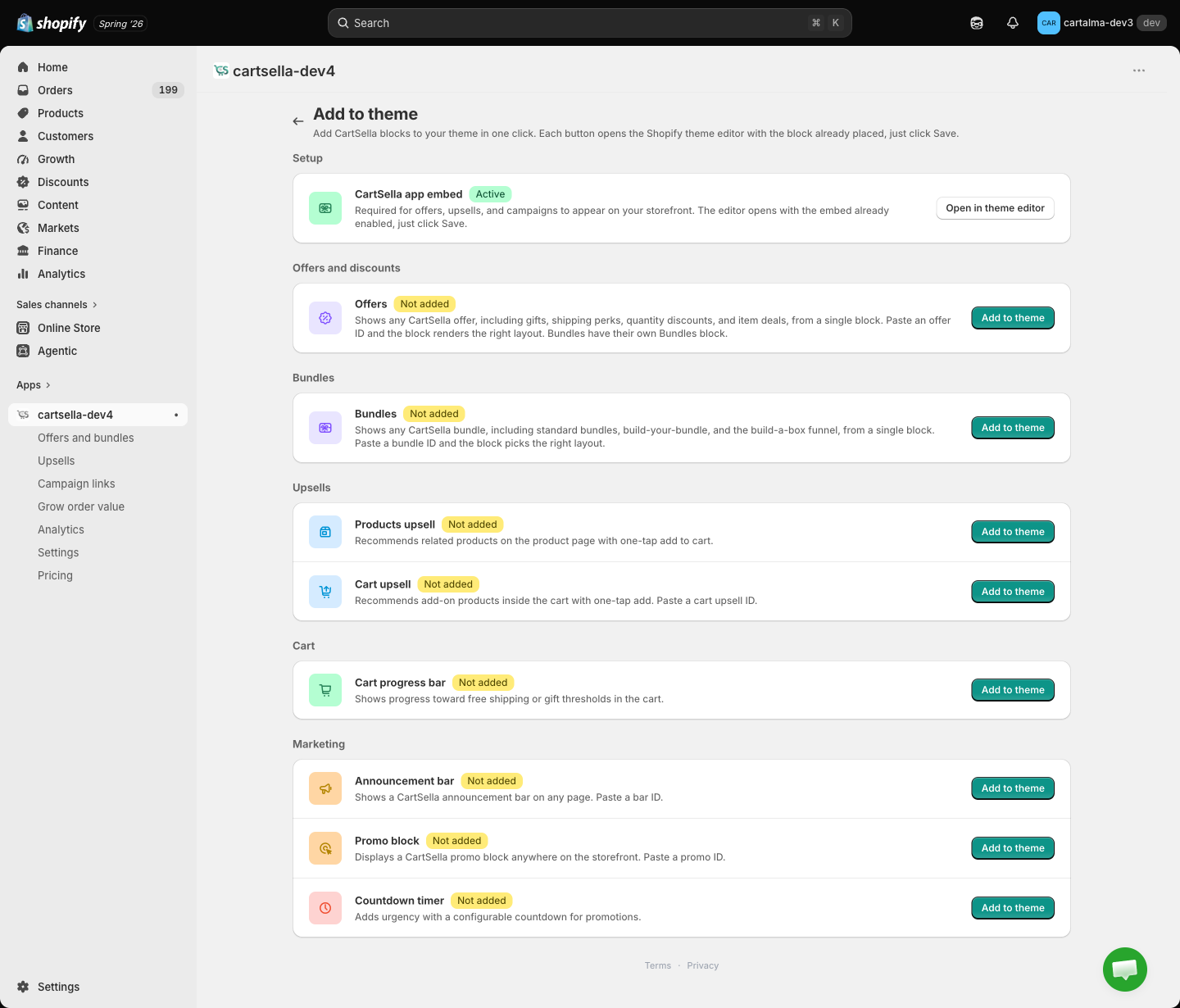
Step 1: turn on the app embed (required)
Nothing else works without it. The app embed loads CartSella on every page and powers the offers hub, the floating bubble button, the boost popup, gift syncing in the cart, and analytics.1
Open your theme
In your Shopify admin, go to Online Store → Themes and click Customize on your published theme.
2
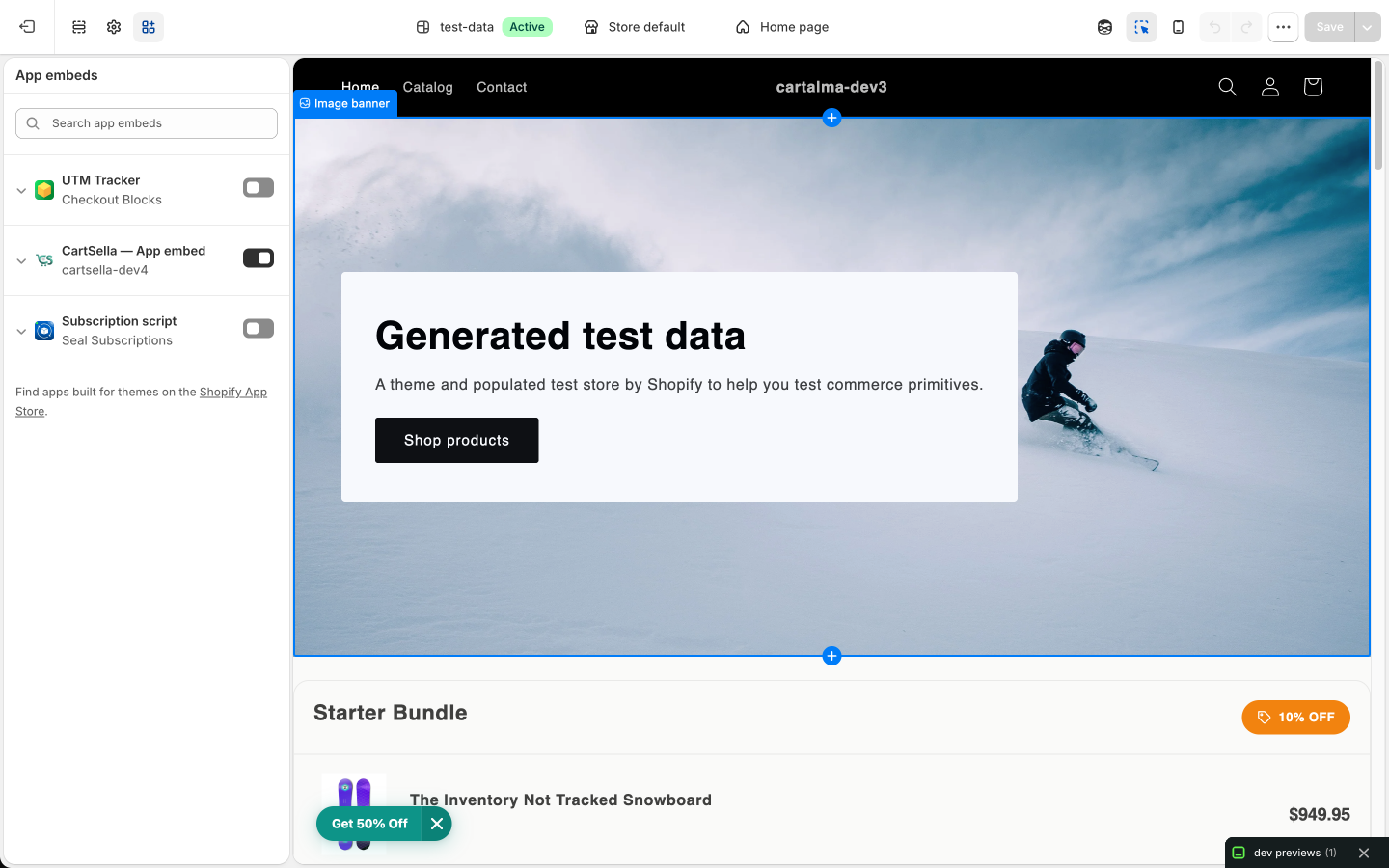
Find App embeds
Click the theme settings icon at the bottom of the left sidebar, then open App embeds.
3
Turn on CartSella — App embed
Toggle it on and click Save.
Step 2: pick the right block
How to add a block
1
Copy the ID
Open the offer, bundle, upsell, timer or announcement bar in CartSella and copy its ID from the sidebar. Drafts have no ID until you save, and only active records reach the storefront.
2
Open the theme editor
Online Store → Themes → Customize, then navigate to the template you need (product, cart, home, or a page).
3
Add the block
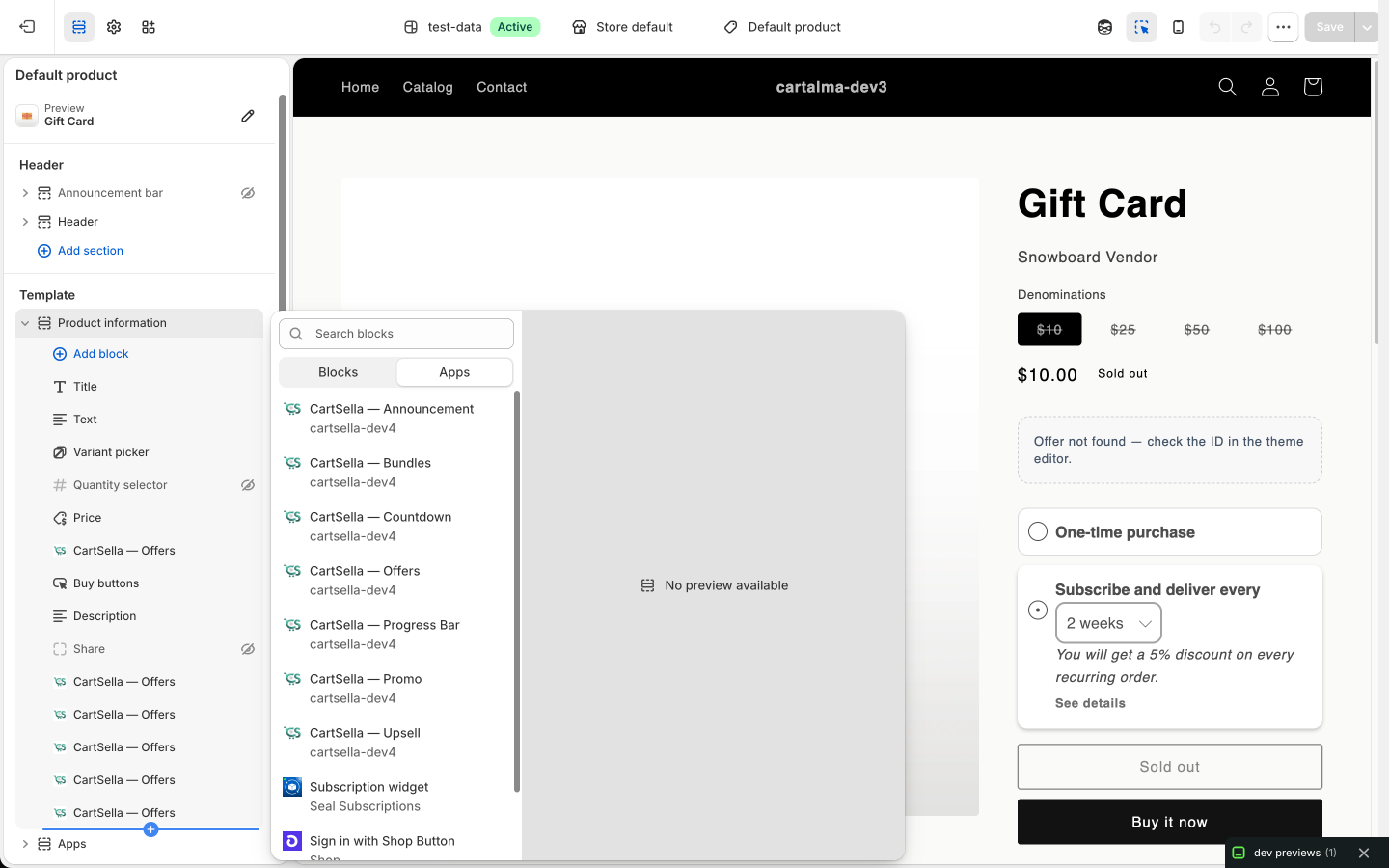
Click Add block inside the section you want it in, and look under Apps for the entries starting with CartSella. Adding it through Add section → Apps works too, and drops it in as its own section.
4
Paste the ID and save
Paste the ID into the block’s ID field, adjust the settings, then click Save.
The blocks in detail
CartSella — Offers
Shows any non-bundle offer: gift with purchase, shipping discount, volume discount, quantity break, cheapest-item discount, pack selector, automatic product discount. Paste one offer ID and the block renders the layout for that offer type. Settings- Offer ID. Paste any CartSella offer ID.
- Title alignment: Left or Center.
- Title font size.
- Spacing: top margin, bottom margin, top padding, bottom padding.
CartSella — Bundles
The single block for every bundle type: standard bundle, build your bundle, and the build-a-box funnel. Paste a bundle ID and the block picks the right layout. Settings- Bundle ID.
- Title alignment and Title font size.
- Build-a-box funnel section:
- After adding to cart: Redirect to checkout, or Stay on page and refresh cart.
- Footer style: Inline (below content), or Floating (fixed at bottom). Floating suits a full page. Inline is the right choice when the block sits inside a normal section.
- Spacing: max width, margins and paddings.
CartSella — Upsell
One block for both the product page upsell and the cart upsell. It reads the ID and detects which one you meant.- Put it on the product template for a Products Upsell.
- Put it on the cart template for a Cart upsell.
- Upsell ID.
- Title alignment and Title font size.
- Show add to cart button.
- Show navigation arrows.
- Spacing.
CartSella — Progress Bar
Shows how close the cart is to the next reward. The milestones themselves are configured in the app, not in the theme editor. See Cart progress bar. Settings- Design: bar height, show labels (displays the current value and the goal below the bar), title font size.
- Spacing.
CartSella — Countdown
Renders a countdown timer you built in the app. See Countdown timers. Settings- Timer ID. Leave blank to use the first timer.
- Spacing: top margin, bottom margin.
CartSella — Announcement
Renders an announcement bar you built in the app. See Announcement bars. Settings- Announcement bar ID. Leave blank to use the first bar.
- Spacing: top margin, bottom margin.
CartSella — Promo
A standalone image and text promo panel. Unlike the other blocks, everything is configured in the theme editor. Settings- Layout: Split panel (image and text side by side), or Full-width banner (text over image).
- Content: desktop image, mobile image (optional, falls back to the desktop one), heading, text, button label, button link. Point the button at your CartSella offer page to promote an offer.
- Layout: image side (split panel only), minimum height, block corner radius, content column width (banner only), image overlay opacity (banner only).
- Colors: panel background (split panel only), heading, text, button background, button text, button corner radius.
- Spacing.
Things worth knowing
- Every block hides itself when CartSella is blocked. If your store passes its monthly order limit, the blocks stop rendering and the discounts are removed until you upgrade or the window resets. See Plans and billing.
- Only active records reach the storefront. A draft offer or upsell has no data on the theme side, so the block will report that it could not find the ID.
- You do not need a block for everything. The offers hub, the floating bubble button and the boost popup all ride on the app embed.
- Checkout is a separate editor. The checkout cart editor and the checkout upsells are added under Shopify Settings → Checkout → Customize, not in the theme editor. See Checkout cart editor.
- Removing a block is the same as any Shopify block: select it in the theme editor, click the delete icon, then Save.