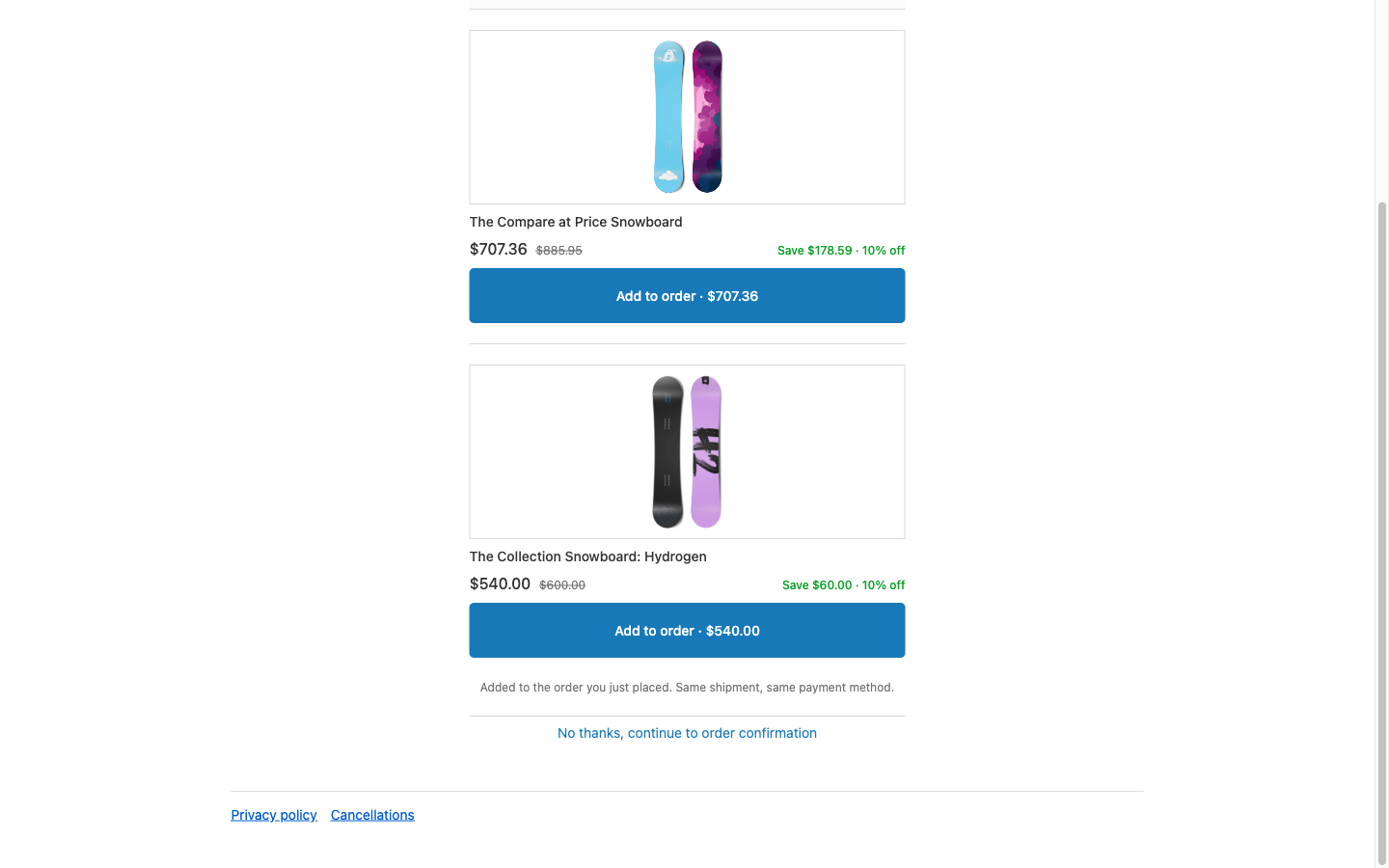
Where the shopper sees it
On Shopify’s post-purchase page, a screen Shopify shows between payment and the thank-you page. Only one app can own that page, so CartSella has to be the one selected in your checkout settings.Set one up
1
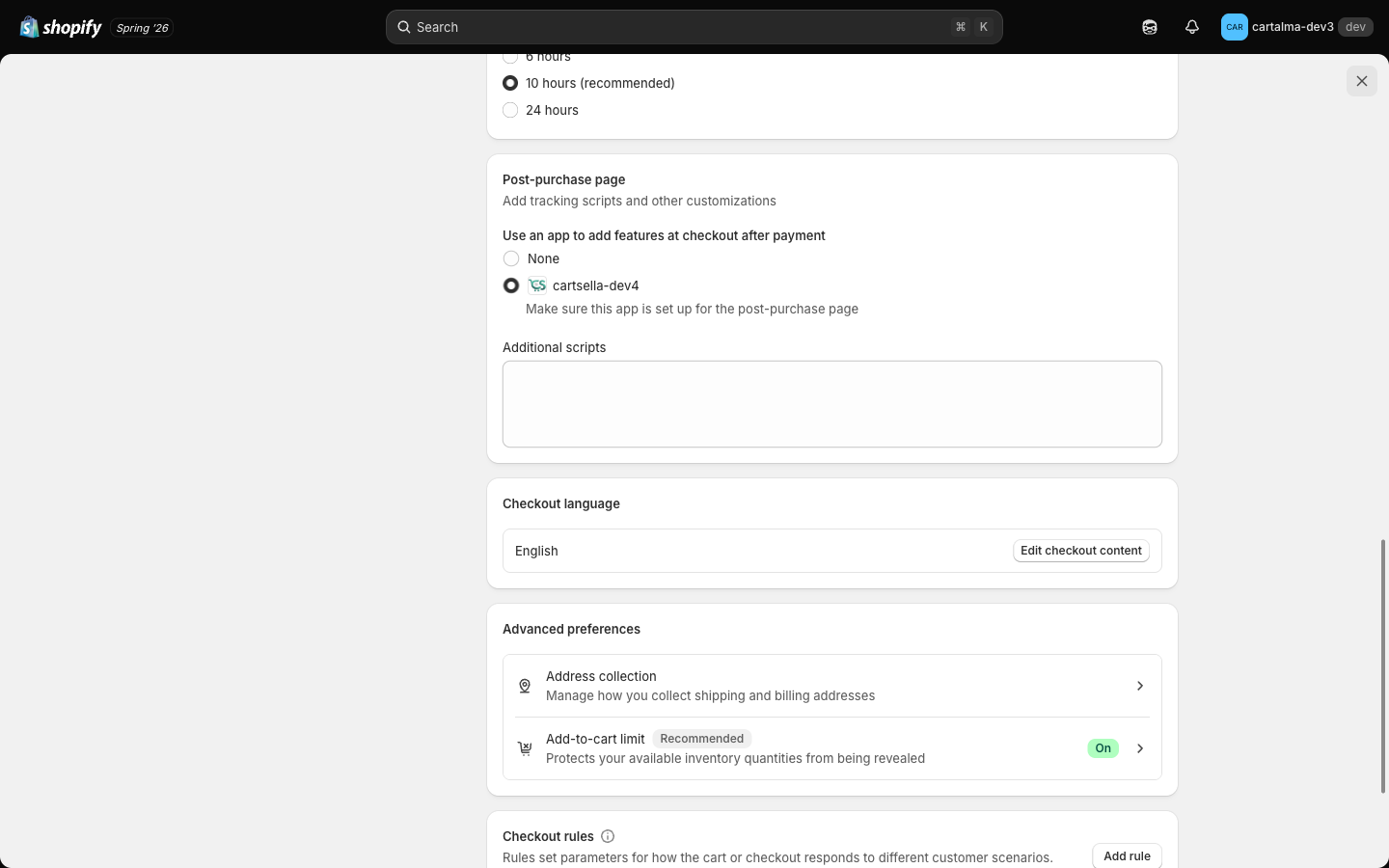
Turn the post-purchase page on
In your Shopify admin, go to Settings → Checkout, scroll to Post-purchase page, and select CartSella from the list. The editor sidebar has an Open checkout settings button that takes you there. Without this step nothing you configure here can appear.
2
Create it
Upsells → Create upsell → Post-purchase upsell.
3
Name it
Fill in the Storefront title and, optionally, dates.
4
Pick the product
One product for the Standard and Forgotten item templates, up to three for Multi-product. Hand-picked only.
5
Set the discount
This is the one place a CartSella upsell discount is really applied. Percentage or fixed amount.
6
Choose a template and write the copy
In the Post-purchase template section.
7
Activate
Set the status to Active and save. There is no block to place.
Templates
Pick one in the Post-purchase template section.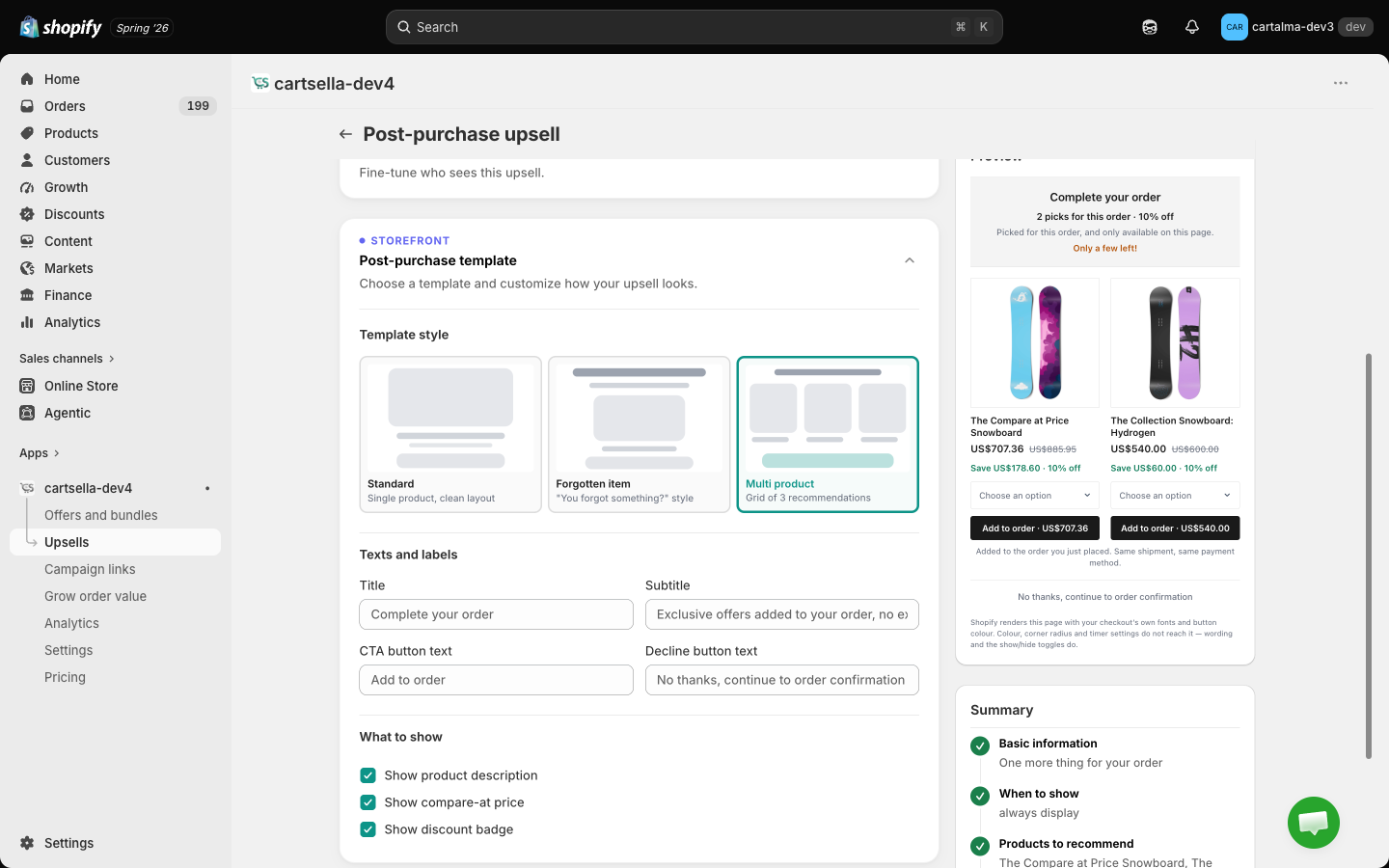
Picking a second product switches the template to Multi-product for you, and switching back to a single-product template trims the selection down to the first product. The maximum is three either way.
- Title and Subtitle, the headline pair at the top.
- Add to order button, the accept label.
- Decline button, the “no thanks” link under it.
Products
Post-purchase upsells only work with manually picked products. Automatic recommendations from Shopify Search & Discovery are ignored here, because the offer has to be signed and priced before the page renders, and there is no time to ask another app what to show.Discount
Tick Enable discount, choose percentage or fixed amount, and set a value. Percentages are capped at 100. This discount is real. The shopper sees the crossed-out original price next to the discounted one, and the item is added to the order at that price.Everything in the editor
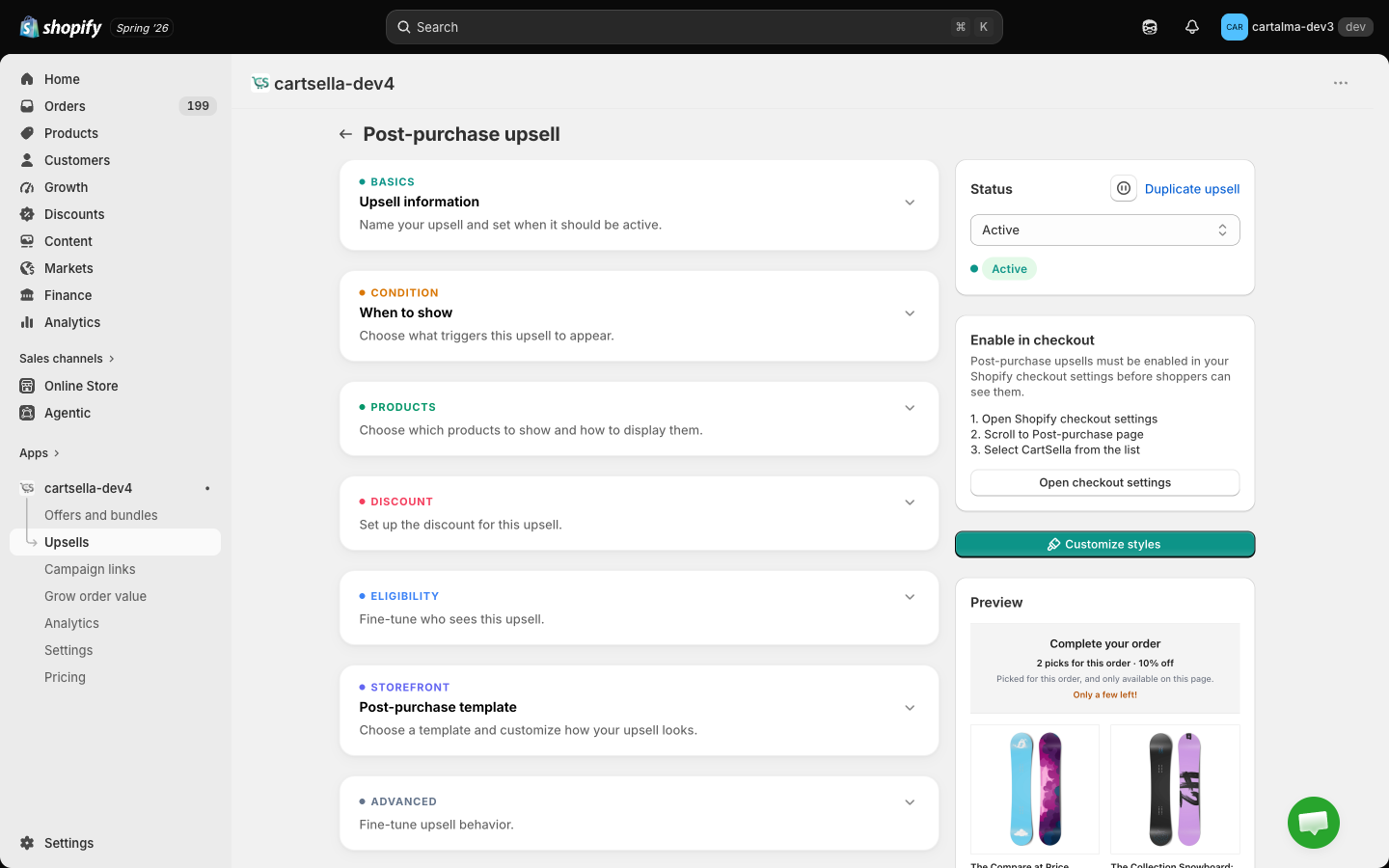
The When to show condition reads a live cart, and by the post-purchase page the cart is gone. Every active post-purchase upsell is offered, in priority order. To narrow the audience, use Eligibility & targeting and Maximum uses instead.
Eligibility & targeting
Customer tags and Customer location are both checked against the order that was just placed, so they work exactly as you would expect: the tags on the customer account, and the country on the shipping address. Traffic source and Markets rules do not apply after payment and are ignored rather than hiding the offer.Advanced options
- Priority, 1 to 10, default 5. Here it also sets the step order: with several active post-purchase upsells, the lowest number is offered first, then the next, as steps of the same funnel.
- Maximum uses, a total cap and a per-customer cap. Both off by default. See Advanced offer settings.
Limits and gotchas
- Nothing appears until CartSella is selected under Settings → Checkout → Post-purchase page. This is the single most common reason a post-purchase upsell never shows.
- Shopify does not show the post-purchase page for every order. Orders paid with some accelerated or offsite payment methods, and orders with certain subscription or multi-currency setups, skip it. That is Shopify’s decision, not a CartSella setting.
- The offered product must be in stock and purchasable at that moment, or the offer is skipped.
- Keep the funnel to one or two steps. A third screen between payment and the receipt reads as an obstacle course.
- Only upsells that are live right now count toward your plan’s active upsell cap. See Plans and billing.