Before you start
You need the app installed and the theme app embed switched on. If you have not done that, do Installation first. Everything below assumes the embed is live on your published theme. You also want one product in mind to give away. A low-cost item you already stock is ideal, and it must have inventory available.The walkthrough
1
Open the offers page
In the CartSella sidebar, click Offers and bundles, then Create offer. You can also use Create new offer from the home screen.
2
Pick the offer type
The picker groups the types into Gifts and shipping, Discounts and Bundles. Choose Gift with purchase.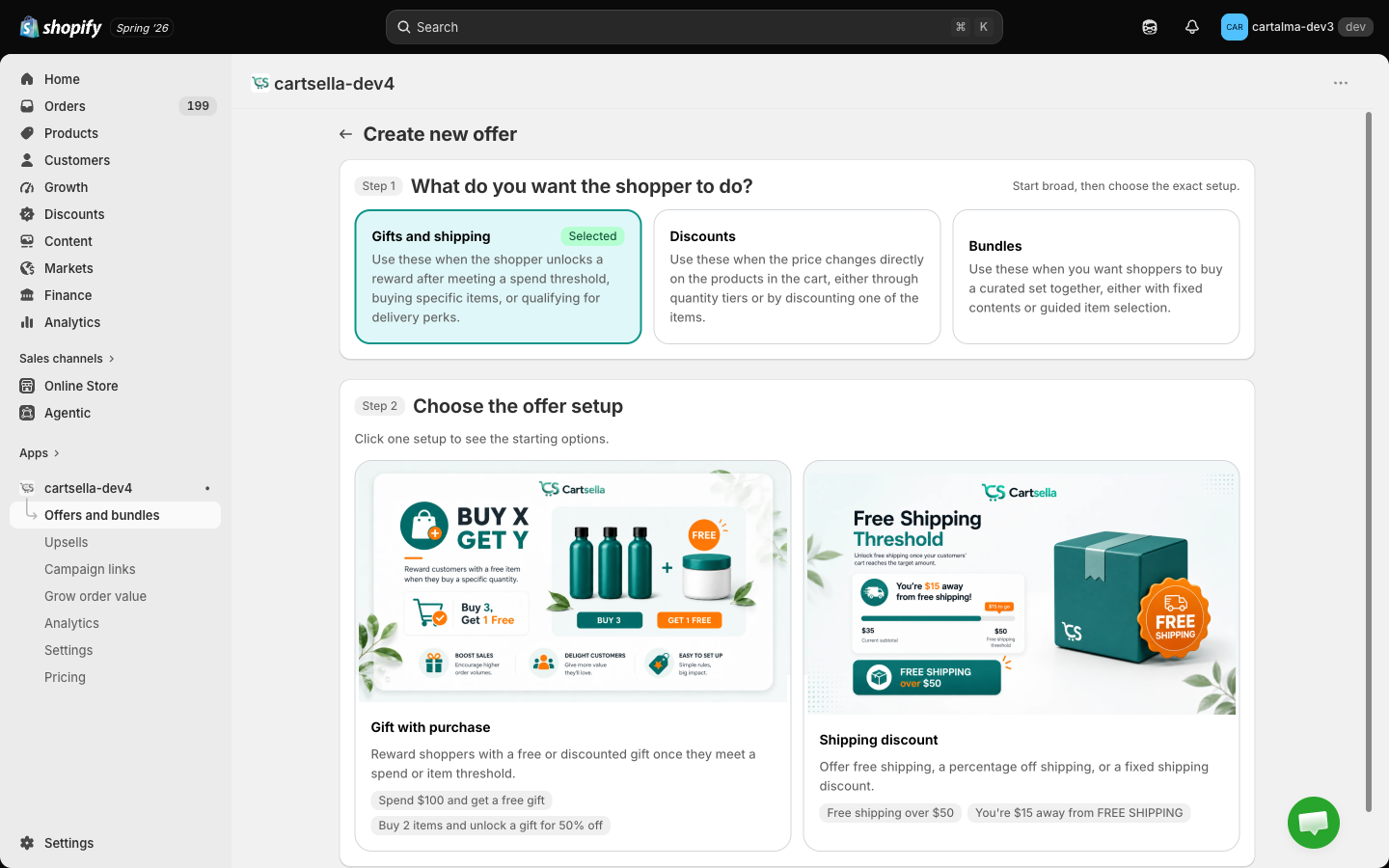 Each card describes what the type does and gives two examples. Offers overview has the same comparison in more detail if you want to browse before committing.
3
Start from a template
The next screen offers templates. Spend threshold gift (“spend 100 and get a free gift”) is the classic. Buy 1 get 1 gift rewards buying a specific product instead. Start from scratch gives you a blank offer with nothing preset.Pick Spend threshold gift. It lands you in the editor with the condition and the storefront wording already filled in, which you can change.
4
Name it
In Offer information, the internal name is how you will find this offer again in your own admin. Shoppers never see it. “Free tote over 100” beats “Offer 3”.There is a separate customer-facing title used on the storefront. Write that one for the shopper.
5
Set the condition
Main condition is what the shopper has to do. For a spend threshold, set the minimum cart total.The total is measured after other discounts, and it excludes shipping, taxes, and any free lines CartSella itself added. So a 100 threshold means 100 of real, paid-for product.
6
Choose the gift
In Reward, pick the product variant you are giving away and set the gift quantity.The gift discount defaults to 100% off, which makes it free. Lower it if you would rather sell the gift cheaply than give it away, for example 50% off as an unlock rather than a giveaway.
7
Leave eligibility and advanced alone, for now
Eligibility and targeting narrows the offer to certain shoppers, countries or carts. Advanced options holds priority, discount stacking, gift limits and usage caps.Every one of them is optional and every one of them is a way to accidentally make your first offer invisible. Ship it wide open, then narrow it once you have seen it work. Advanced offer settings covers them when you are ready.
8
Watch the checklist in the sidebar
The Summary checklist on the right tracks what is still missing: a name, a condition, a gift product. Grey circles are gaps, and clicking one jumps you straight to the section that fills it.An offer with a gap cannot go live. When every circle is green you are ready.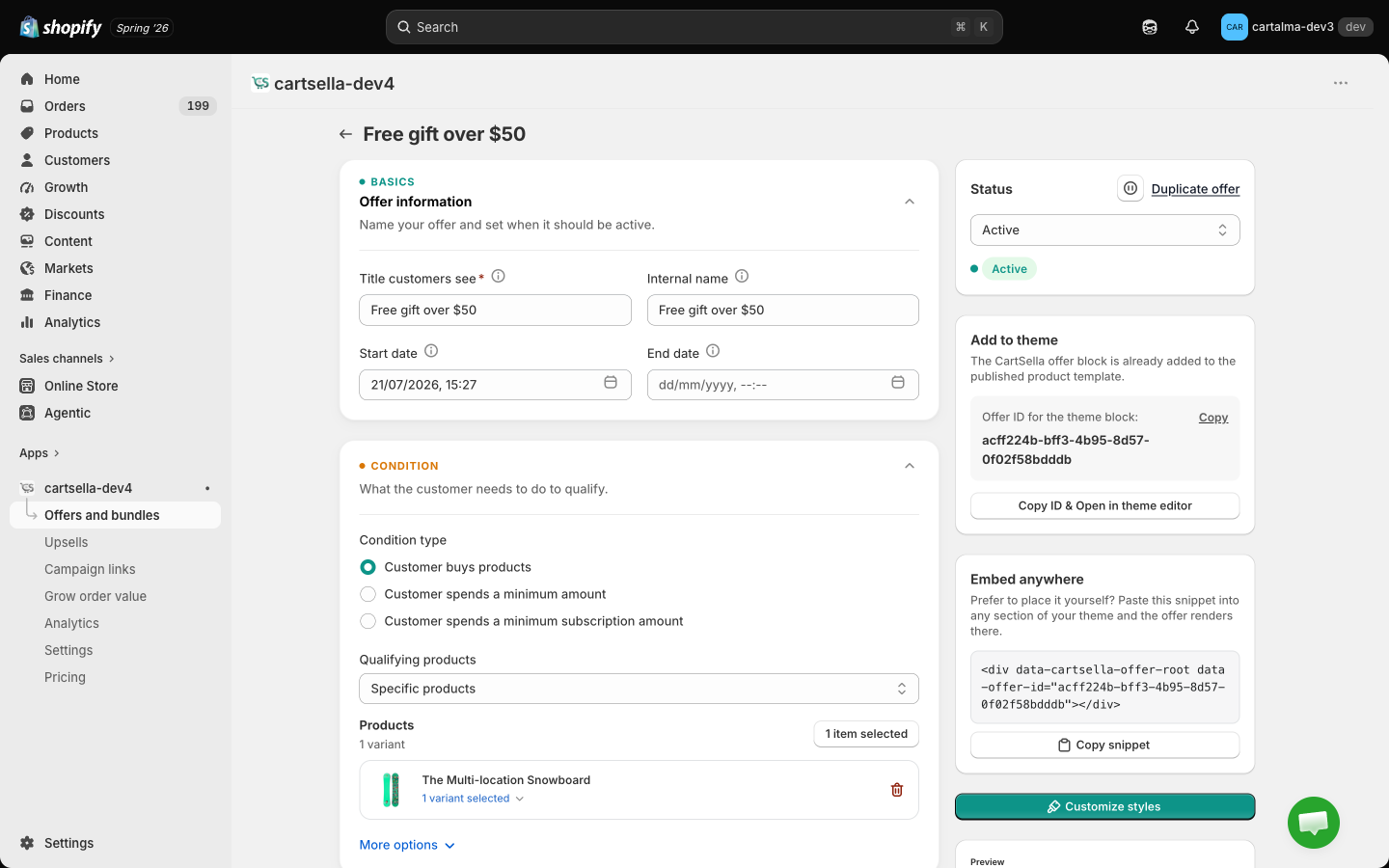
9
Save, then set the status to Active
Save first. Then change the status in the sidebar from Draft to Active.A draft offer never shows on the storefront, no matter how complete it is. This is the second most common reason a new offer appears to do nothing.
Does it need a theme block?
Gift with purchase does not need one to work. The offer runs from the cart: the shopper reaches the threshold, and the gift line appears. No block, no placement, nothing to drag. A block is only for advertising the offer where the shopper is still deciding, typically the product page. Adding one is optional, and worth it.1
Copy the offer ID
In the offer editor sidebar, the theme placement card shows the offer ID with a copy button. The button copies the ID and opens the theme editor in one click.
2
Add the CartSella — Offers block
In the theme editor, open the product page template, click Add block, and pick CartSella — Offers. Drag it where you want the message to appear, usually just under the buy button.
3
Paste the ID and save
Paste the offer ID into the block’s setting and save. The block reads the offer, works out its type, and renders the right layout for you.
There is one generic block per family rather than one per offer type. CartSella — Offers handles every non-bundle offer, CartSella — Bundles handles the three bundle types, and CartSella — Upsell handles product page and cart recommendations. Theme blocks has the full decision table.
Test it like a shopper
1
Open your store in a private window
Close and reopen the browser, or use a private window. A leftover cart from a previous test is the single biggest source of confusing results.
2
Build a cart just under the threshold
Nothing should happen yet. If the gift appears early, your threshold is not what you think it is.
3
Cross the threshold
Add one more item. The gift line should appear in the cart on its own, at zero, or at the discounted price if you set one.
4
Go to checkout
Confirm the gift is still there and still free. The checkout is where the discount is genuinely applied, so this is the check that matters.
5
Drop back below the threshold
Remove an item. The gift should be taken back out of the cart. If it stays, that is worth reporting.

Style it once, not per offer
Colors, fonts, corner radius and the wording around your offers are global, not set per offer. Open Settings, then Storefront customization, pick the surface you want to change, and it applies to every offer of that type across your store. That means you style your product page offer card once and every future offer inherits it. See Customize.Watch the results
Open Analytics to see views, add to carts, conversions and attributed revenue per offer. Give it real traffic before drawing conclusions. A gift with purchase judged on its first afternoon tells you nothing; judged over two weeks against the fortnight before it, it tells you whether your average order value moved. See Analytics.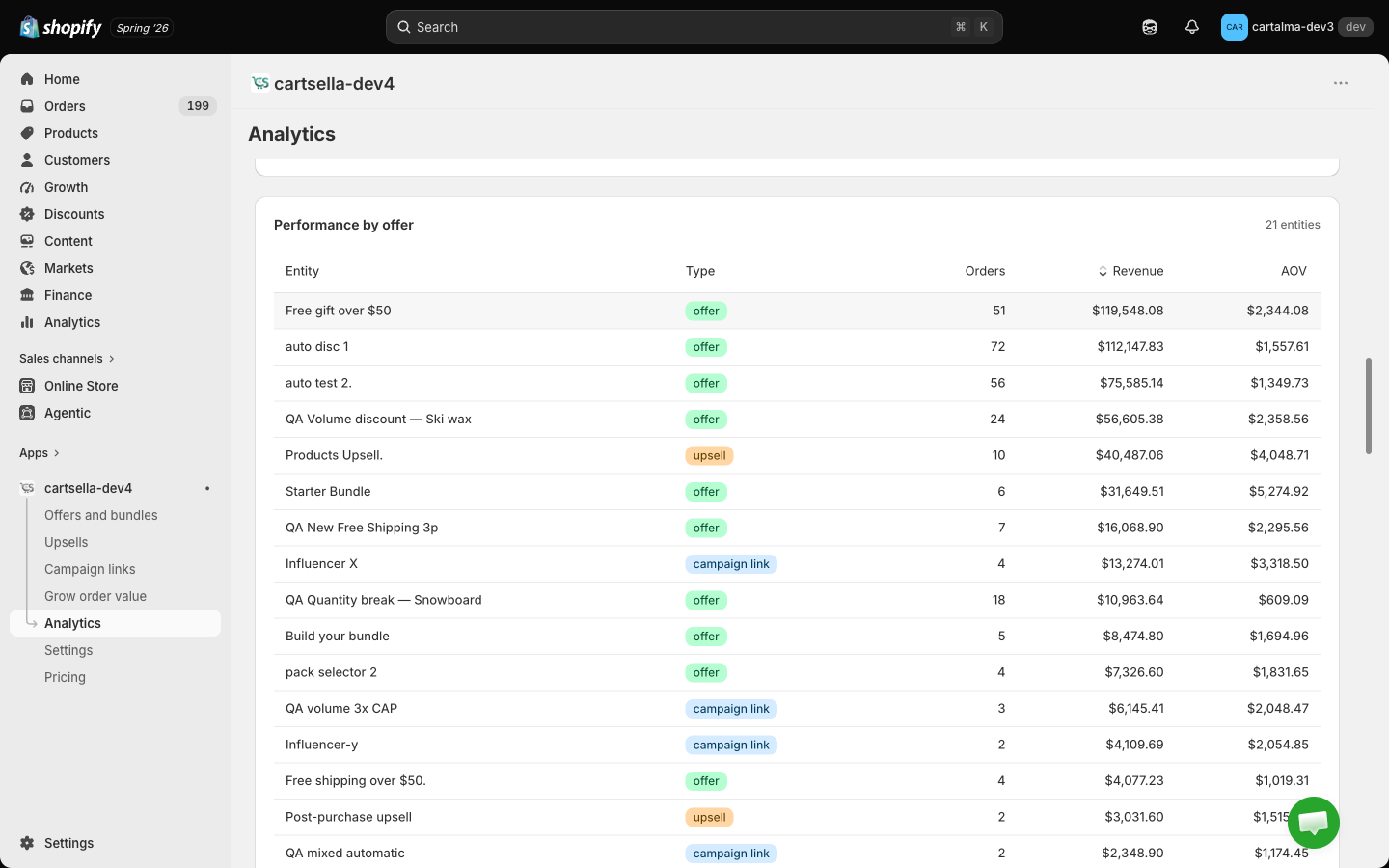
Where to go next
Key concepts
Condition vs reward, eligibility, priority, stacking, statuses. Read this before your second offer.
Gift triggers and rewards
Every combination the gift offer supports, and which ones actually convert.
Offers overview
The other ten offer types and when each one is the right shape.
Upsells
Recommendations on the product page, in the cart, at checkout and after it.