Storefront customization
Colors, typography and shared wording for every CartSella widget.
Theme blocks
Add CartSella blocks to your theme and see which ones are already there.
Discount alerts
Pause offers automatically when an order is discounted more than you meant.
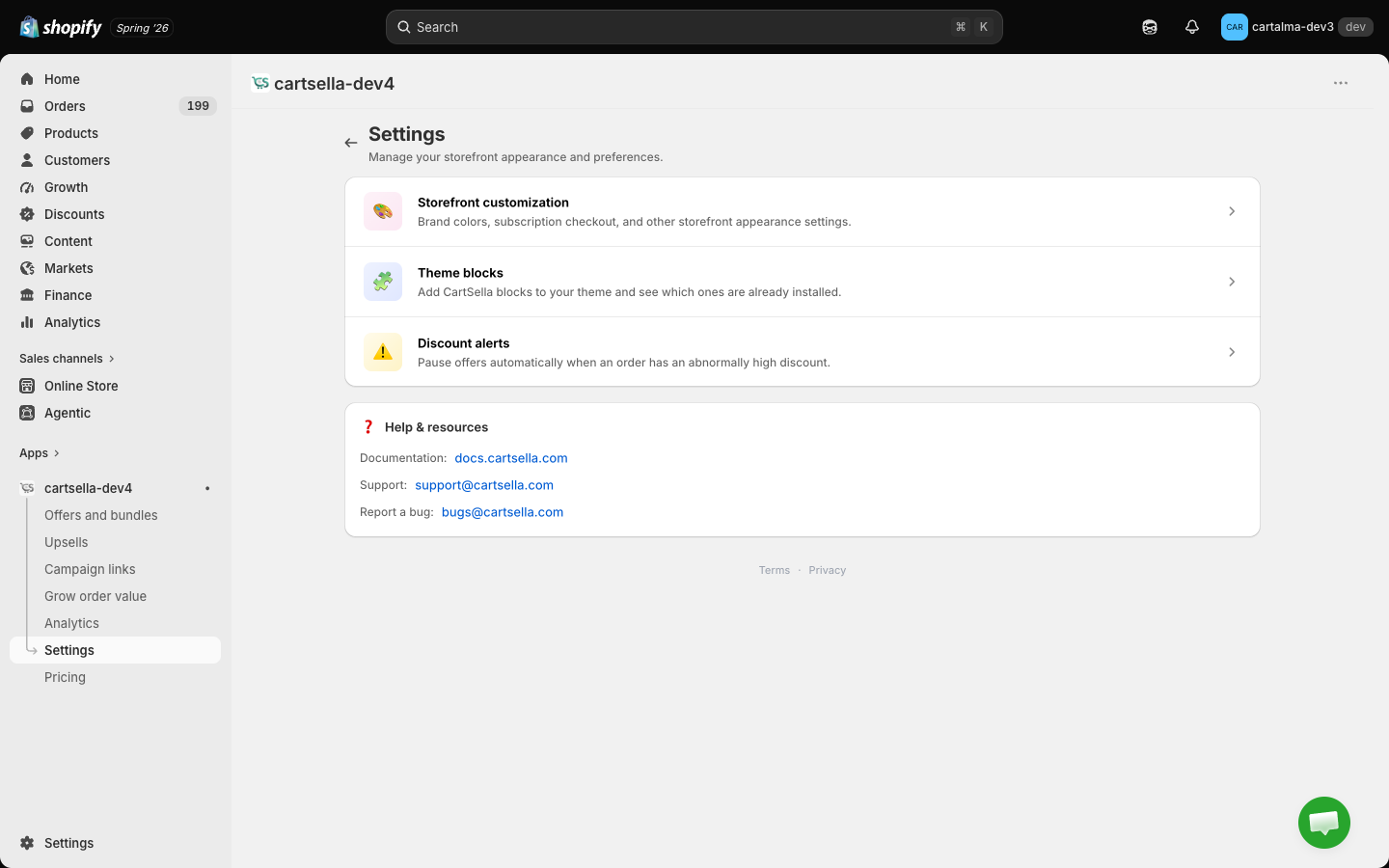
Storefront customization
This is where the look of every CartSella widget is set: colors, typography, corners, spacing, and the shared wording on things like buttons and headings.Styling is global. You set it once per surface, and it applies to every offer or upsell of that kind. There is no per offer color picker.
- Brand holds your palette, including a button that pulls the colors straight from your published theme.
- Subscription holds the subscription related storefront wording.
Theme blocks
The Theme blocks page is titled Add to theme. It is the fastest way to put a CartSella widget on a page, and the first place to look when something is not showing up.What it tells you
Whether the app embed is active. At the top of the page, under Setup, the CartSella app embed carries a badge reading Active or Not active.
Whether each block is already on your theme. Every row carries its own badge:
The badges describe your published theme only. A block you added to a draft or an unpublished copy still reads Not added until you publish that theme.
Using it to find a missing block
1
Check the app embed badge first
If it is not Active, click Activate app embed. Your theme editor opens with the embed already switched on, so you only click Save. This alone explains most “my offer is not showing” reports.
2
Read the badge on the block you expected
Added means the block is on your published theme, so the cause is further down: the ID, or the item’s status. Not added means it was never placed, or it went onto a theme you have not published.
3
Add it from here, not by hand
Add to theme opens the theme editor with the block already placed on the right template. Adding it by hand from the theme editor’s own app block list is where blocks end up on the wrong template.
4
Check the ID you pasted
The offers, bundles, upsell, announcement bar, countdown and promo blocks each need the ID of the item they should render. A blank or mistyped ID means an empty block.
5
Check the item is active
A block pointing at a draft, paused or expired item renders nothing.
Discount alerts
This is your safety net. It watches the discount on every order CartSella was involved in, and switches offers off when the numbers look wrong.What it protects against
Automatic promotions interact in ways nobody plans. Two offers that each look reasonable stack into 90% off. A quantity rule with an aggressive step hands out far more free units than intended. One mistyped tier zeroes a cart. Without a guard you find out from your accounting. Discount alerts catch it on the first order or two.Only orders CartSella actually contributed to are checked, and only orders that carry a discount at all. A code your customer redeemed, or a manual discount you applied in the Shopify admin, never triggers a CartSella alert or pauses a CartSella offer.
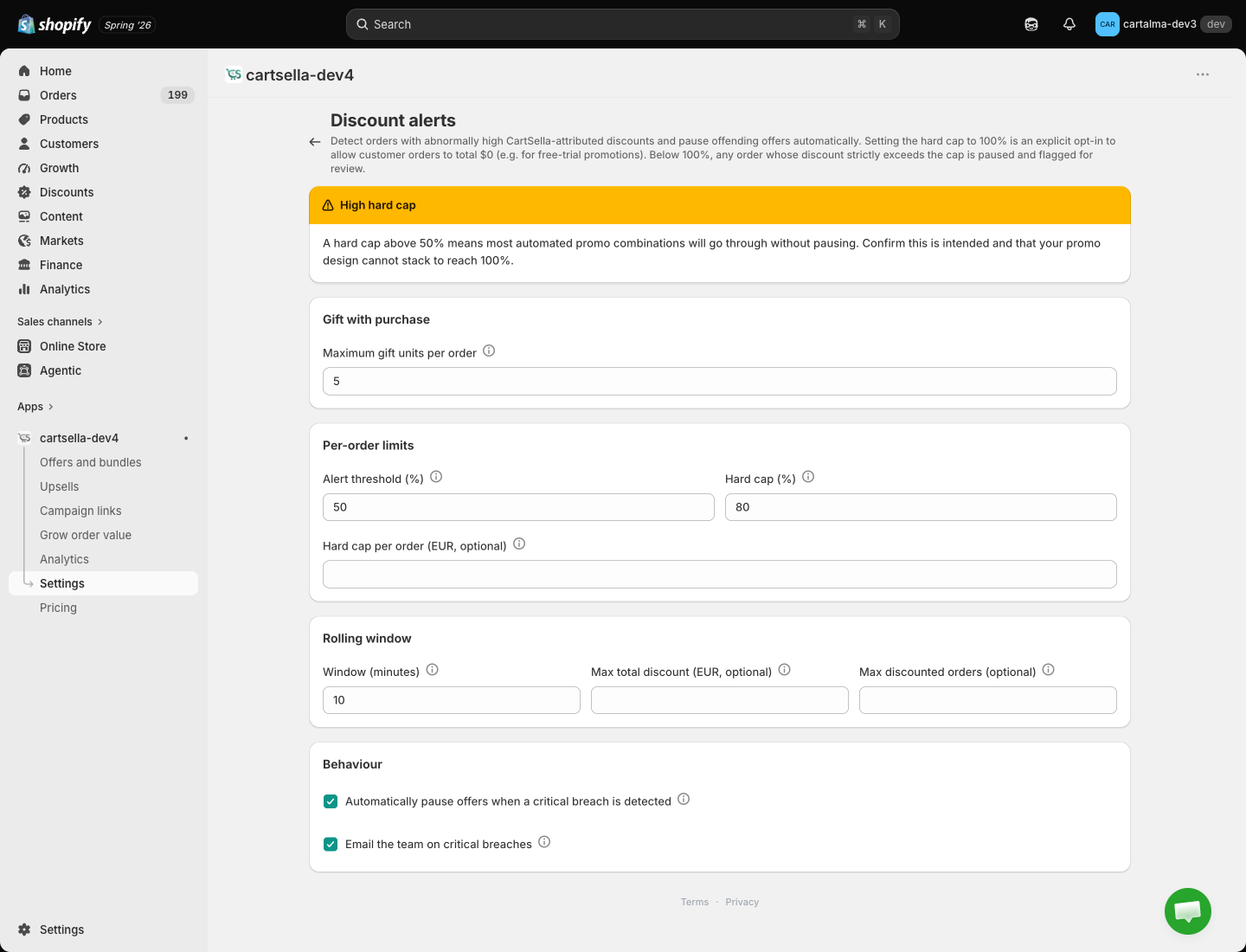
What you configure
Gift with purchase
Gift with purchase
Maximum gift units per order. A hard ceiling on how many free gift units a single order can receive, applied no matter how any individual offer is configured. It is the backstop against a runaway per-step setup. Range 1 to 50, default 5.
Per-order limits
Per-order limits
Alert threshold (%). Reaching this percentage records a warning. Nothing is paused. Range 1 to 99, default 50.Hard cap (%). Going above this percentage is critical, and the offers behind that order are paused. Range 10 to 100, default 80. It has to be higher than the alert threshold, or the save is rejected.Hard cap per order (optional). The same critical treatment expressed as a cash amount instead of a percentage, for when a modest percentage of a large order is still more money than you want to give away. Leave it empty to disable.The percentage is the discount measured against what the order would have cost undiscounted, not against what the customer paid.
Rolling window
Rolling window
Catches a burst of orders rather than one bad order.Window (minutes). How far back CartSella looks. Range 1 to 240, default 10.Max total discount (optional). The total discount handed out across the whole window. Reaching it is critical.Max discounted orders (optional). Burst detection by order count. Reaching it is critical.
Behaviour
Behaviour
Automatically pause offers when a critical breach is detected. On by default, and we recommend leaving it on. With it off, critical events are still recorded, they just do not stop anything.Email on critical breaches. On by default. This one alerts the CartSella team rather than your own inbox, so we can look at what happened with you. Your own signal is the paused offer and the banner in its editor.
What happens when it fires
Note the difference at the boundary. The hard cap has to be exceeded, so an order landing exactly on your cap counts as your intended ceiling rather than a breach. The alert threshold, the cash cap and the window caps all fire on reaching the number.
A paused offer shows a banner in its editor: “CartSella paused this offer. This offer was switched off automatically by a discount alert. Review the alert in Settings before turning it back on.” It stays off until you turn it back on yourself, so a bad configuration cannot quietly resume.
Only offers are paused this way. Upsells and campaign links are never switched off by a discount alert. And if a critical breach fires on an order CartSella cannot tie to a specific offer, nothing is paused at all, because guessing would take down unrelated promotions. We are still notified.
Setting the caps
A hard cap above 50% means most automatic promotion combinations go through without pausing. That can be right for a heavy sale period, but confirm first that your promotion design cannot stack all the way to 100.