Find your symptom, work through the checks in order, and stop when one of them explains it.
Each section below is a symptom. Work through its checks in order. Most reports are explained by one of the first three checks in the first section.
Test in a private or incognito window, and close the browser between attempts. A normal window remembers dismissed popups, session state and an old cart, and any of those makes a working feature look broken.
Before anything else, rule these out. Between them they account for most “it does not work” reports.
1. The app embed is off on your published theme
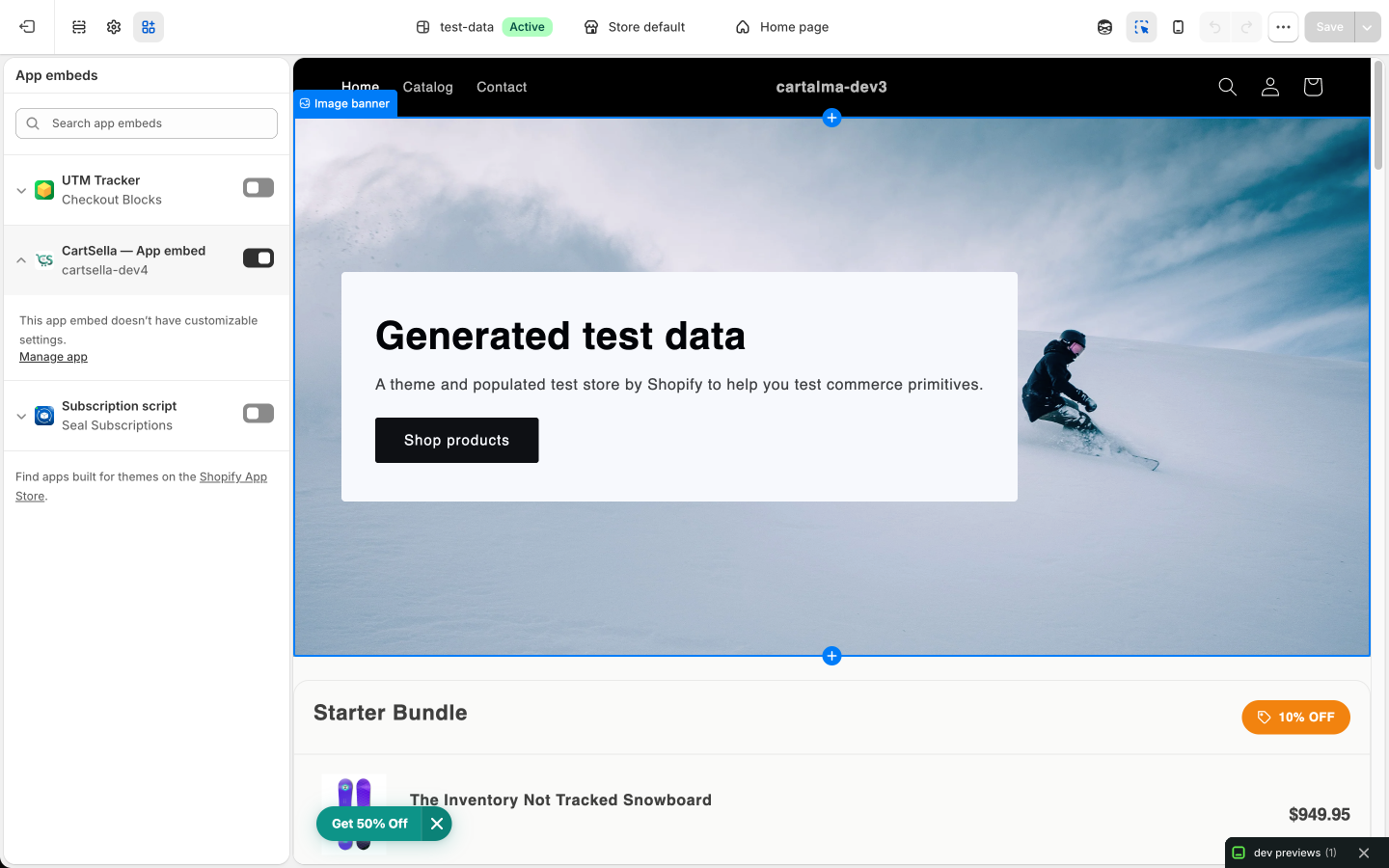
Nothing CartSella does reaches the storefront without it. Go to Online Store → Themes → Customize, open the theme settings icon at the bottom of the left sidebar, then App embeds, and check that CartSella — App embed is on. Click Save.The fastest check is inside CartSella: Settings → Theme blocks shows the embed’s status at the top, with a one click Activate app embed button.
If you recently switched, duplicated or installed a theme, the embed is off on the new one even though it was on before.
2. Your theme is out of date
Your theme carries a copy of the CartSella storefront code, and it refreshes when the theme is saved. A theme that has not been saved since a CartSella update can be running older code.Open the theme editor and click Save, even with no changes. Then retest in a fresh browser session.
3. The block was never added
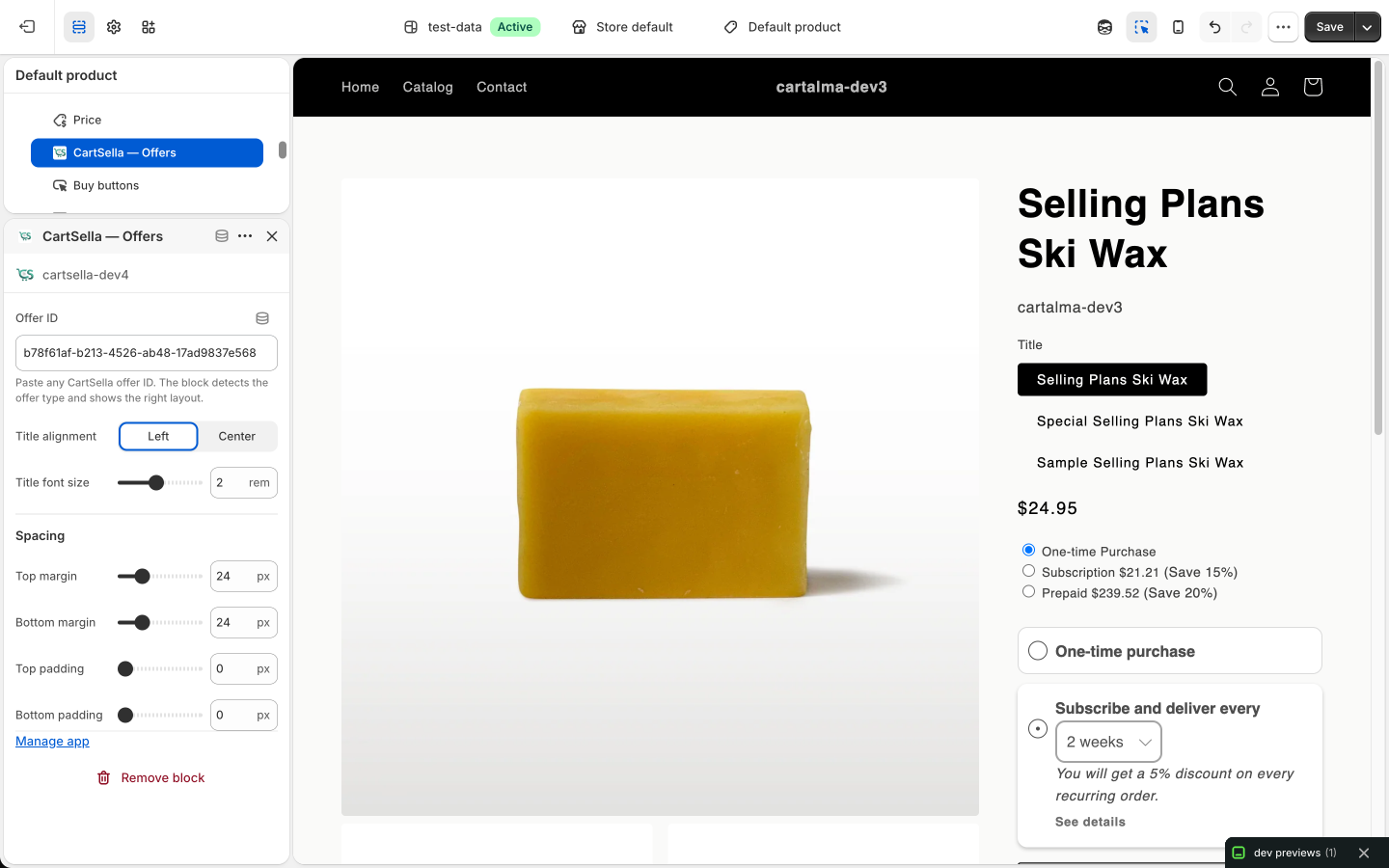
Most CartSella surfaces need a block on a specific template. An offer with no block on the page has nothing to render into.Open Settings → Theme blocks in CartSella. Every block shows Added or Not added against your published theme, and Add to theme opens the theme editor with the block already placed on the right template, so all you do is click Save.A block added to a draft or unpublished theme still reads Not added, because that is not the theme your shoppers see.
App embed on, theme saved recently, block added to the published theme. If any of those is the cause, nothing below will help.
Is the status Active?
A Draft, Inactive, Archived or Expired item never reaches the storefront. Drafts do not even have an ID to paste into a block.If it says paused and you did not pause it, jump to The offer switched itself off.
Are the dates current?
A start date in the future, or an end date already in the past, hides it. An item past its end date is treated as expired everywhere on the storefront.
Is the right ID in the right block?
Re-copy the ID from CartSella and paste it again. A trailing space is enough to break the match.Blocks are not interchangeable. The Bundles block only accepts bundles, the Upsell block only accepts upsells, and the Offers block accepts every non-bundle offer type. Pasting the wrong kind of ID renders nothing, or shows “Offer unavailable”.
Is the block on the right template?
Each block belongs somewhere: the Offers block on the product page, the cart upsell and the progress bar in the cart, the announcement bar and countdown wherever you want them. A block on the wrong template renders nothing. The table in Storefront blocks has them all.
Are you over your active item cap?
The Offers and Upsells pages show “X / Y active on your plan”. At the cap, activating one more will not go through. Pause something you are no longer running, or upgrade. See Plans and billing.
Are eligibility rules excluding you?
Open the Eligibility section. A customer location rule, a markets rule or a traffic source rule can be excluding the exact way you are testing.Customer tag and order history rules are the exception: on the storefront they do not hide anything from a logged out shopper. See Customer rules behave differently before checkout.
Is the trigger actually met?
A “cart reaches an amount” trigger needs a cart above that amount. A “specific product” trigger needs that exact product, in that quantity. Add the qualifying item and check again.
Is your whole store blocked?
If every CartSella surface disappeared at once, this is a store level block, not an offer problem. See Everything stopped at once.
The gift is added in the shopper’s browser as the cart changes, so the checks are different from a display problem.
Run the checks above first
App embed on, theme saved, offer active, dates current, store not blocked. All of them apply here too.
Is the gift product in stock?
An out of stock variant cannot be added. CartSella switches off an offer whose gift has run out, and switches it back on by itself once stock returns. Check the offer for an Out of stock badge.
Does the cart meet the main condition?
Buying 2 of the trigger product when the condition says 3 adds nothing.The main condition multiplies by complete sets. If the condition is “buy 2”, then 4 units give 2 gifts and 5 units still give 2. See Gift quantity is not what I expected.
Does the cart meet the eligibility rules?
A minimum cart total in the Eligibility section is a gate, not a multiplier. It blocks the gift below the threshold and releases it above, and it removes the gift again if the cart drops back under. The same goes for minimum item count, weight and required products.
Wait a moment, then refresh the cart
The gift is added just after the cart changes, not in the same instant. Open the cart drawer or reload the cart page before concluding it failed.
Start from an empty cart in a clean session
Close the browser, reopen it, and build the cart from scratch. A cart carrying state from an earlier test is the single most common false alarm.
Shoppers cannot delete a free gift line themselves. If a gift disappears, the cart stopped qualifying. Bundle and pack reward lines are different: those can be removed, and removing one also removes the bundle discount from the paid lines, because the shopper has undone the bundle.
Two rules explain nearly every surprise here, and they behave differently on purpose.
Setting
Effect
The main condition (buy N of a product)
Multiplies. N units give 1 gift, 2N give 2, 3N give 3
A minimum cart total (in Eligibility, or the “also require” checkbox)
A gate. It never multiplies. Below the threshold, no gift. Above it, exactly the number the main condition produced
So “buy 2 shirts, get a free cap” gives a shopper with 6 shirts three caps. Adding “and spend at least 100” to the same offer does not give them more caps for spending 300, it only decides whether they get any.
If you want one gift no matter how many qualifying units are bought, set the gift quantity so it does not scale with the trigger, in the offer’s reward settings. If you want a cap regardless of configuration, there is a store wide Maximum gift units per order in Settings → Discount alerts.
Several offers can qualify for one cart. Priority in Advanced options decides which one applies: the range is 1 to 10, 1 wins, and the default is 5. Two offers both left at 5 are a coin toss you did not intend.
Is Combine with blocking it?
Combinations in the Advanced section decides whether a CartSella discount can sit alongside Shopify order, product and shipping discounts, including discount codes your shoppers enter.
This setting is store wide, not per offer. Shopify allows one combination setting per app, so changing it on one offer changes it for every CartSella offer in your store. The editor shows a banner saying exactly that.
If codes stopped working across the whole store right after you edited one offer, this is why.
Is another discount app competing?
Two apps creating automatic discounts compete for the same slot, and Shopify picks the winner. The symptom looks like an intermittent CartSella bug: it applies on some carts and not others. Check your Shopify Discounts page for automatic discounts you did not create in CartSella, including old ones you forgot about. See Compatibility.
Has a usage limit been reached?
An offer whose total usage cap is spent switches itself off. An offer with a per customer cap simply stops applying for that customer, while staying live for everyone else. Per customer caps only count shoppers with an account, so a guest checkout is never limited by one.
Was the shopper logged in?
An offer gated on customer tags or order history shows to logged out shoppers on the storefront, but the checkout re-checks against the real customer. A guest who does not qualify sees the offer and then does not get the discount. This is deliberate, see the next section.
Do the rules match the real order?
Country, market and delivery rules are evaluated at checkout against the address the shopper actually entered, which may not be the one you tested with.
Did the offer expire mid-session?
An offer that ended between the shopper adding to cart and checking out no longer applies.
This is intended behaviour, and it surprises people, so it is worth knowing before you report it as a bug.An offer gated on customer tags or order history:
On the storefront, does not hide itself from a logged out shopper. The rule needs a known customer, and a logged out visitor has none, so hiding it would make the offer invisible to every visitor who has not signed in.
At checkout, is enforced properly. Shopify has resolved who the buyer is by then, so a shopper who does not qualify does not get the discount, and a free gift they do not qualify for is taken back out.
The practical consequence: a guest can see an offer they will not receive. Nothing is mispriced and no money leaks, because the discount is decided at checkout, not on the page.
If a reward absolutely must be guaranteed to everyone who sees it, do not gate it on customer tags or order history. Use a rule that the storefront can evaluate for anyone, such as products in the cart or the cart total.
CartSella pauses an offer for exactly three reasons, and each one leaves a banner in the editor telling you which.
Banner
Cause
How to fix it
Out of stock
A product the offer needs ran out
Nothing. It resumes on its own once stock returns. If the product is gone for good, swap the gift or set an inventory fallback
Usage limit reached
The offer spent its total usage cap
Raise or remove the total limit, then set the status back to Active
Paused by a discount alert
An order came in discounted past your hard cap
Review Settings → Discount alerts, fix the cause, then re-activate by hand. This one never resumes on its own
Nothing is deleted in any of these cases, and a paused offer stops counting toward your plan’s active item cap.
Upsells can also switch themselves off when their total usage cap is spent, but they carry no explanatory badge. An upsell that quietly went inactive is worth checking against its usage limit first.
Every offer, every upsell, every block, all at the same time, and the CartSella navigation shows only Pricing.Your store is blocked. There are two causes, and the Pricing page tells you which:
You crossed your monthly order limit. Crossing it blocks immediately, with no grace period on the storefront. Every block stops rendering and the CartSella discounts are removed from Shopify.
A Shopify charge is unpaid, declined or cancelled.
Upgrading restores everything within a few minutes, and so does the start of a new billing window. Your configuration is untouched throughout: nothing is deleted, nothing is reset to draft, and you do not need to re-save anything. Full detail in Plans and billing.
CartSella needs an Online Store 2.0 theme. Vintage themes cannot host app blocks or the app embed, so CartSella cannot run on them at all. See Compatibility.
Are you on the right template?
The list of CartSella blocks is filtered by template. The progress bar is offered in the cart, the Offers block on the product page, and so on. Check the table in Storefront blocks.
Use the shortcut instead
Settings → Theme blocks in CartSella gives every block an Add to theme button that opens the theme editor with the block already placed. It removes the guesswork about templates entirely.
Is the app fully installed?
If the app was installed before a block existed and never re-authorized, reinstall it from Settings → Apps and sales channels. Reinstalling rebuilds your discounts and storefront data automatically, so nothing is lost.
A pack selector or bundle widget shows what the shopper will pay once the discount applies. Shopify applies the actual discount in the cart and at checkout, so a line can read full price until then. Take the checkout total as the truth.
Check the compare-at price
A struck-through price comes from the product’s compare-at price in Shopify, not from CartSella. Fix it on the product.
Check whether two offers are stacking
Set Priority in Advanced options so the intended offer wins. Lower numbers win, and the default is 5.
Check the currency
Thresholds are set in your store currency. A shopper in another market converts at your Shopify market rates, so the number they see may not be the number you typed.
The numbers are supposed to differ. CartSella reports on a slice of your store, not all of it.
Remember what CartSella counts
Only orders CartSella was attributed to, meaning an offer, an upsell or a campaign link was involved. Orders with no CartSella involvement are not in Analytics at all.
Check the date range and time zone
CartSella aggregates by UTC day, Shopify reports in your store time zone. Near the edges of a range that alone explains a gap.
Check refunds and cancellations
Revenue is before refunds. Use Net of refunds for the after refunds figure. Fully cancelled orders are excluded from revenue.
Check the currency
On a multi-currency store, money is reported in your dominant selling currency only, so mixed totals stay coherent. Orders in other currencies count toward order numbers but not toward that money figure.
Understand Discount given
It is a cost figure shown on its own. It is never subtracted from Revenue, which is already what the customer paid.
Check the install date
Analytics starts the day CartSella was installed. There is no backfill from before then.
If a discounted order is genuinely missing rather than just different, email us the order number.