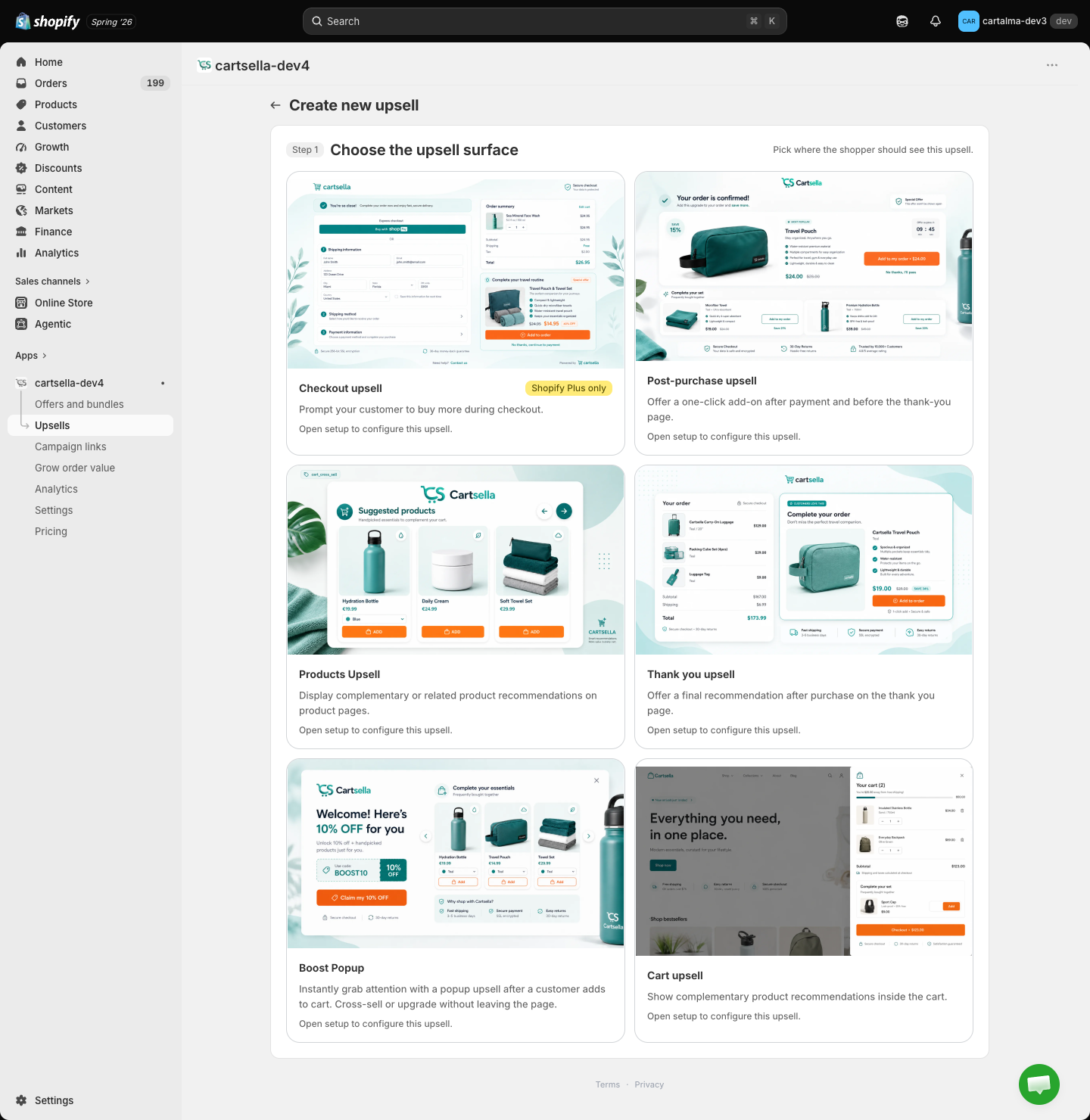
Pick a type
Products Upsell
“You may also like” recommendations on the product page.
Cart upsell
Recommendations inside the cart drawer or cart page.
Checkout upsell
Inside Shopify checkout. Shopify Plus only.
Post-purchase upsell
One click after payment, added to the same order.
Thank you upsell
A last recommendation on the order confirmation page.
Boost popup
A popup after add to cart, or shortly after arrival.
Which one do I want?
Only the post-purchase upsell can discount the product it sells, because it adds the item to an order CartSella controls. The boost popup can hand the shopper a Shopify discount code to claim. Everywhere else, the recommendation is shown at its normal price. If you want an enforced discount, create an offer instead and let the upsell recommend the product.
Creating one
1
Pick the surface
Upsells → Create upsell, then click the card for the surface you want. A checkout upsell asks you to pick a style at this point.
2
Name it and schedule it
Fill in the storefront title. The internal name copies it automatically until you type your own. Add a start and end date if the upsell is seasonal.
3
Choose when it shows
Skip this for a Products Upsell, which always renders where you place the block. Everything else picks a condition.
4
Pick the products
Manual for control, Auto for coverage.
5
Narrow it down (optional)
Add eligibility rules, a priority, or usage limits.
6
Save and place it
New upsells are set to Active by default, so they go live as soon as the block that renders them is in place.
Settings every type shares
The editor is one column of sections, with a sidebar that carries the status, the placement card, a live preview and a Summary checklist that tells you what is still missing.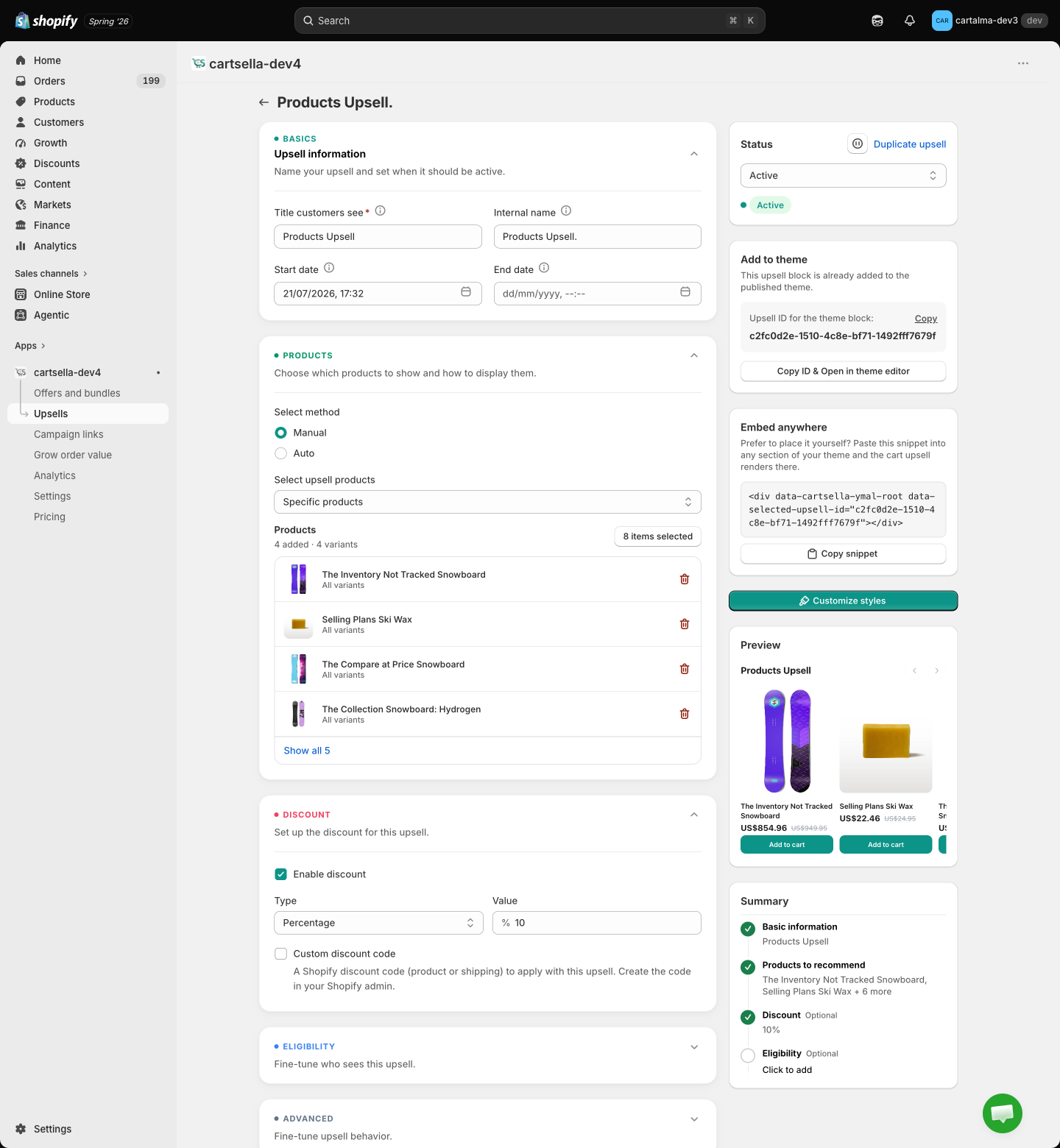
Upsell information
- Storefront title. What shoppers see, for example “You may also like”. Required.
- Internal name. Private, only visible in the admin.
- Start date and End date. The end date is optional. Leave it blank for an upsell that runs indefinitely.
When to show
The Products Upsell has no condition, it always renders where the block sits. The boost popup has its own two triggers. Everything else picks one of:
On a thank-you upsell the same two conditions read the order instead of a live cart: When the order total reaches an amount and When a specific product is in the order.
Products to recommend
Two methods:- Manual. Hand-pick the products or variants to show. Best when relevance matters more than coverage.
- Auto. Uses Shopify Search & Discovery for either Complementary products or Related products. The option only appears once that free Shopify app is installed, and it asks for fallback upsell products that show whenever Search & Discovery returns nothing.
Post-purchase upsells only work with manually picked products. Auto recommendations are ignored there.
Discount
Optional. Tick Enable discount, then set a Type (percentage or fixed amount) and a Value. Percentages are capped at 100. The Products Upsell, Cart upsell and Boost Popup also offer a Custom discount code, a code you create yourself in Shopify Discounts. Only the boost popup actually hands that code to the shopper.Eligibility and targeting
Click Add rule to narrow who sees the upsell. Upsells are display-only recommendations, so only the rules the storefront can check itself are offered:Customer tags only filter shoppers who are logged in. A guest is never hidden by a customer rule, because there is no account to check against. Location and market rules always apply, logged in or not.
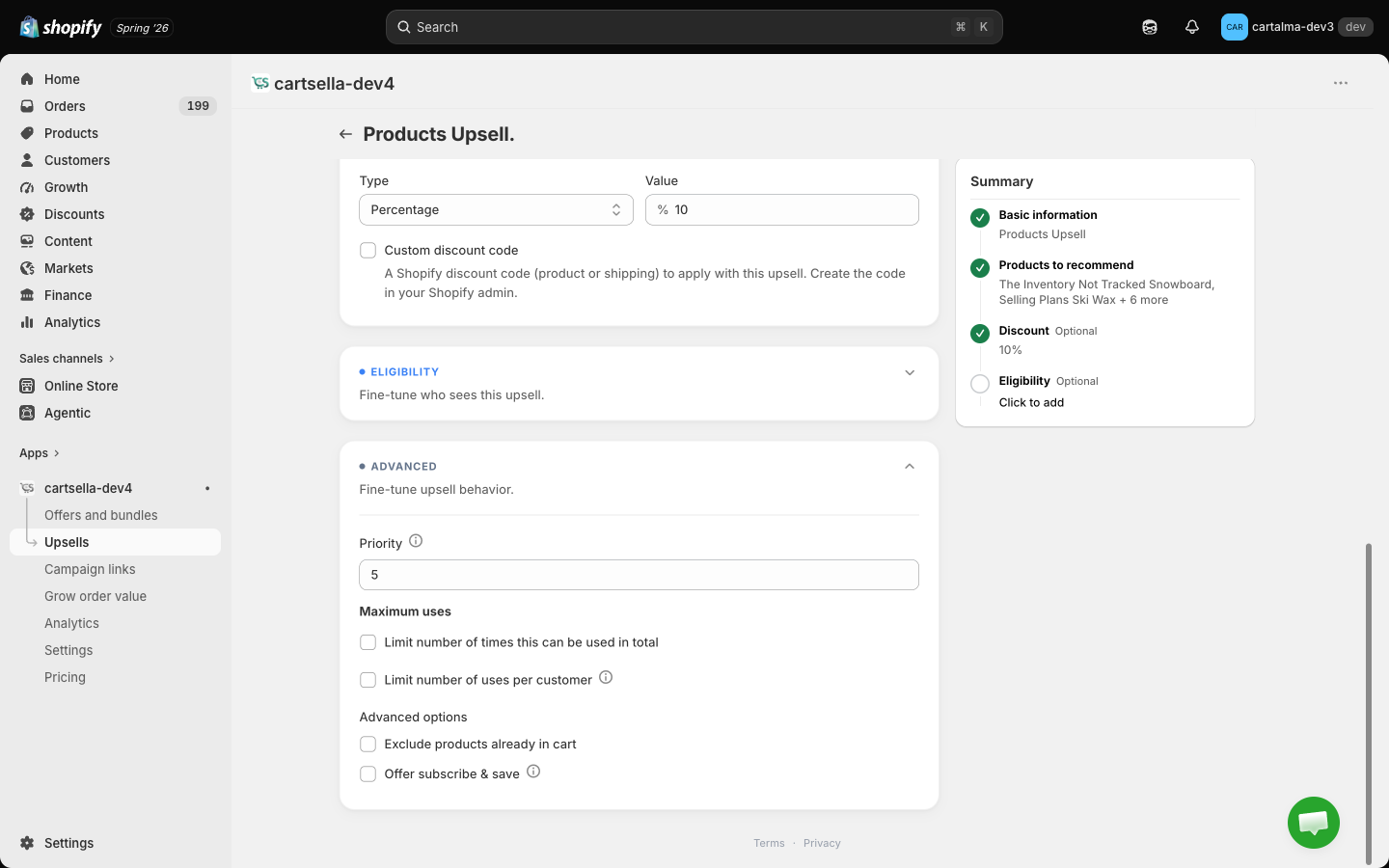
Advanced options
- Priority, 1 to 10, default 5. Lower numbers win when several upsells compete for the same spot. On post-purchase upsells it also sets the step order across the funnel.
- Maximum uses. A total cap across the store and a cap per customer. Both are off by default. The per-customer cap only counts customers with an account, exactly like Shopify’s own per-customer limits. See Advanced offer settings.
- Exclude products already in cart, with an optional Match recommended product variants sub-option that only filters the exact variant instead of the whole product. Hidden on post-purchase upsells, where the cart no longer exists.
- Offer subscribe & save. Shows a “Subscribe & save” toggle on any recommended product that has a Shopify selling plan. Available on the Products Upsell, Cart upsell and Boost Popup. The checkout has its own dedicated Subscription upgrade style instead. The savings come from your subscription app, not from CartSella.
Status and the plan cap
- Draft: not live, does not count toward your plan cap.
- Active: live now. New upsells start here.
- Inactive: paused. Pause and resume straight from the status card.
- Archived: kept for the record, not live.
See Plans and billing.
Styling
Most upsell styling is global. You set the look once on the Customize page and it applies to every upsell of that type. The Customize styles button in the editor sidebar takes you to the right surface.Tips
- Recommend products that cost roughly 10% to 50% of what the shopper is already buying. Big-ticket add-ons rarely convert at this moment.
- Three to five recommendations is the sweet spot. More choice slows the decision down.
- Manual picks usually beat automatic ones when you know your catalogue.
- Run at most one upsell per surface. When two compete, only the lowest priority number shows.
- Check the acceptance rate under Analytics before adding a second one.