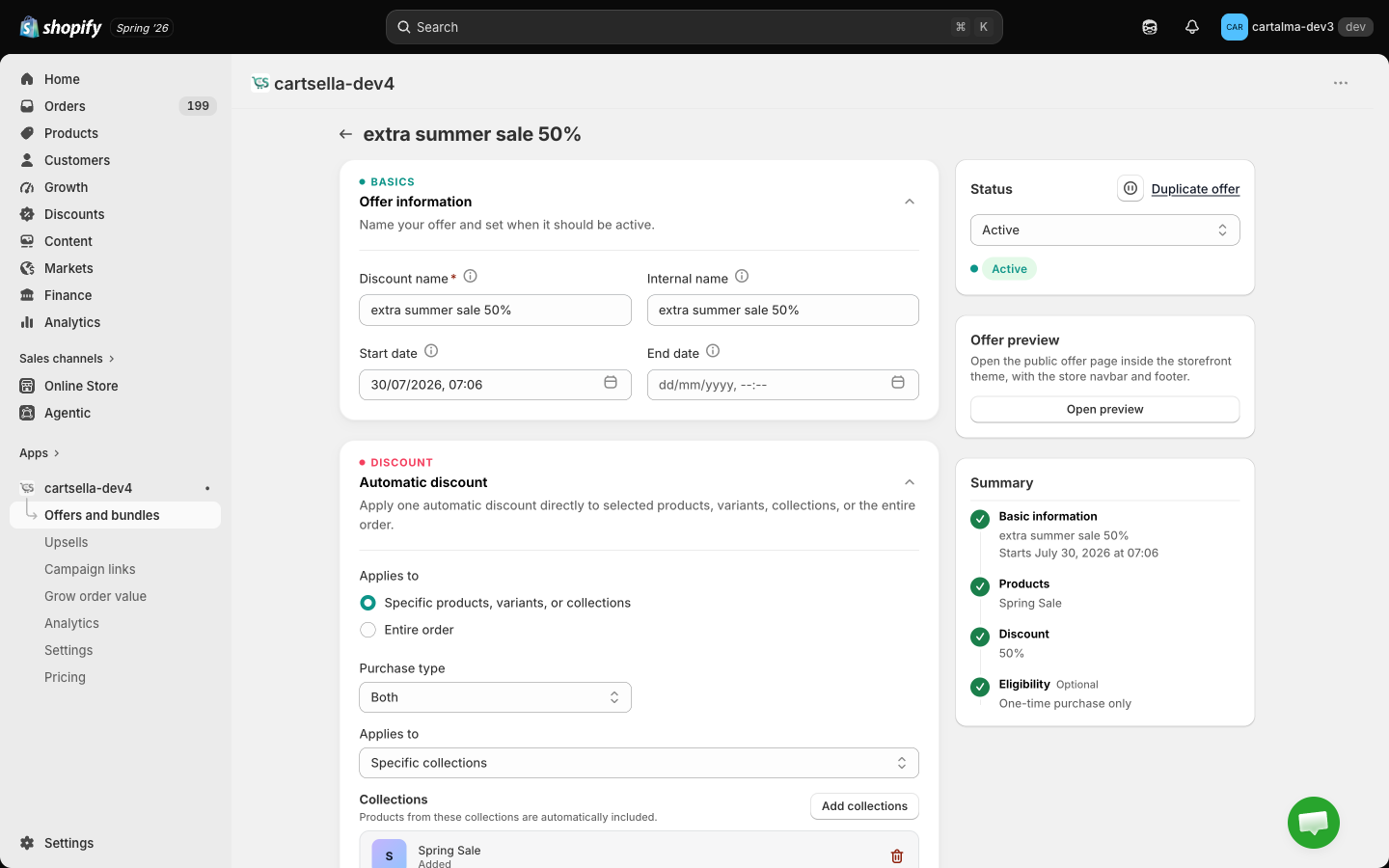
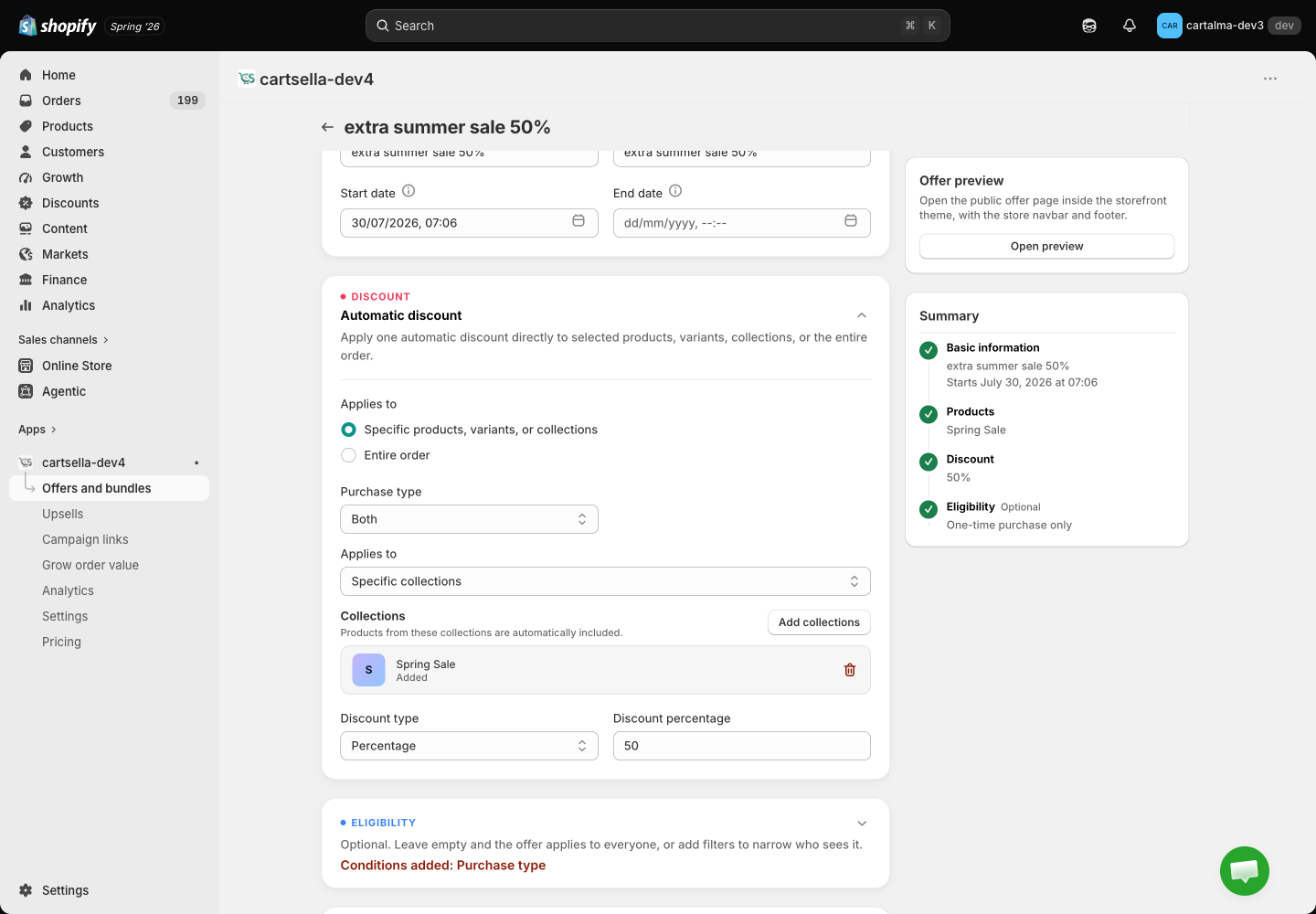
An automatic discount changes the price directly: a percentage off, a fixed amount off, or a fixed final price. It is always on, it has no quantity rules, and it applies the moment a qualifying product is in the cart. Use it for flash sales, collection-wide promotions, and member pricing when you pair it with a customer tag rule.
Set one up
Create the offer
Offers, then Create offer, then Discounts, then Automatic discount. Two starting templates: Selected products 10% off and Selected products fixed price (a final per-item price for subscription variants).
Name it
Discount name is what shoppers see on the cart and at checkout, for example “Summer Sale”, and it is required. Internal name is private and reuses the discount name when left blank.
Choose what it applies to
Specific products, variants, or collections, or Entire order.
Set the discount
Pick the type and enter the value.
Add a schedule if it is a sale
Start and end dates in Basics switch it on and off for you.
Activate it
Set the status to Active and save.
The discount name is the only name in CartSella that Shopify shows on the order. Write it as the shopper should read it on their receipt.
What it applies to
Specific products, variants, or collections opens the selector, where you can mix collections, products and variants in one selection and filter by vendor or product type. Tick the exclude option to invert it, so the discount applies to everything except your selection. Exclude with an empty selection means every product in the store.
Entire order discounts the order subtotal instead of individual lines. The product selector and the purchase type disappear, because neither means anything for an order-level discount.
Discount types
Switching Applies to from products to Entire order while the type is Fixed price changes the type to percentage, because a final per-item price cannot be applied to an order total. Check the value afterwards.
Purchase type
When the discount targets products, Purchase type decides which lines qualify: One-time purchase (the default), Subscription, or Both. The wording matches Shopify’s own discount editor.
Purchase type is judged line by line. In a cart mixing a subscription line and a one-off line, a subscription-only discount touches the subscription line and leaves the other at full price.
No storefront block needed
This is the only offer type with no product-page card and no theme block. The discount simply applies in the cart and at checkout, under the discount name you set.
If you want shoppers to see the promotion before they add to cart, pair it with an announcement bar or a countdown timer.
Eligibility
Eligibility and targeting on this type accepts the full set: purchase type, traffic source, customers’ order history, customer tags, customer location, markets, cart total, item count and products in cart. Cart weight is offered on gift offers only.
Traffic source is available here, so you can run a discount only for shoppers who arrived from a given site or through a tagged link. It is read from the shopper’s browser, so treat it as targeting rather than a lock. See Advanced settings.
Stacking
Combinations in Advanced options decides whether Shopify lets this discount stack with other product, order or shipping discounts, including your own Shopify discount codes.
Combinations is a store-wide setting. Shopify allows one stacking rule per app, so what you set here applies to every CartSella offer in the store. Be especially careful with an always-on automatic discount: a shopper who qualifies for two stacking discounts pays a lot less than either one implies. See Advanced settings. Examples