Delivery rules do not count toward your plan’s active-offer limit. A store capped at 3 active offers can still run delivery rules on top of those 3.
Set one up
1
Open the page
Cart settings, then Delivery rules, then Create delivery rule. Four starting templates: Hide express shipping, Rename Standard with ETA, Show cheapest first, and Hide Express for PO Boxes.
2
Name it
The Title is internal only. Shoppers never see it.
3
Choose the action
Hide it, Rename it, or Reorder it.
4
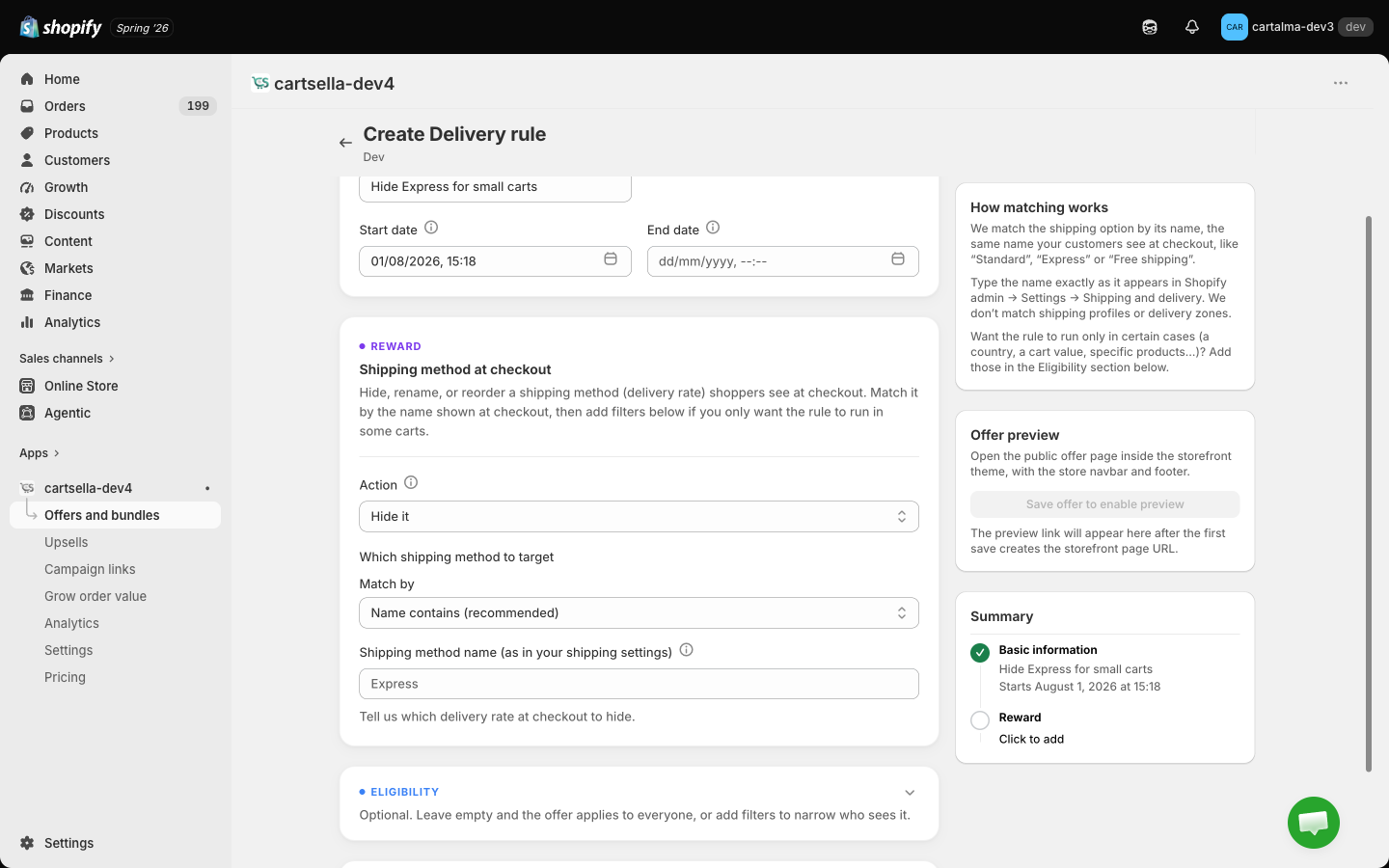
Say which method to target
Set Match by and enter the method name.
5
Narrow it down, optionally
Add filters under Eligibility and targeting so the rule only runs on some carts.
6
Activate it
Set the status to Active and save.
Matching the shipping method
CartSella matches by the name shoppers see at checkout, the same name you set in Shopify admin under Settings, then Shipping and delivery. Shipping profiles and delivery zones are not matched.
Matching ignores capitalisation and surrounding spaces. An empty match value matches nothing at all, so the rule does nothing rather than everything.
Actions
Hide it
Hide it
Removes the matched method from the checkout list. Use it to hide paid shipping once the cart qualifies for free shipping, or to hide express delivery for PO Box addresses.
A checkout with no shipping methods is a dead checkout, so CartSella will never leave one empty. If your rules would hide every option for an address, all of the hides are dropped and the shopper sees the full list instead. To stop an order outright, use Shopify’s shipping zones.
Rename it
Rename it
Set a New name for the matched method. Shopify keeps the carrier name prefixed before your new name. An empty new name is ignored rather than blanking the method.
Reorder it
Reorder it
Position is First, Last, or Specific position. With a specific position, enter a Position number where 1 is the top of the list. The number is clamped to how many options the shopper actually has, so 9 on a three-option checkout puts the method last.
Filters
Under Eligibility and targeting, a delivery rule accepts a smaller set of rules than other offers, because everything here is evaluated at checkout.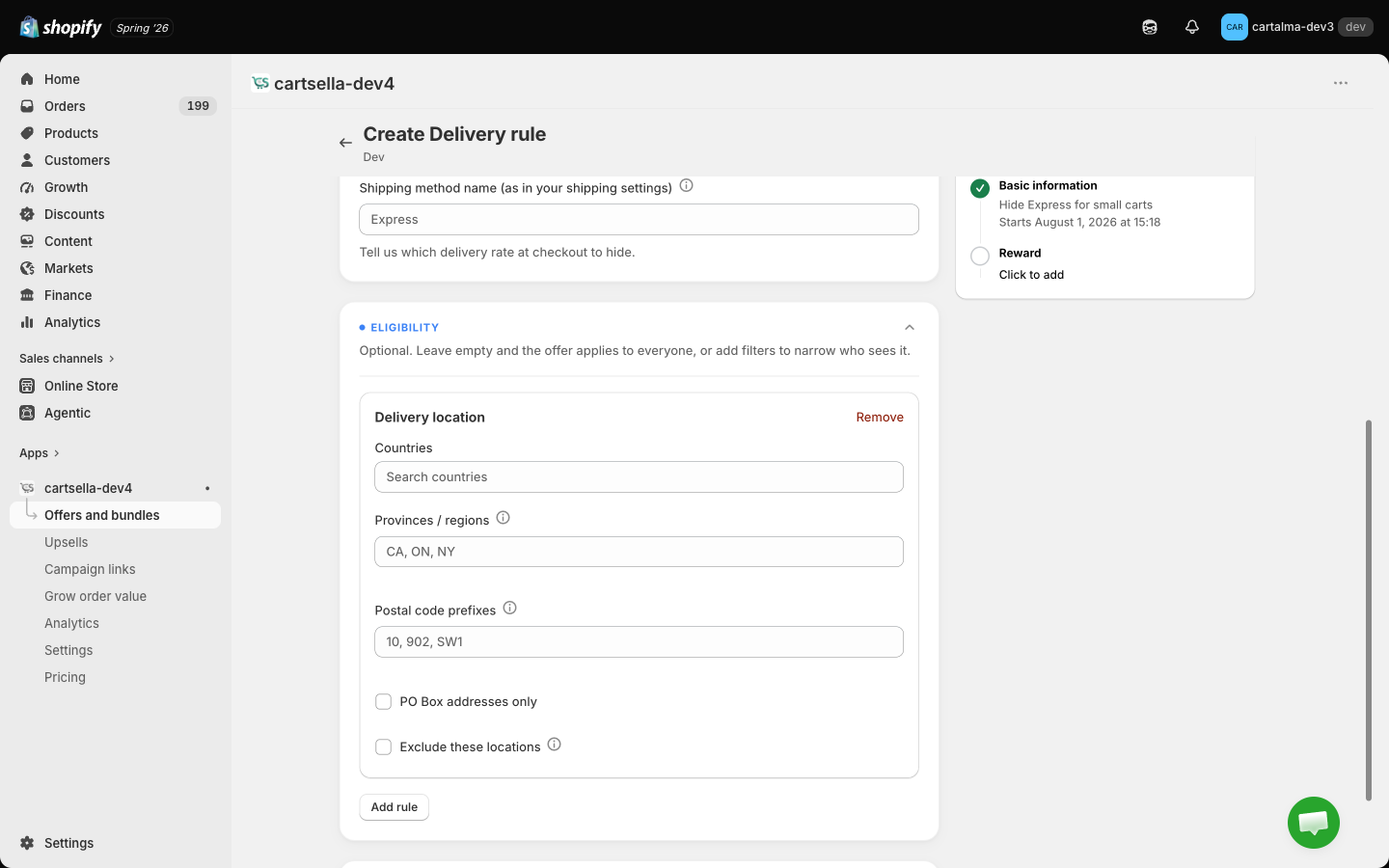
What to expect at checkout
- The rule runs at checkout only. Nothing about it renders on your storefront.
- Prices are untouched. Your Shopify shipping rates still decide what each method costs. To discount the shipping price, use a shipping discount.
- Only Active rules inside their schedule apply. Drafts, deactivated, archived and expired rules do nothing.
- Rules run in Priority order, 1 first, default 5. If two rules do the same thing to the same method, the higher priority one wins and the other is skipped. Rules with different actions can both apply, so one rule can rename a method and another move it.
- Maximum uses and Combinations are hidden on delivery rules, because a delivery rule applies no discount. Priority is the only setting in Advanced options.
Managing rules
The list shows Title, Status, Start date and Actions, with a Filters panel for search and status. Row actions: edit, duplicate, archive, delete, and turn off or turn on. Deleting is permanent.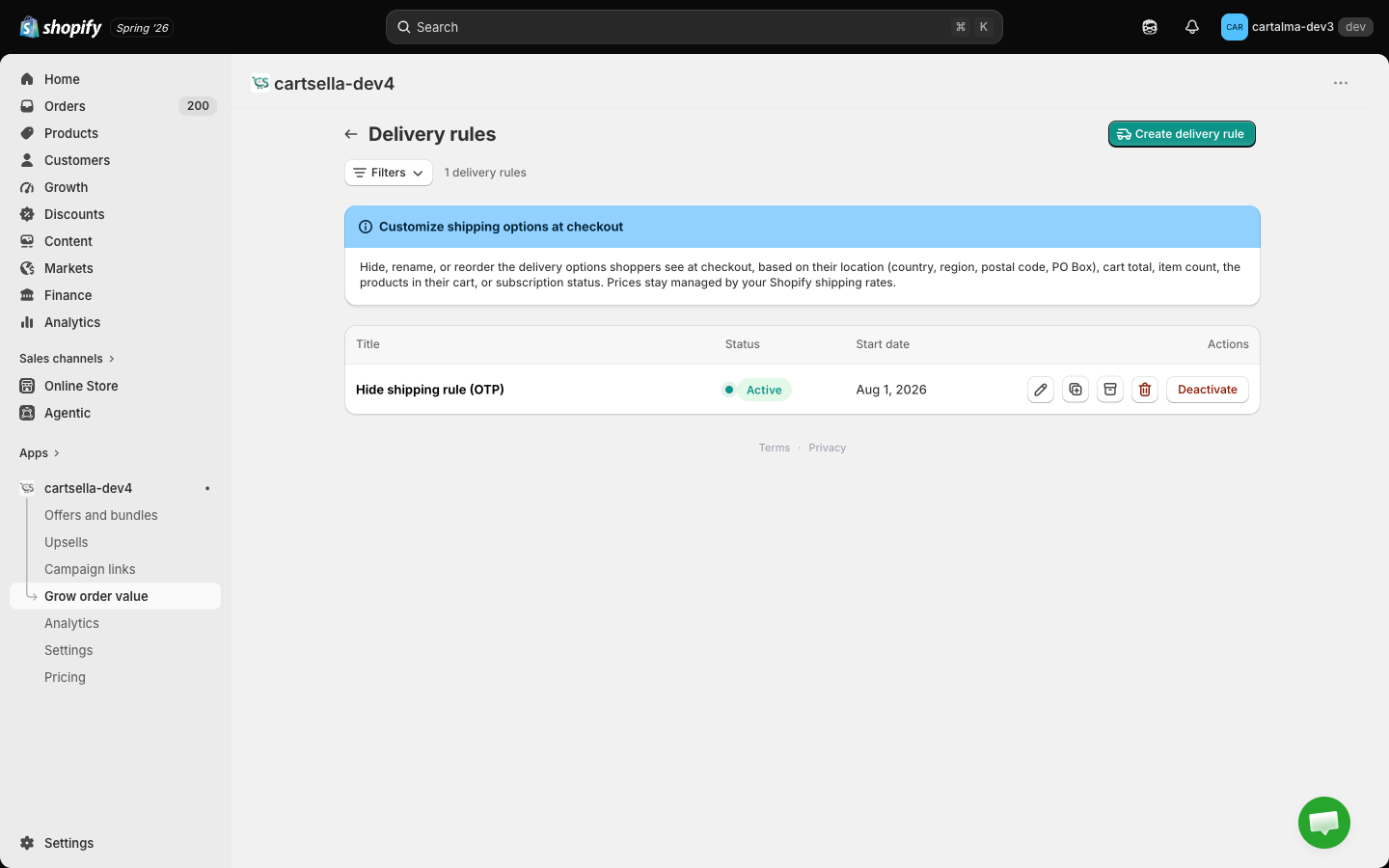
Worked examples
Each of these is one rule unless it says otherwise. The “before” is a checkout offering Standard 4,90 €, Express 9,90 € and Local pickup, Rua da Boavista, free.No express delivery on oversized or hazardous items
No express delivery on oversized or hazardous items
The goal: the dining table and the tins of wood stain cannot go on the overnight van, and a shopper who pays 9,90 € for express on one is getting a refund and an apology.
Before: Standard, Express, Local pickup.
After, with a dining table in the cart: Standard, Local pickup. Every other cart still sees all three.
Put the delivery date in the method name
Put the delivery date in the method name
The goal: “Standard” tells a shopper nothing. “Standard, arrives Tue 12 Nov” answers the question they were about to abandon the cart over.
Before: Standard 4,90 €.
After: Standard, arrives Tue 12 Nov 4,90 €.Exact matching is the right choice here. Name contains
Standard would also rewrite “Standard International”, and you would end up promising a Tuesday delivery to Brazil.Local pickup first, but only for shoppers in your city
Local pickup first, but only for shoppers in your city
The goal: your Porto customers walk past the shop anyway. Everyone else should never see pickup at the top of a list they cannot use.
Before: Standard, Express, Local pickup.
After, for a shopper at 4050-253 Porto: Local pickup, Standard, Express. A shopper in Lisbon sees the original order.Postal codes match as prefixes, so
40 covers the whole 4000 to 4099 range. Add a second rule with Hide it on the same match, filtered to exclude those prefixes, if you would rather pickup disappear entirely outside the city.No express to PO Box addresses
No express to PO Box addresses
The goal: the express courier requires a signature at a street address. A PO Box guarantees a failed delivery.
Before: Standard, Express, Local pickup.
After, for a shopper at “PO Box 220”: Standard, Local pickup.PO Box detection reads both address lines and recognises the usual spellings, including “PO Box”, “P.O. Box”, “Post Office Box” and “pobox”.
Free shipping only above the threshold
Free shipping only above the threshold
The goal: you added a Free shipping over 50 € rate in Shopify, and you do not want it visible while the cart is at 22 €, where it reads as a broken promise.
Before, at 22 €: Standard, Express, Free shipping over 50 €.
After, at 22 €: Standard, Express. At 61 €, the free option is back.
Shopify’s own rate conditions can usually do this on their own, by giving the free rate a minimum order price. Reach for a delivery rule when the condition is something Shopify’s rates cannot express, such as which products are in the cart. And if free shipping is the only method you offer, the safeguard above keeps it visible rather than emptying the checkout.
Two rules on the same method, the one people get wrong
Two rules on the same method, the one people get wrong
The goal: express should be named for what it actually is, and it should sit at the top of the list. That is a rename and a move, which means two rules.Rule one:
Rule two:
Before: Standard 4,90 €, Express 9,90 €, Local pickup free.
After: Express, next working day by 13:00 9,90 €, then Standard, then Local pickup.Both rules apply. Each shipping method takes one of each action, so a rename and a move on the same method are not in competition and priority never comes into it.Priority only settles a collision between the same action on the same method. Add a third rule that also renames express, to “Express delivery”, and only the lower priority number wins: rule one is applied and the third is skipped, so the shopper sees “Express, next working day by 13:00”. The same is true of two rules both hiding express, where the second is simply redundant.