All three are created under Offers, then Create offer, then Bundles, all three end with the same reward block, and all three are placed with the same theme block.
The reward
Every bundle type finishes with a Reward block. You pick exactly one reward.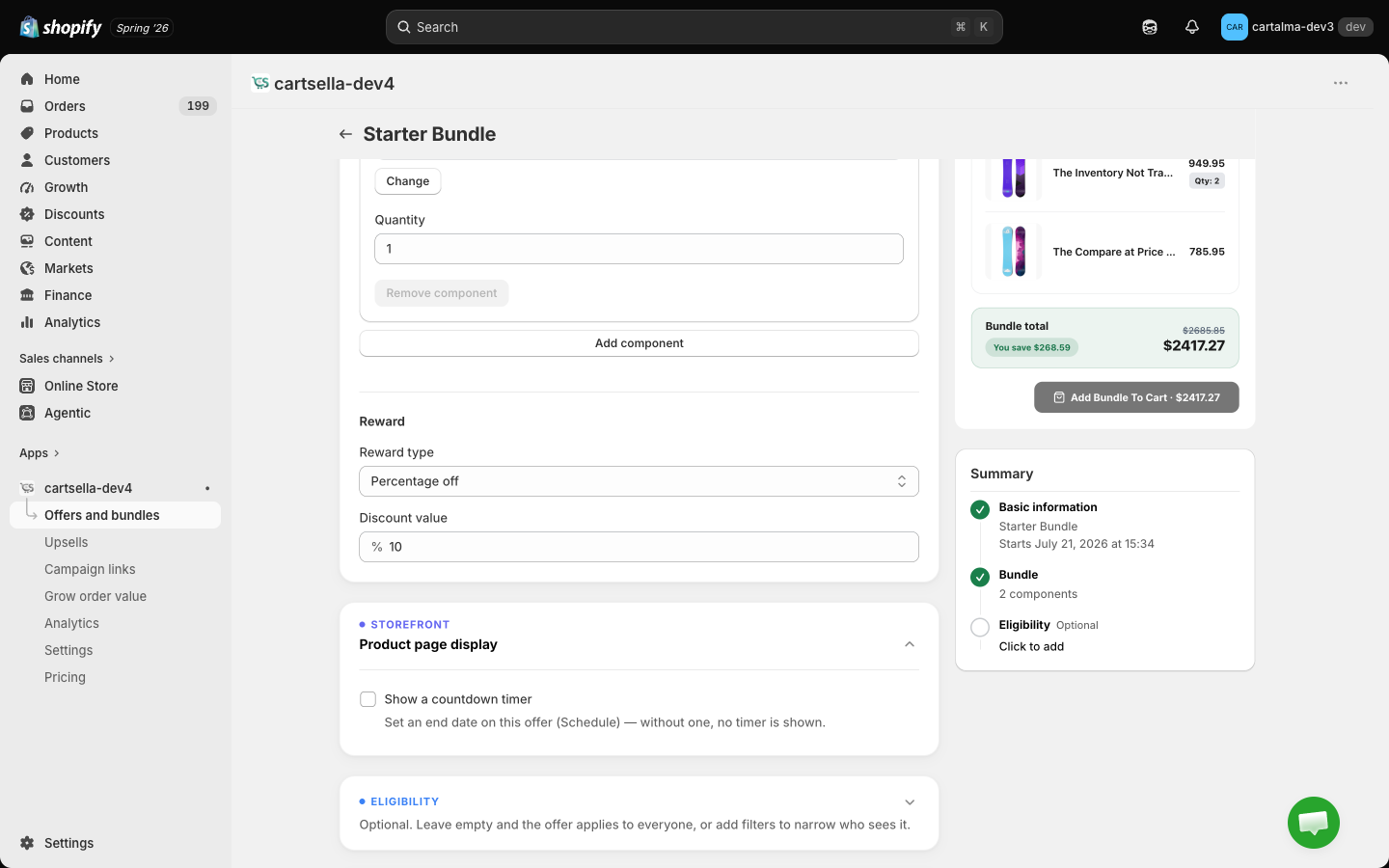
Bundle price only ever discounts downwards. If the items the shopper chose add up to less than the price you set, they pay the lower amount. A bundle price can never charge more than the items are worth.
Standard bundle
A predefined set. You choose the products and the quantities, the shopper adds the lot in one click.1
Add the components
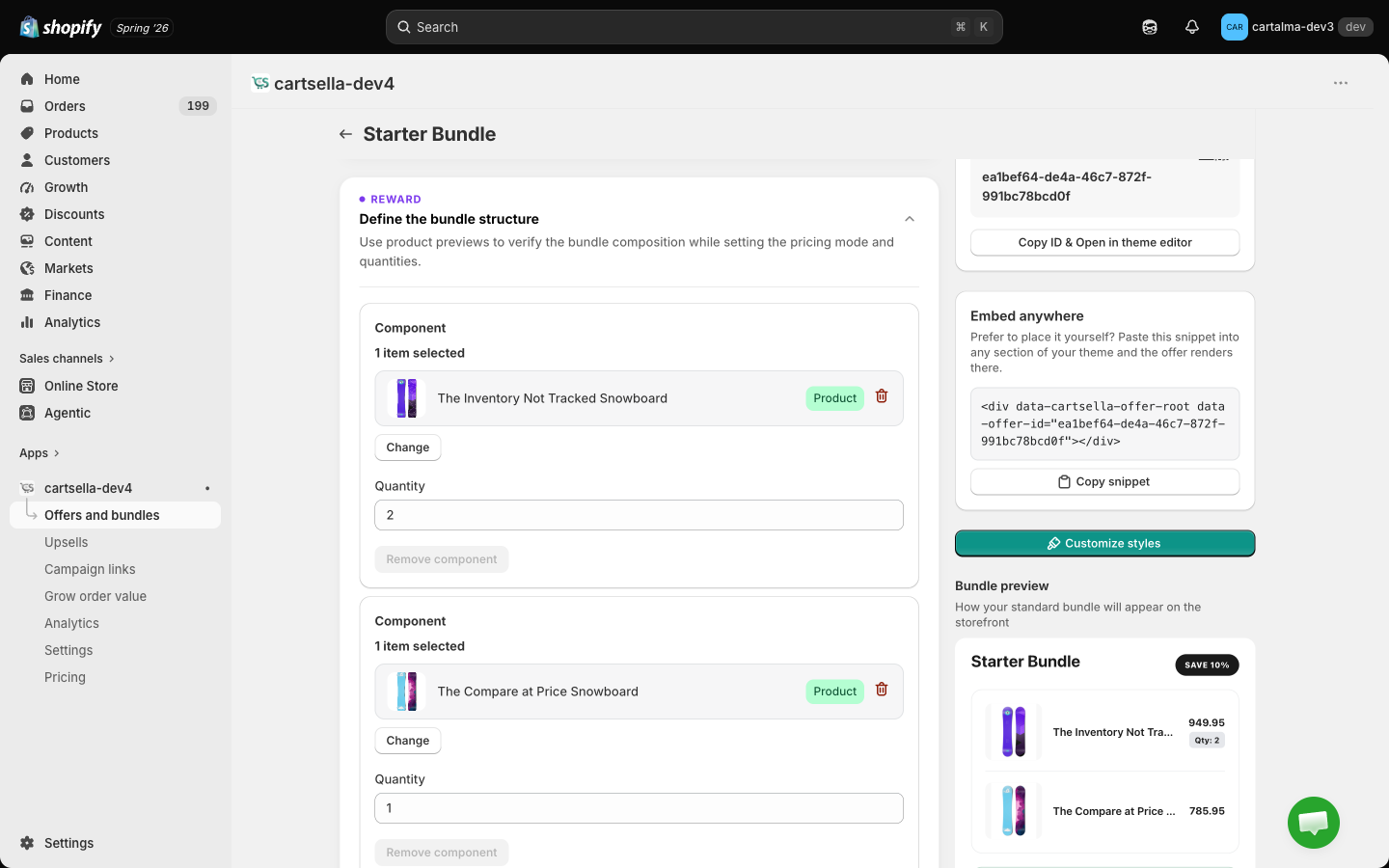
Add component, then pick a product or a variant, then set its Quantity. A standard bundle needs at least two components, so the remove button is disabled while only two are left.
2
Set the reward
Usually Bundle price, for a “starter kit for 29” style offer.
3
Add a countdown, optionally
Product page display holds Show a countdown timer, which counts down to this offer’s end date at the top of the bundle card. It needs an end date in Basics, and the field says so when there is none.
4
Place the block
Copy the offer ID, add the CartSella — Bundles block to the page where you want it, and paste the ID in.
Pick your bundle
The shopper builds the bundle from products you allow, in a single step, and the reward applies once your rules are met.1
Choose how shoppers pick
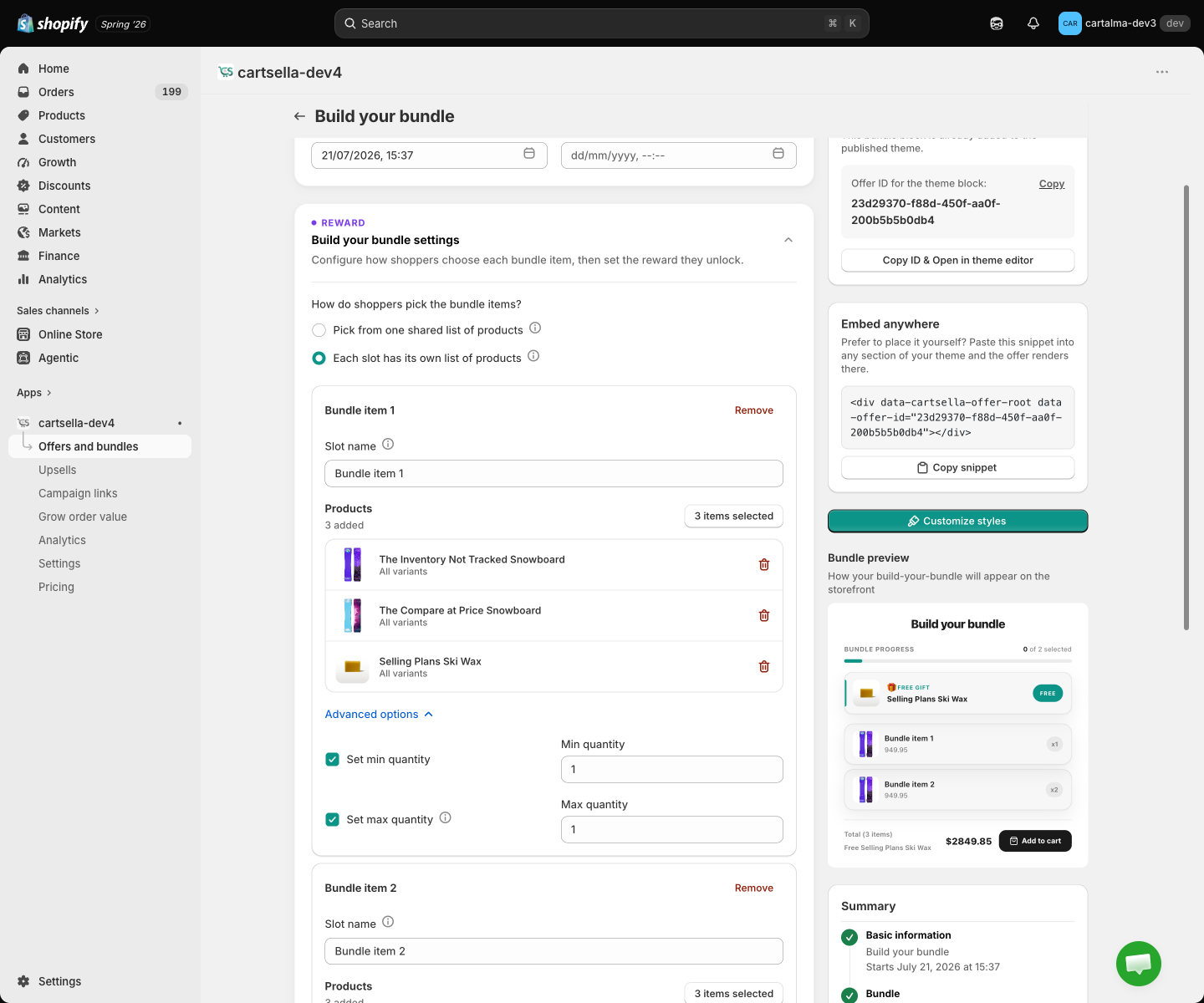
Pick from one shared list of products works for “pick any 3”. Each slot has its own list of products works for “pick a top and a bottom”.
2
Set the product list
With a shared list you pick the products once, under Products. With per-slot lists, each bundle item gets its own selection.
3
Add bundle items
Add bundle item creates a slot. Each has a Slot name, shown to shoppers above that slot’s products, for example “Choose your top”.
4
Set the quantities
Advanced options inside a slot holds Set min quantity and Set max quantity, each with its own value. Leave the maximum off for no ceiling. A minimum below the maximum is enforced for you.
5
Set the reward and place the block
Same reward block, same CartSella — Bundles block, same offer ID.
Bundle builder page
A guided funnel. The shopper moves through your steps in order, picking products at each one, then reviews the box and adds everything to the cart.1
Build the steps
Under Steps, add one step per stage. Each has a Step name, the heading shoppers see, and its own product list.
2
Set the picks per step
Advanced options inside a step holds Minimum picks, Maximum picks and an optional Step description shown under the step title. The total box size is derived from the per-step minimums and maximums, so there is nothing else to keep in sync.
3
Add a selling plan, optionally
Once any step has products, a Selling plan (optional) dropdown appears. It applies to every step, and variants that are not eligible for the plan are added as one-time purchases.
4
Set the reward
Often Bundle price, for a “build a 6-item box for 39” offer.
5
Tune the flow
The Advanced options disclosure inside the builder section holds After customer finishes (Add to cart or Go to checkout) and Skip review step.
6
Share the page
Every saved bundle builder gets a hosted page on your store at
/pages/cartsella-funnel?ca_funnel=<offer-id>. The editor sidebar links to it. Put it in your navigation, on a product page, in an email, or in a social bio.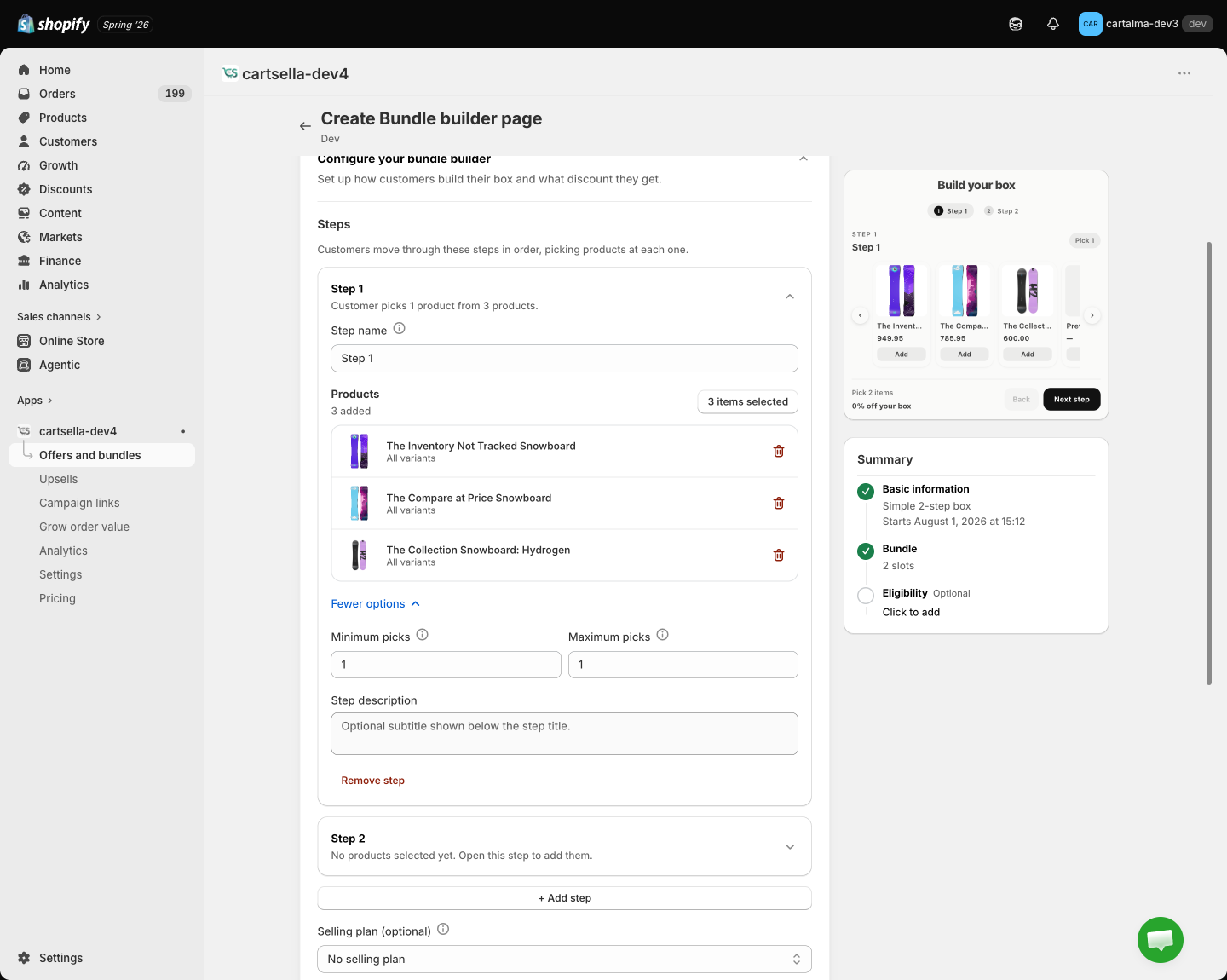
Funnel appearance
Funnel appearance
The look of the funnel page: four templates (Modern, Minimal, Bold, Luxury), Step navigation (all steps on one page, or one step per page), and collapsible Colors, Texts, Layout and Typography groups. Texts covers every string on the page, from the hero title to the button labels and the empty-slot message. Layout covers card radius and padding, product layout (carousel or grid), how many cards are visible, progress style, hero alignment and footer style.Colours can also be set globally on the Customize page. What you set here wins for this offer.
Showing a bundle on your storefront
All three types use one block.1
Copy the offer ID
It is in the editor sidebar, with a copy button.
2
Add the CartSella — Bundles block
In the theme editor, add it to the page where the bundle should appear.
3
Paste the ID into Bundle ID
The block detects the type and renders the right layout. If the field is blank or the offer is not active, the block shows “Offer unavailable”.

Eligibility and advanced
All three types take the full set of rules in Eligibility and targeting, and the usual Priority, Maximum uses and Combinations in Advanced options. See Advanced settings.Tips
- Price the bundle so it clearly beats buying the items separately. Shoppers do the arithmetic.
- Bundle products that genuinely go together. A curated set converts better than a discount on a random mix.
- Use a schedule in Basics for seasonal bundles and they switch themselves on and off.
- For a limited run, set a total usage cap in Advanced options. See Advanced settings.
- Bundle lines, including a free gift line from a bundle, can be deleted by the shopper in the cart. Doing so undoes the bundle, so the remaining lines lose the bundle price with it. That is the correct outcome, but worth knowing before a customer asks you about it.