Set one up
1
Create the offer
Offers, then Create offer, then Gifts and shipping, then Gift with purchase. Two starting templates: Spend threshold gift (“Spend $100 and get a free gift”) and Buy 1 get 1 gift (“Buy 1 qualifying item and get a free gift”).
2
Name it
Fill in Title customers see, the heading on your storefront. Internal name is optional and copies that title when left blank.
3
Choose the condition
Decide what unlocks the gift: products, a cart total, or a subscription cart total.
4
Choose the reward
Set Reward type to Gift products, pick one or more variants, set the gift quantity and the gift discount.
5
Show it on the product page
Copy the offer ID, add the CartSella — Offers block to your product template, and paste the ID in. See Theme blocks.
6
Activate it
Set the status to Active and save.
The condition
Condition type has three choices.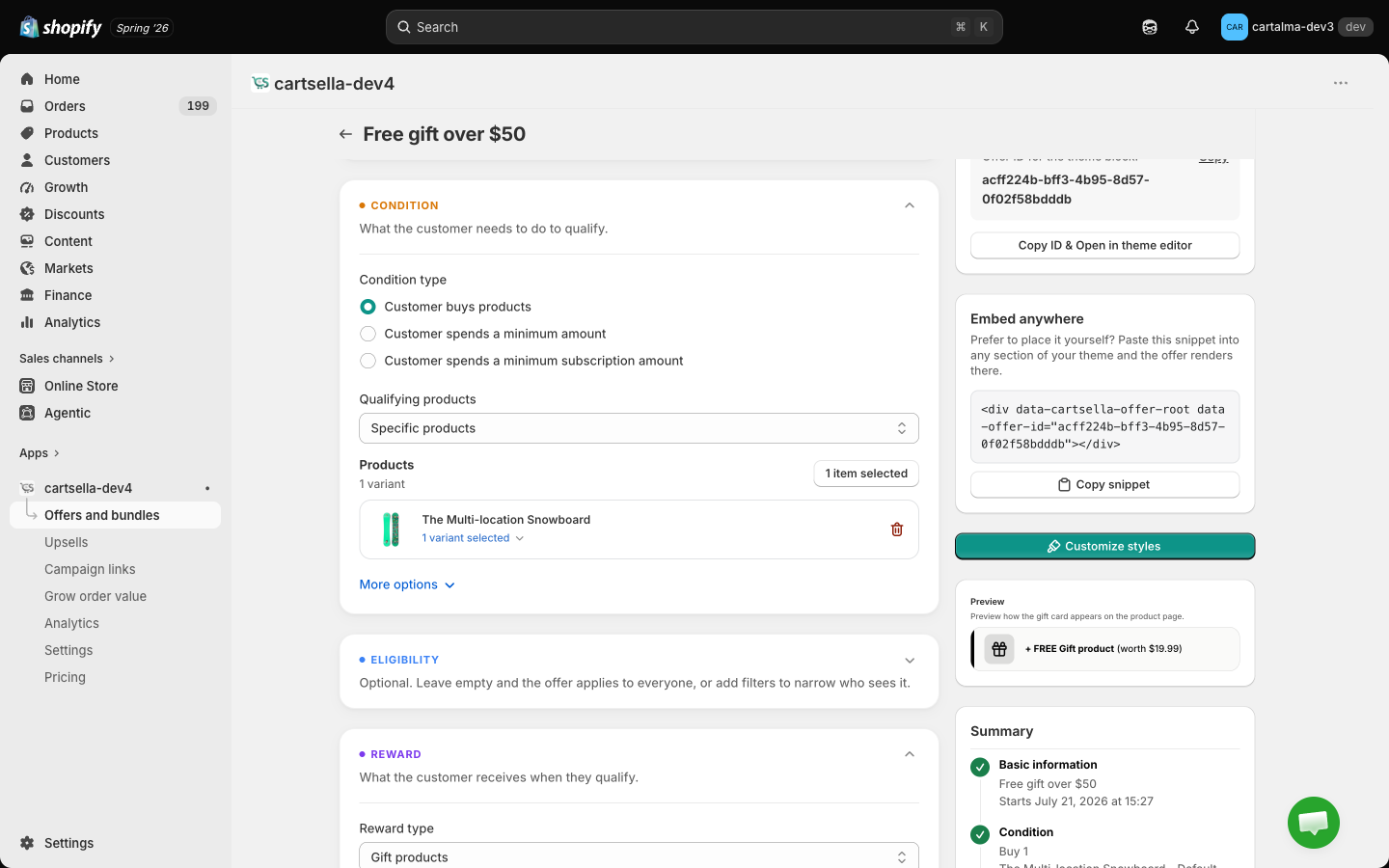
Any of these products, or all of them
Open More options under the product list to switch How the products count:- Any of these products: buying any one of the selection qualifies, and everything you selected feeds one shared count. This is the default.
- All of them, bought together: the shopper must have every product in the list in the cart, each at its own minimum quantity. Buying several full sets adds a gift for each set.
Options on a spend condition
Under More options on a cart total condition:- Minimum items in cart and Maximum items in cart add a quantity requirement on top of the amount. Leave them blank to ignore them.
- Repeat the gift for every multiple of this amount: spend 200 for 2, $300 for 3. Leave it off for one gift no matter how much they spend.
How many gifts get added
A product condition multiplies on its own. If the condition is “buy 2”, then 2 qualifying items give 1 gift, 4 give 2, 6 give 3. A minimum cart total is a gate, not a multiplier: it either lets the gift through or it does not, unless you turn on Repeat the gift for every multiple of this amount.
The reward
Reward type is either Gift products or Shipping discount, never both on the same offer.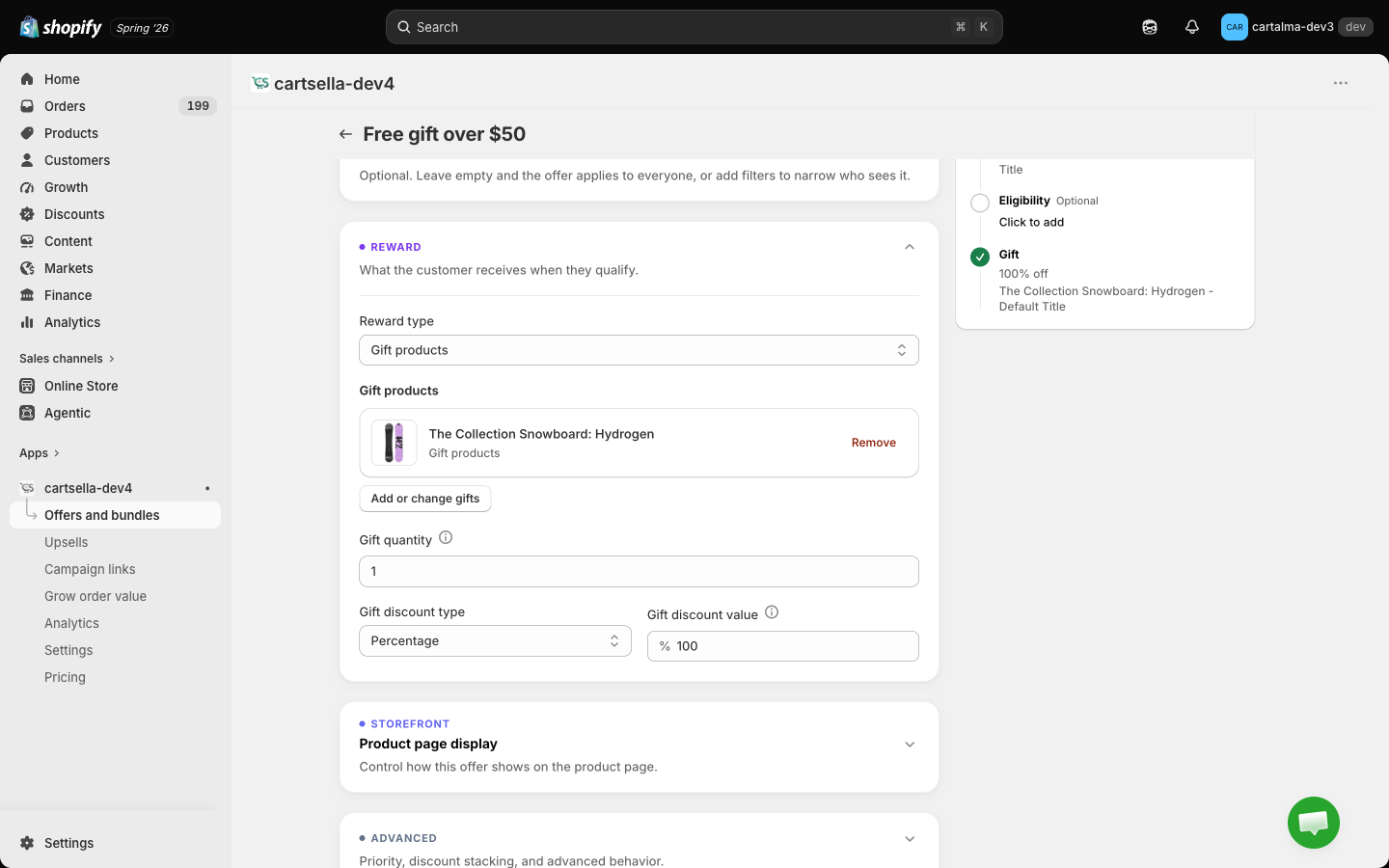
- Pick one or more variants with Select gift products. Each one appears as a card with its image and title, and an Out of stock note when the variant has no stock.
- Gift quantity is the buy X, get Y number.
- Gift discount type and Gift discount value decide the price. Percentage 100 makes the gift free. Lower it to charge a discounted price for the gift instead.
Product page display
This section appears when the condition is a product condition. A gift offer with a cart-total condition has no product-page card, because there is no specific product page to attach it to.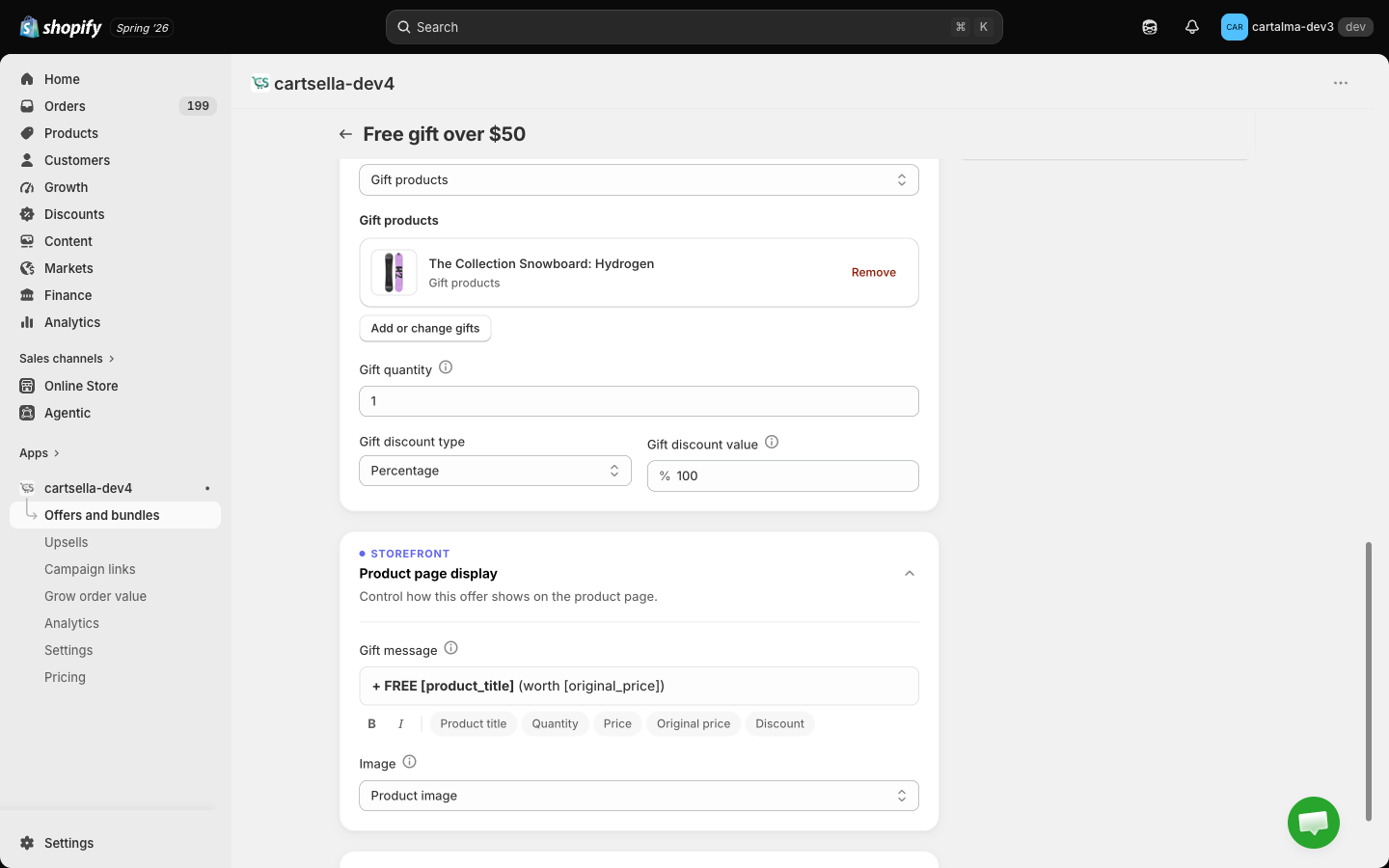
A live preview of the card sits next to these fields. Card colours and fonts are set once for all gift offers on the Customize page.

Eligibility
Add optional filters in Eligibility and targeting: purchase type, customers’ order history, customer tags, customer location, markets, cart total, item count, cart weight, products in cart. Two behaviours worth knowing:- Cart weight is only offered on gift offers. Nothing else can enforce it where it matters.
- Traffic source is not offered on gift offers, because the discount that pays for the gift is applied at checkout, where that browser signal cannot be read.
- Customer tags and order history only filter for shoppers who are signed in. A signed-out visitor still sees the offer, and the checkout re-checks the rule before the gift is discounted.
Tips
- Pick a gift shoppers actually want. A desirable gift moves more carts than a small percentage off.
- Keep the condition simple. “Spend $50, get a free X” beats a stack of rules.
- Pair the offer with a progress bar so shoppers can see how close they are.
- Watch stock. If the gift product runs out, CartSella pauses the offer and resumes it when stock returns, and the editor shows a banner explaining why.