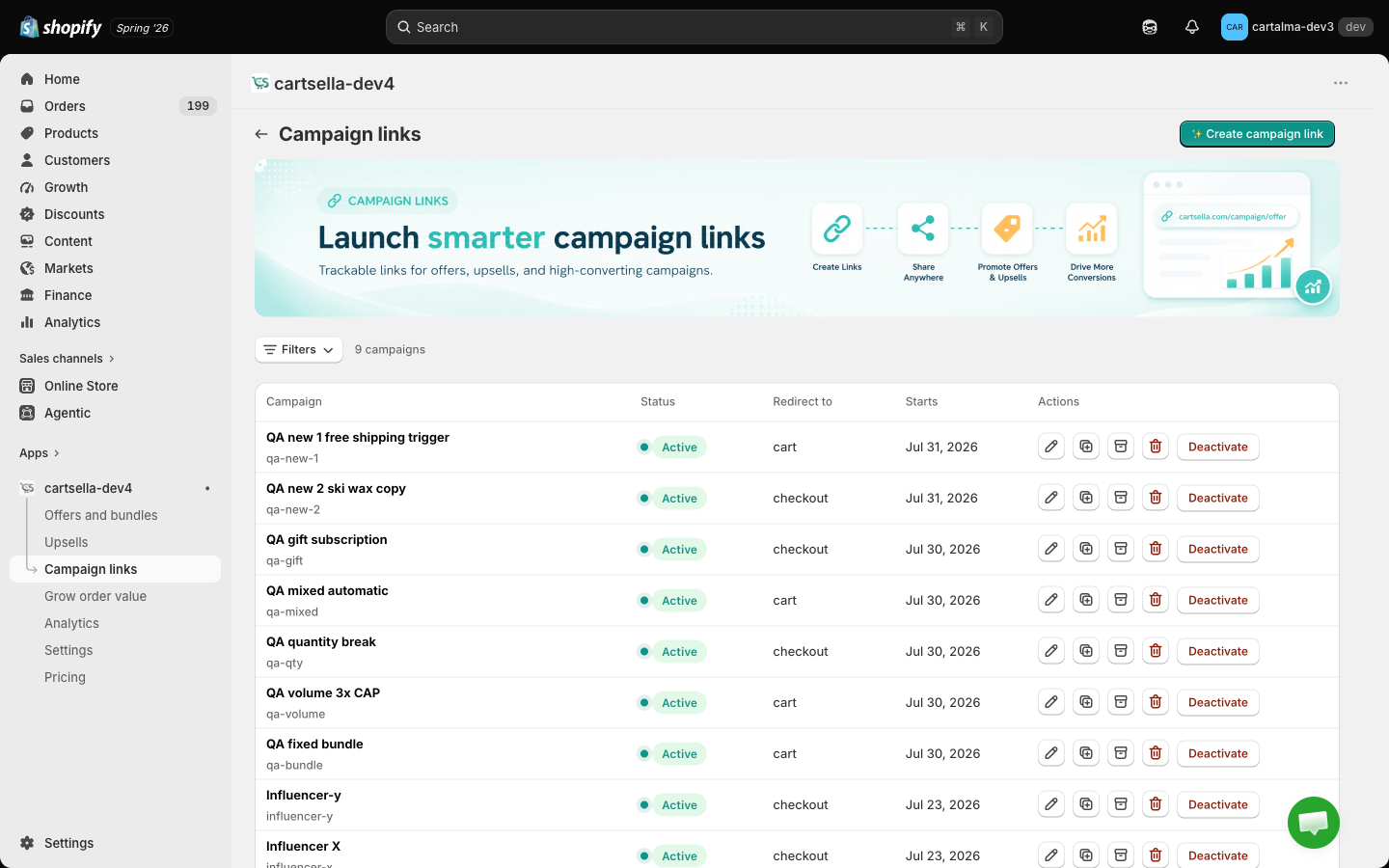
Create a link
1
Start a new link
Campaign links, then Create campaign link.
2
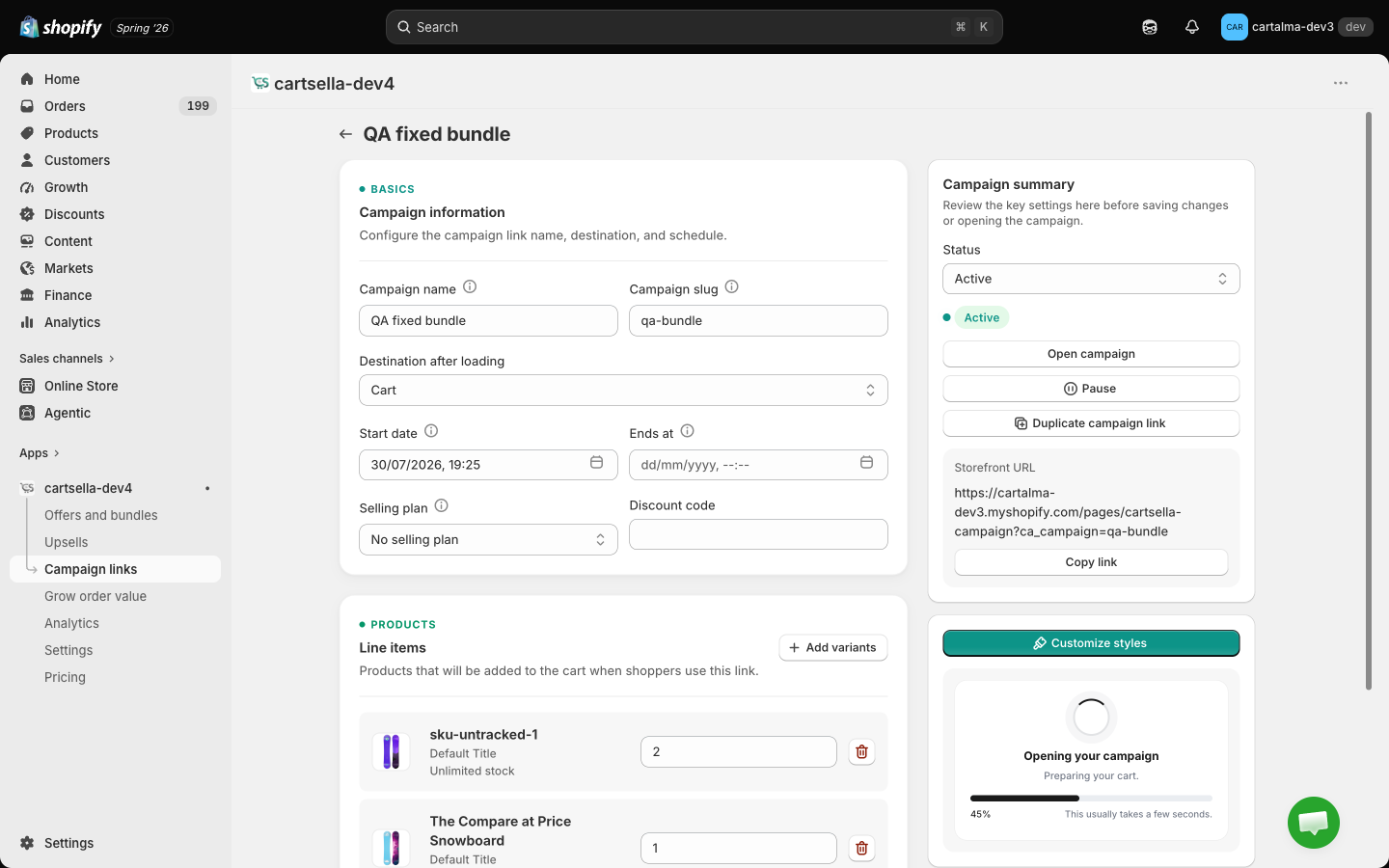
Name it
Campaign name is internal only. Use something you will recognise later, like “Instagram story July 15” rather than “Link 1”.
3
Check the slug
Campaign slug is generated from the name and forms the URL. Edit it if you want something shorter. If the slug is already taken, CartSella adjusts it and tells you what it used.
4
Choose the destination
Destination after loading is Cart or Checkout. New links default to Checkout.
5
Add the products
In Line items, click Add variants, pick the variants, and set a Qty for each. At least one variant is required.
6
Schedule it, optionally
Start date defaults to now. Ends at is optional, leave it blank for an ongoing link.
7
Activate it
Set the status to Active in the sidebar and save.
Settings
Stock warnings
Each line item shows its stock: a count, “Unlimited stock”, or Out of stock. When at least one variant is unavailable, a red banner appears at the top of the section. An unavailable variant is skipped rather than breaking the link. The shopper still gets everything else in the list. Fix it by restocking, or by swapping in a variant that is available, before you send the link out.Subscriptions
Setting a Selling plan makes the link start a subscription. The shopper taps once and lands on a cart that is already on the plan, with the frequency chosen — they never pick the product, then the plan, then the cadence. Shopify’s built-in prefilled cart links can’t do this — selling plans don’t work with cart permalinks — so a campaign link is the way to send one. Three behaviours worth knowing:- The plan is applied per line, not to the whole link. If your campaign mixes a subscribable product with a one-time-only one, the plan lands on the first and the second is sold one-time — in the same single add. You don’t have to split the campaign in two.
- A stale plan degrades instead of breaking. If you later swap the products for ones with no selling plan groups, the link sells them one-time rather than failing. Without that, every line would error with “Cannot apply selling plan to variant” and the campaign would show Campaign unavailable until someone re-saved it.
- The plan list comes from the variants you picked, so add your line items first, then choose the plan.
The URL
The link looks like this:What the shopper sees
They land on a short branded loading screen while the cart is prepared, then arrive at the cart or checkout with everything in place.
Gifts and offers on a campaign link
You do not attach an offer to a campaign link. Your active offers apply to the resulting cart exactly as they would to any other cart. If the products in the link trigger a gift with purchase offer, CartSella works out the gift and adds it in the same step, so the shopper arrives with it already in the cart. Offers gated on a customer tag, a customer location or a traffic source cannot be resolved before the page loads, because nothing is known about the shopper yet. Their gift is added a moment later, once the storefront knows who is browsing.Manage links
The list shows Campaign, Status, Redirect to, Starts and Actions, with active links sorted to the top and archived ones to the bottom. Filters opens a search box, and the count above the list tells you how many campaigns the store holds in total. Row actions: edit, duplicate, archive, delete, and Turn off or Turn on. Deleting asks for confirmation and cannot be undone. Orders already attributed to a deleted link keep their attribution in Analytics. Performance is reported in Analytics, not on this page.Plans
Every plan includes campaign links. Plans differ only in how many can be active at once: 1 on the Free plan, 10 on Starter, Growth and Dev, 20 on Scale and Business. See Plans and billing. A store can hold at most 100 campaign links across all statuses. At the cap, Create campaign link is disabled and a banner tells you to delete some first. If your store is blocked at its monthly order limit, the Create button is disabled too, with a card offering the upgrade.Tips
- Give each channel its own link so you can tell which one sells.
- Send to Checkout for a single product promotion, and to Cart when the shopper is likely to add more.
- Set Ends at on a limited time promotion and the link retires itself.
- Test the link in a private window before you send it, since it clears the cart of whoever opens it.