
Where the shopper sees it
Inside the cart, wherever you place the block on your cart template. On most themes that is the cart drawer that slides in from the side, and the cart page, since both render from the same template.Set one up
1
Create it
Upsells → Create upsell → Cart upsell.
2
Name it
Fill in the Storefront title. Add a start and end date if it is seasonal.
3
Choose when to show
Always, above a cart total, or only when a specific product is in the cart. See below.
4
Pick the products
Manual or Auto.
5
Save and copy the ID
The sidebar shows the Upsell ID once saved. Drafts have no ID and never reach the storefront.
6
Add the block to your cart template
Click Add to theme in the sidebar, or go to Online Store → Themes → Customize, switch to the Cart template, click Add block, pick CartSella — Upsell under Apps, paste the ID, and click Save.
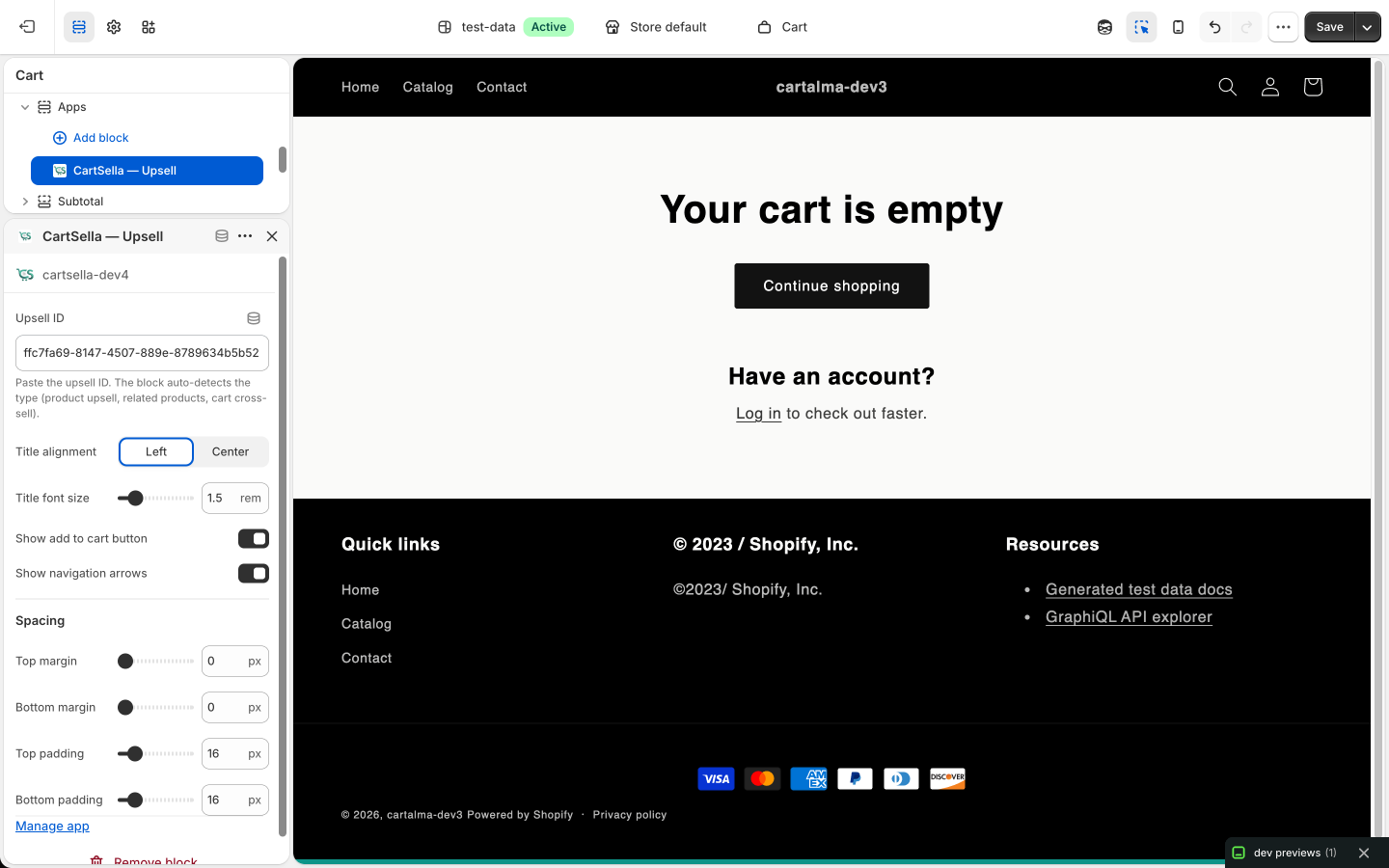
It is the same CartSella — Upsell block used by the Products Upsell. The only difference is the template you put it on. The block reads the ID and renders the cart layout for a cart upsell.
Block settings, in the theme editor
When to show
Products to recommend
- Manual
- Auto
Hand-pick the products or variants. Predictable, and the right choice for a small catalogue or a specific add-on you want in every cart.
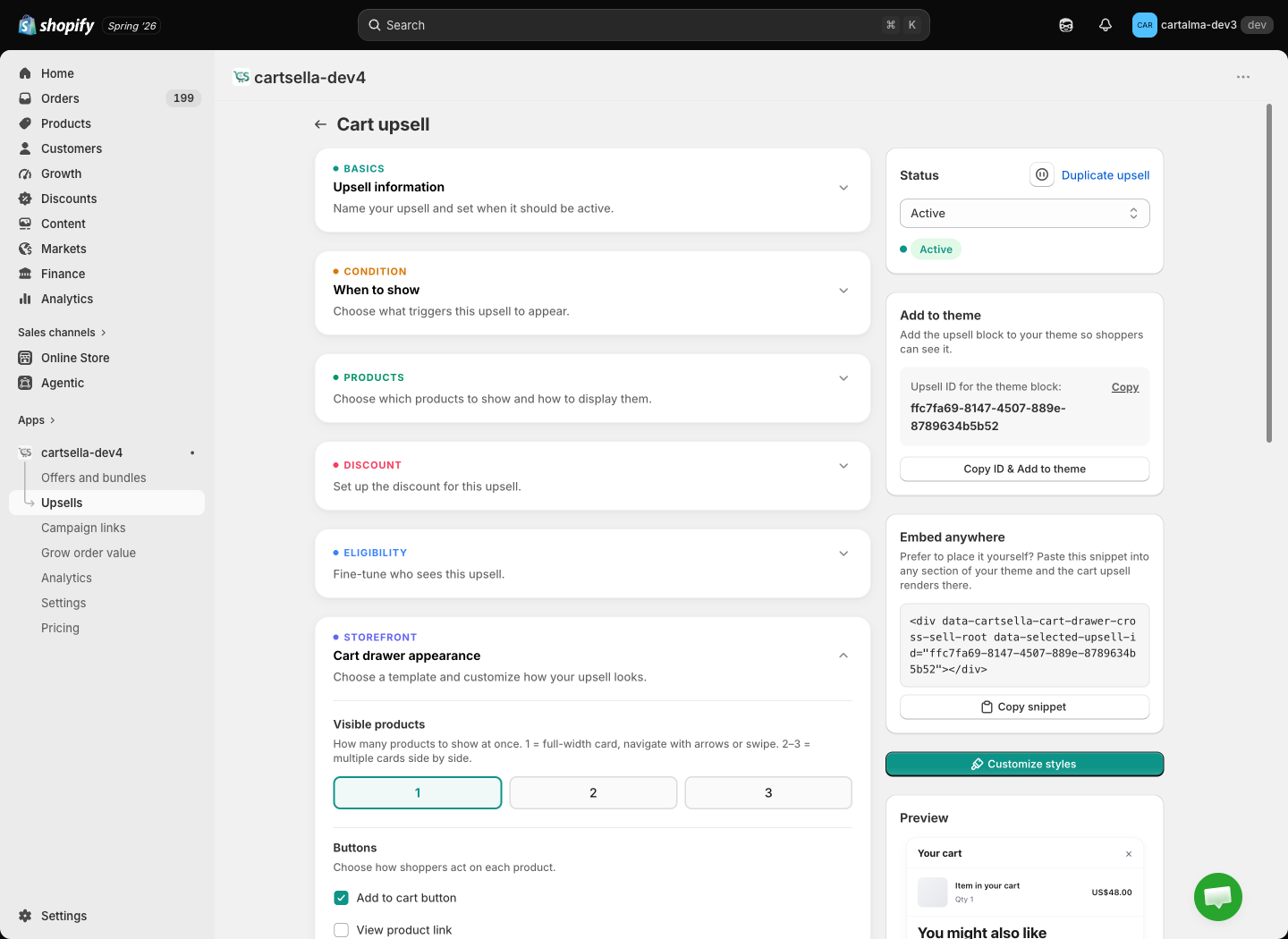
Everything in the editor
Eligibility & targeting
Click Add rule for Traffic source, Customer tags, Customer location or Markets (the last only appears when your store has more than one market).Customer tag rules only filter shoppers who are logged in. A guest is never hidden by them. Location and market rules always apply. If a rule is set but the storefront cannot check it at all, the block hides itself rather than showing the wrong thing.
Advanced options
- Priority, 1 to 10, default 5. Lower wins when two cart upsells qualify at the same time.
- Maximum uses, total and per customer. Off by default. See Advanced offer settings.
- Exclude products already in cart, on by default here, with Match recommended product variants as a sub-option.
- Offer subscribe & save, adds a “Subscribe & save” toggle to any recommended product with a Shopify selling plan.
Discount
You can fill in a discount, but the recommendation appears at its normal price. CartSella does not advertise a discount the checkout will not honour. For a real discount on these products, create an offer and let the upsell recommend the product.How it looks
Two places control the look, and it is worth knowing which is which. Per upsell, in the Cart drawer appearance section of the editor:- Visible products: 1, 2 or 3 cards.
- Buttons: show the Add to cart button, show the View product link, or both.
- Section title: the heading above the recommendations.
- What to show: product description, compare-at price, discount badge.
- Card style: gap, border, padding, corner radii, shadow, hover scale, image aspect ratio.
- Text sizes and Colours, inheriting your theme until you switch that off.
Limits and gotchas
- Drafts never render. Set the status to Active and save.
- The CartSella app embed must be on. See Storefront blocks.
- Some themes rebuild the drawer contents on every cart change. If the recommendations flicker or vanish after an add, check Troubleshooting.
- Run one cart upsell at a time. Two competing in the same drawer is noise, and only the lowest priority number shows anyway.
- Keep it to two or three cards. The drawer is small, and the checkout button has to stay in view.