At a glance
Pause one offer or upsell
Open the item and change its status in the sidebar. There is also a pause button in the status card header, and on the list pages you can select several rows and use Activate, Deactivate or Archive together. Only Active items reach your storefront. Everything else is off, and the difference is what it means to you.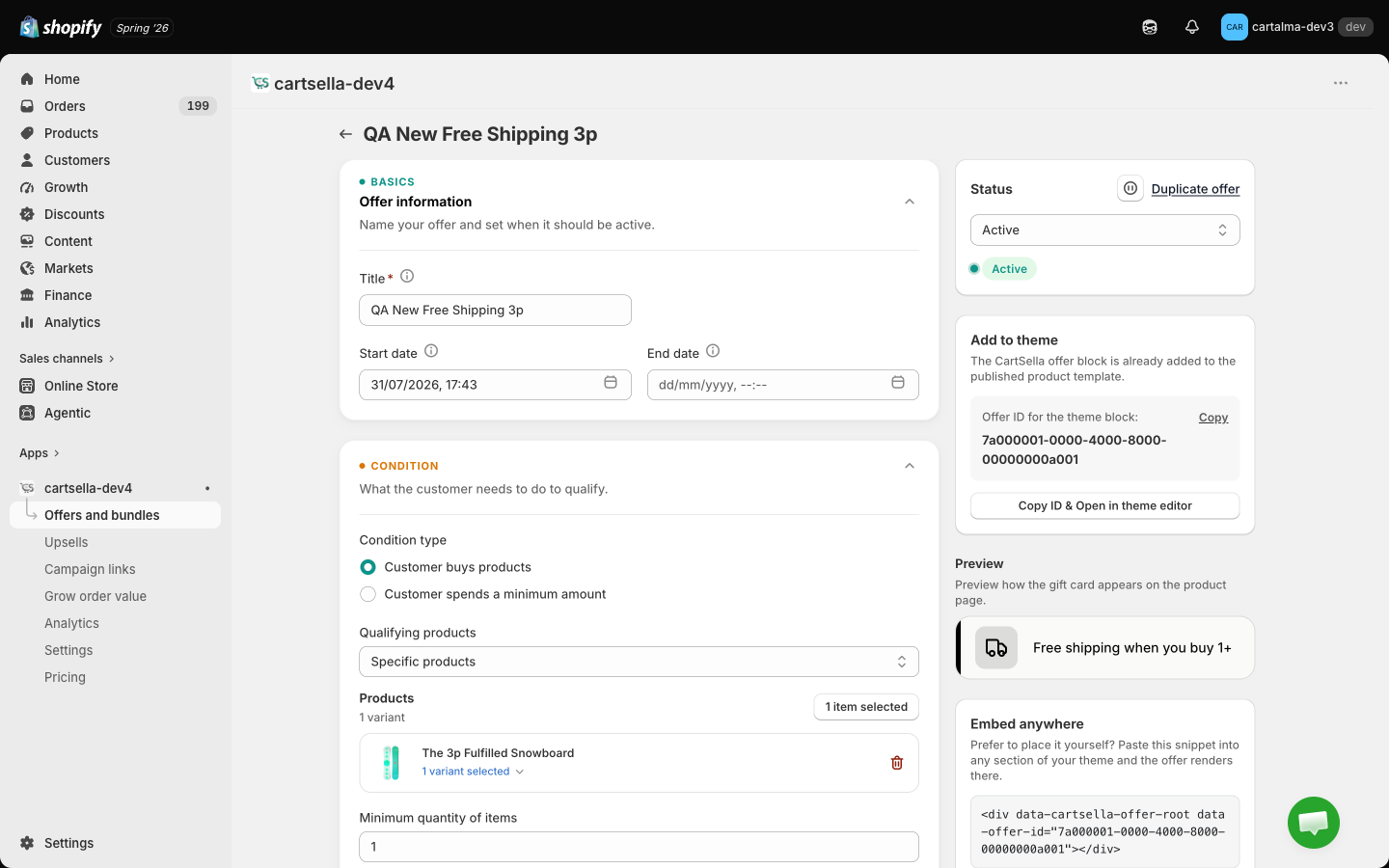
A pause reaches your storefront within a minute or so, not instantly. Give it a moment, and test in a fresh browser session rather than the tab you already had open.
When CartSella pauses something for you
Three things switch an item off without you doing it. Each one leaves a banner in the editor saying which, so you are never left guessing why a “Deactivated” item deactivated itself.The gift ran out of stock
The gift ran out of stock
A product the offer needs went out of stock, so the offer was switched off. The list shows it as Out of stock rather than a plain paused item.You do not have to do anything: it comes back on by itself once stock returns. If the product is not coming back, swap the gift for another one, or set an inventory fallback in the offer’s advanced options.
It reached its total usage limit
It reached its total usage limit
An offer with a total usage cap switches itself off the moment the cap is spent. Raise the limit or remove it, then set the status back to Active.Upsells with a total cap switch off the same way, but they carry no explanatory badge, so an upsell that “just went inactive” is worth checking against its cap first. See Advanced offer options.
A discount alert fired
A discount alert fired
An order came in discounted past your hard cap, so the offers behind it were paused. This one never resumes on its own, deliberately, so a bad configuration cannot quietly come back. Review the alert settings, fix the cause, then re-activate. See Settings.
Schedule an end date instead
If you already know when a promotion should stop, set the end date when you build it rather than trusting a calendar reminder. Both offers and upsells have a start and an end date in the editor.- Once the end date and time passes, the item stops on its own and shows as Expired
- To bring it back, set a new end date in the future and switch the status back to Active
- An empty end date means it runs until you stop it
Turn off the app embed
This is the single switch that stops everything CartSella displays on your storefront, without touching any of your offers.1
Open your theme
In your Shopify admin, go to Online Store → Themes and click Customize on your published theme.
2
Open App embeds
Click the theme settings icon at the bottom of the left sidebar, then open App embeds.
3
Turn CartSella off
Toggle CartSella — App embed off and click Save.
- Nothing CartSella renders appears: no offer or bundle blocks, no offers hub or floating bubble, no boost popup, no progress bar, no announcement bars or timers
- Free gifts are no longer added to carts, and gifts already sitting in a shopper’s cart stop being managed
- Campaign links stop working
- Analytics stops recording
The app embed is per theme. Turning it off on your published theme does not turn it off on a backup theme, and publishing a theme where it was never turned on has exactly the same effect as turning it off.
When you cross your plan’s monthly order limit
Every plan except Business includes a monthly order allowance. Your usage is on the CartSella dashboard and on Plans and billing, and you get an email at 80% and again at 100%. Crossing the limit blocks CartSella immediately. There is no grace window on the storefront.- Every CartSella block stops rendering, whether or not the app embed is on
- Your CartSella automatic discounts are removed from Shopify, so no shopper receives one
- Free gifts stop being added to carts
- The CartSella navigation collapses to Pricing, and every other page redirects there
- Your configuration is untouched. Nothing is deleted, nothing is reset to draft
Getting back to normal
Two ways out, and both restore everything on their own:Upgrade your plan
Upgrade your plan
Pick a plan with a higher allowance on Plans and billing. CartSella rebuilds your discounts and the blocks start rendering again within a few minutes. You do not need to re-save anything.
Wait for the window to reset
Wait for the window to reset
On a paid plan the count runs per 30 day billing cycle, aligned to your Shopify renewal date. On Free and on development stores it runs per calendar month, in UTC. When a new window opens the count returns to zero and everything is restored the same way.
Uninstall
1
Open your apps
In your Shopify admin, go to Settings → Apps and sales channels.
2
Remove CartSella
Find CartSella in the list, click Uninstall, and confirm.
What happens immediately
- Your CartSella automatic discounts are removed from Shopify, so no shopper receives one
- Free gifts stop being added to carts
- Every block and widget stops rendering, including the checkout and post-purchase surfaces
- The CartSella pages behind campaign links, offer pages and the bundle funnel are removed
- Analytics tracking stops
- The Shopify charge ends
What you do not need to clean up
You can leave the app embed toggle on and the CartSella blocks in your theme. With the app gone they render nothing, so they cost you nothing and no shopper sees anything. If you come back, they are already in place.If you reinstall
Reinstalling rebuilds your setup for you. CartSella recreates the automatic discounts, the delivery and cart rules, the storefront data behind your offers and upsells, and the CartSella pages, all without you re-saving a thing. Two things are still on you: turn the app embed back on for your published theme, and check your blocks are still where you want them.What happens to your data
Uninstalling does not erase your data straight away. Your offers, upsells, campaigns, settings and analytics history stay stored for a short period.- Reinstall within a couple of days and everything comes back as described above.
- After that, Shopify sends us a data erasure request for your store, as it does for every uninstalled app. When it arrives, everything belonging to your store is permanently deleted: offers, upsells, campaign links, settings and all analytics history. There is no undo, and reinstalling later starts from an empty account.
Still seeing something after you stopped it
If a discount or a widget is still showing after you paused, blocked or uninstalled, it is almost always one of these:- A cached page. Test in a new browser session rather than the tab you already had open
- A backup or unpublished theme that still has the app embed on, and got published
- Another discount app producing a similar looking discount, covered in Compatibility
- A shopper’s existing cart, built before the change, still holding a gift line