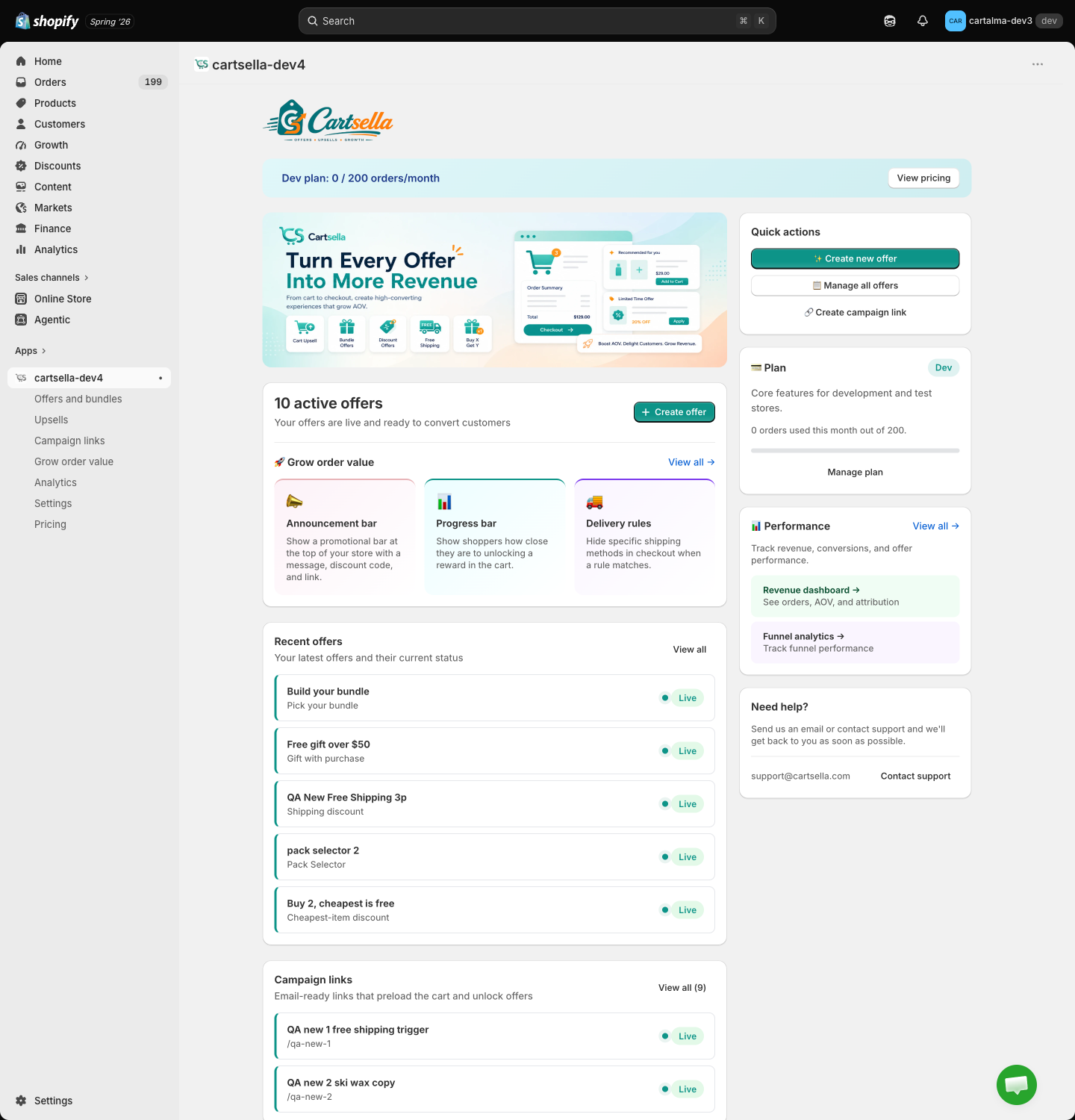
The sidebar
Everything in CartSella hangs off eight entries in the Shopify admin sidebar.Styling is not a top-level entry. It lives under Settings, then Storefront customization, because it is set once for the whole store rather than per offer. See Customize.
Banners at the top
Nothing shows here when everything is fine. Three things can appear.Monthly order limit reached
Monthly order limit reached
A red banner saying CartSella is locked. Crossing your plan’s monthly order allowance switches the storefront off: offers stop showing, the discounts are removed, and the create buttons across the app go grey. View pricing takes you to Plans and billing.
Approaching the limit
Approaching the limit
An amber banner as you get close, turning red as you cross. It quotes orders used, your allowance, and the percentage. Upgrading clears it immediately.
Development store
Development store
A soft blue strip naming the Dev plan and your order usage. Development stores stay on Dev, cannot be billed, and cannot change plan.
The headline card
The heading reads your offers and says one of three things.
Create offer sits on the right of this card.
Grow order value
Three shortcuts sit inside the same card, under a divider:- Announcement bar, store-wide messaging. See Announcement bars.
- Progress bar, showing shoppers how close they are to unlocking a reward. See Cart features.
- Delivery rules, hiding or renaming shipping methods at checkout. See Delivery rules.
Recent offers
Your latest offers, each with its type and current status, so you can see at a glance what is running. Clicking a row opens that offer. View all goes to the full list. If you have no offers yet, this card becomes Quick start templates instead, with three buttons for the fastest wins: Gift with purchase, Shipping discount and Volume discount. Each one opens the editor with that type already chosen.Campaign links
Email-ready links that preload the cart and unlock an offer. With no links yet, the card offers Create link. Once you have some, it shows your two most recent with their slug and status, plus a View all count. See Campaign links.Quick actions
Top of the right-hand column, three shortcuts that skip the navigation:- Create new offer
- Manage all offers
- Create campaign link
Plan
Shows your plan name, its one-line description, and orders used against your monthly allowance, with a bar underneath.- The bar turns amber as you approach the limit and red at it.
- At the limit the storefront is blocked: offers stop showing and the discounts are removed.
- The button reads Upgrade plan when there is a higher plan available, and Manage plan when there is not. Both go to Plans and billing.
The count is orders CartSella was attributed to, not every order in your store. See Plans and billing for exactly what counts.
Performance
Two routes into reporting rather than numbers on the card itself:- Revenue dashboard opens Analytics with orders, average order value and attribution.
- Funnel analytics opens the funnels view, which shows where shoppers drop out.
Contact support
The last card in the sidebar, with the support email address and a button that opens a message to us. Use it when something is behaving in a way Troubleshooting does not explain.Where to go next
Key concepts
The vocabulary the rest of these docs uses.
Theme blocks
Which block goes on which page.
Analytics
What each metric actually counts.
Troubleshooting
When something is not showing up.